

Try this in the studio
Put your character in a video in five steps
- 1
Make or pick your character picture
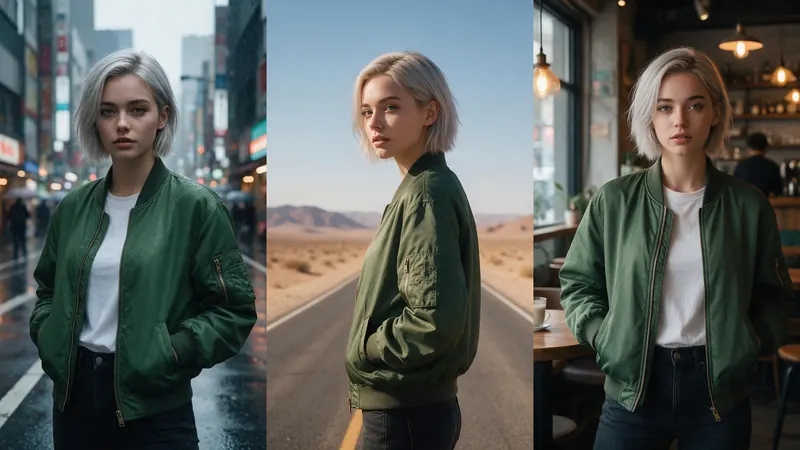
Use an original character you made, or a photo you have the rights to. A full-body picture on a plain background works well, because the model sees the outfit and the shape it must move.
- 2
Choose the mode
Motion transfer copies the moves, camera and timing of a clip onto your character. Object swap replaces one subject in a clip and keeps the rest.
- 3
Add the clip and the picture
Add MP4, MOV or WebM video files of up to 200 MB, and JPG, PNG or WebP pictures of up to 50 MB. You can add up to 8 pictures, for example several angles of the same character.
- 4
For object swap, say what to replace
Name the subject the way you would to a person: the man in the hat, the red car. Kitsune asks the model to change only that subject.
- 5
Generate and check
The Generate button shows the credits first. If a job fails, the credits come back automatically. Watch the result and change one thing if you need another try.
Object swap lines
Type what to replace in the swap box. Name one subject.
Person
The man in the grey jacket.
Product
The blue bottle on the table.
Vehicle
The red car on the left.
Motion transfer or object swap
Use motion transfer when you have a performance you like, such as a dance, a walk or a fight, and want your own character to perform it. The result keeps the camera and the timing.
Use object swap when the scene is right and one subject should change. The motion, the camera, the light, the background and the timing stay as they were.
Cost, length, size and phone
On Kitsune Max, a 5-second clip at 720p costs 27 credits, 10 seconds costs 54, and a 5-second clip at 1080p costs 60. The Generate button shows the exact cost for your clip before anything is charged. The clip you add must be at least 4 seconds long, and Kitsune uses up to the first 30 seconds. The result is as long as the part it used.
Kitsune renders at 720p and 1080p on a paid plan, and Pro, Max and Business plans also render 4K. If you see the Lite, Pro and Max buttons in Kitsune, Lite and Pro take clips up to 15 seconds and Max takes up to 30.
You can start from a phone browser, because KreatorFlow is a web studio with no app to install. Pick the clip and the picture from your camera roll. A computer is easier for trimming a long clip first and for checking the result on a bigger screen.
Rights and consent
Use only clips and characters you own or have the rights to use. Putting a real person into a video needs their consent.
Impersonation is not allowed. The Acceptable Use Policy lists what is still not allowed.