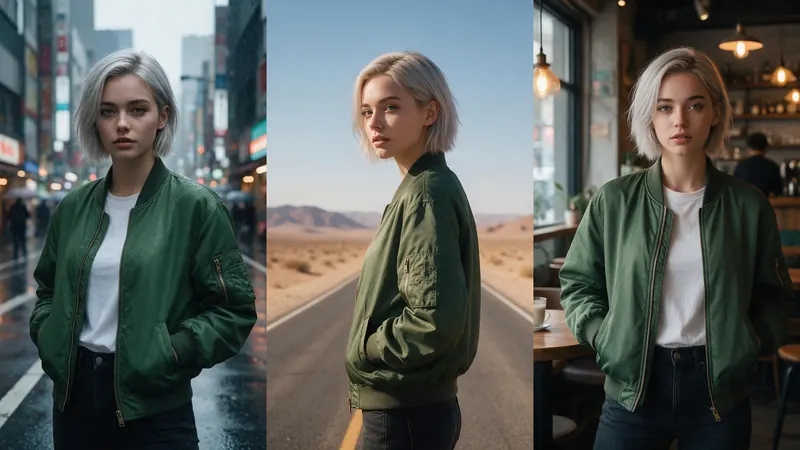


Get started
Edit a photo without changing the face, in five steps
- 1
Add a sharp photo
Open the AI image editor and add your photo. A sharp photo with the face in clear light gives the editor the most to hold on to.
- 2
Paint the area to change
Press Paint an area and paint over the background, or over the shirt, jacket or dress. Painting tells the editor where the change goes, so the rest of the picture is left alone.
- 3
Describe only the change
Write what the painted area should become: a beach at sunset, a plain studio wall, a navy blazer, a red dress. Do not describe the whole picture again.
- 4
Add a keep line
End with: keep the face, hair, skin tone and pose exactly the same. This is the line that protects the face.
- 5
Check the face, then change one more thing
Compare the face with your original. If it moved, run the edit again with a smaller painted area. Do the next change as a new edit, one thing per edit.
Edit prompts that leave the face alone
Paint the area first, then paste one.
New background
Change the background to a quiet beach at sunset. Keep the person, the face, the hair and the pose exactly the same. Match the light on the person to the new background.
New clothes
Change the shirt to a navy blazer over a white t-shirt. Keep the face, the hair, the skin tone and the pose exactly the same.
Plain studio
Replace the background with a plain light grey studio wall. Keep everything on the person exactly the same.
Why the AI changes the face
An image editor does not cut and paste. It redraws the picture from your photo and your words, so anything in the prompt, or anything not protected, can be redrawn a little. A broad prompt such as make it look better gives it licence to change the face.
The fix is to narrow the job: paint only the area you want to change, describe only that change, and say what to keep.
- Paint only the area that changes
- Describe one change per edit
- Add a line that names the face, the hair and the pose
- Start from a sharp, well lit photo
Tips for a clean result
A new background looks right when the light matches, so say what the light is. For clothes, name the garment, the colour and how it is worn. If a face still shifts, run the edit again, because each run gives a new result.
Photos of real people
Only use photos of people who agree to it, and photos you took or have the right to use. The model may refuse some photos of real people.
Editing a photo of a real person can show an upgrade prompt, and the editor tells you when it does.
What it costs
The editor shows the credits for an edit before you press the button, and if a job fails, the credits come back automatically. Leftover plan credits carry into the next paid month.