

Try this in the studio
Photo to video in five steps
- 1
Pick a clear photo
A sharp photo with one clear subject works well. Avoid heavy filters and tiny faces in a crowd. Use a photo you own or have the right to use.
- 2
Add it in the video studio
Open the studio and add the photo. You can add up to 9 images in one clip if you want the model to see more than one angle.
- 3
Describe the motion, not the picture
The model can already see the photo. Write what moves: the camera, the wind, the water, the person's head. Keep it to two or three sentences.
- 4
Match the shape
Choose a size that fits the photo: 16:9, 4:3, 1:1, 3:4, 9:16, 21:9 are available. Pick the shape you plan to post in.
- 5
Generate and compare
Start with 5 seconds. If the motion is too much or too little, change one line and run it again.
Motion prompts for a photo
Add your photo, then paste one of these.
Portrait
The camera moves in slowly. Her hair moves a little in the wind and she turns her head toward the camera and smiles.
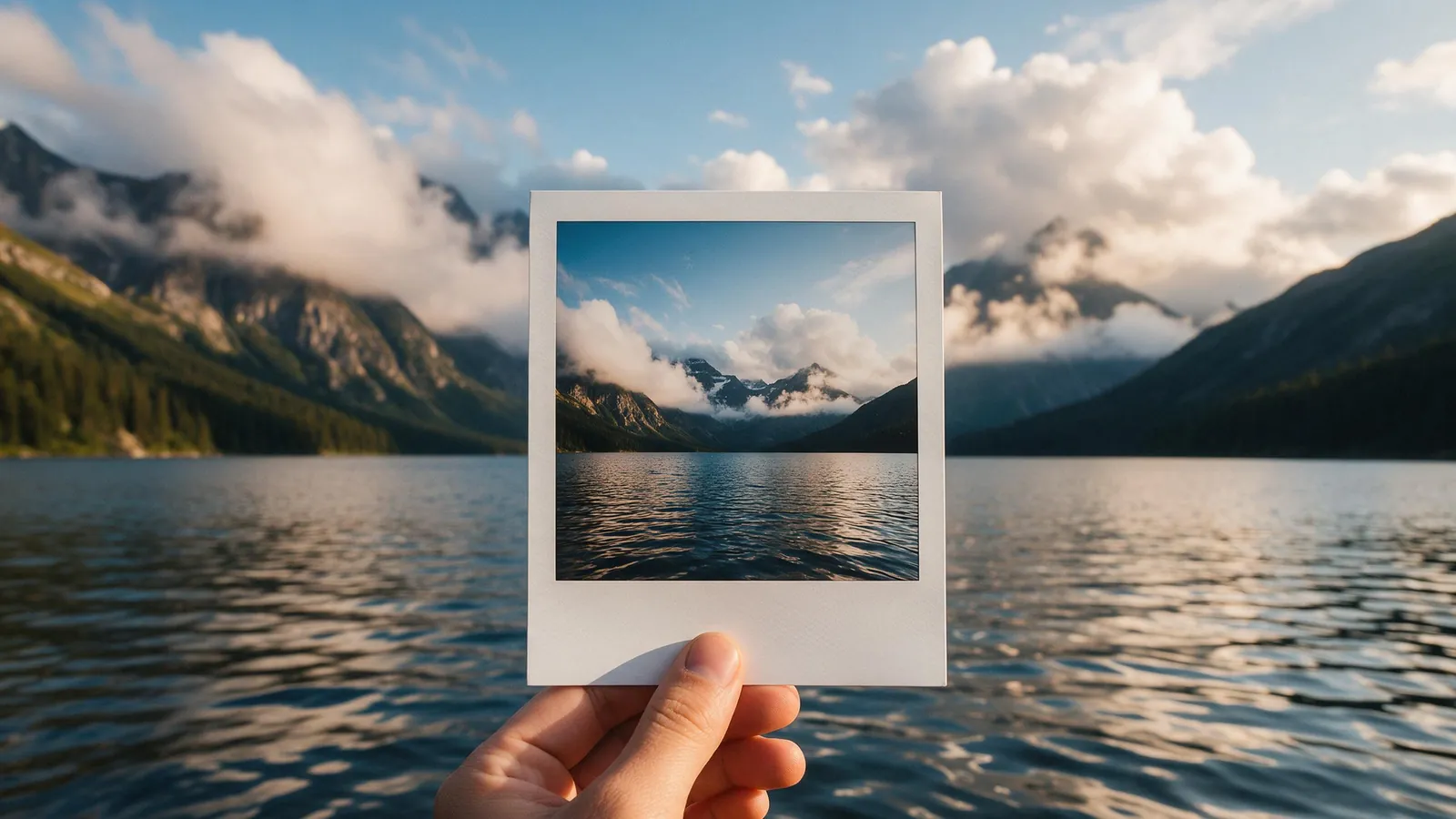
Landscape
Clouds move across the sky and the water ripples. The camera drifts slowly to the right. Soft sound of wind and waves.
Pet
The dog looks around, then lifts its head and wags its tail. The camera stays still.
Product
The camera circles the product slowly. Soft light moves across its surface. No other movement.
What works and what does not
Gentle motion is the safest: a slow camera move, wind, water, light, a small head turn. Large changes such as turning a person all the way around or adding many new objects are harder to hold together.
If a hand or a face looks wrong, make the motion smaller or shorten the clip. A 4 or 5 second clip has less room to drift.
Keeping the look of the photo
Say what must not change: the outfit, the colours, the background. One short line is enough, for example: keep the same clothes and the same background.
If you want the photo to talk or sing, use the lip sync tool instead. It is made for faces and speech.
Credits
A 5-second clip at 720p is 26 credits on Seedance 2.5 and 17 on Seedance 2.5 Flash. The studio shows the exact number before you press generate, and a failed generation returns its credits.
From code
The developer API takes a photo and a prompt too, if you want to run many photos at once.