Official BytePlus partnerBuilt on BytePlus, ByteDance's official AI platform
Guide · Face Swap
AI face swap: how it works and how to use it well
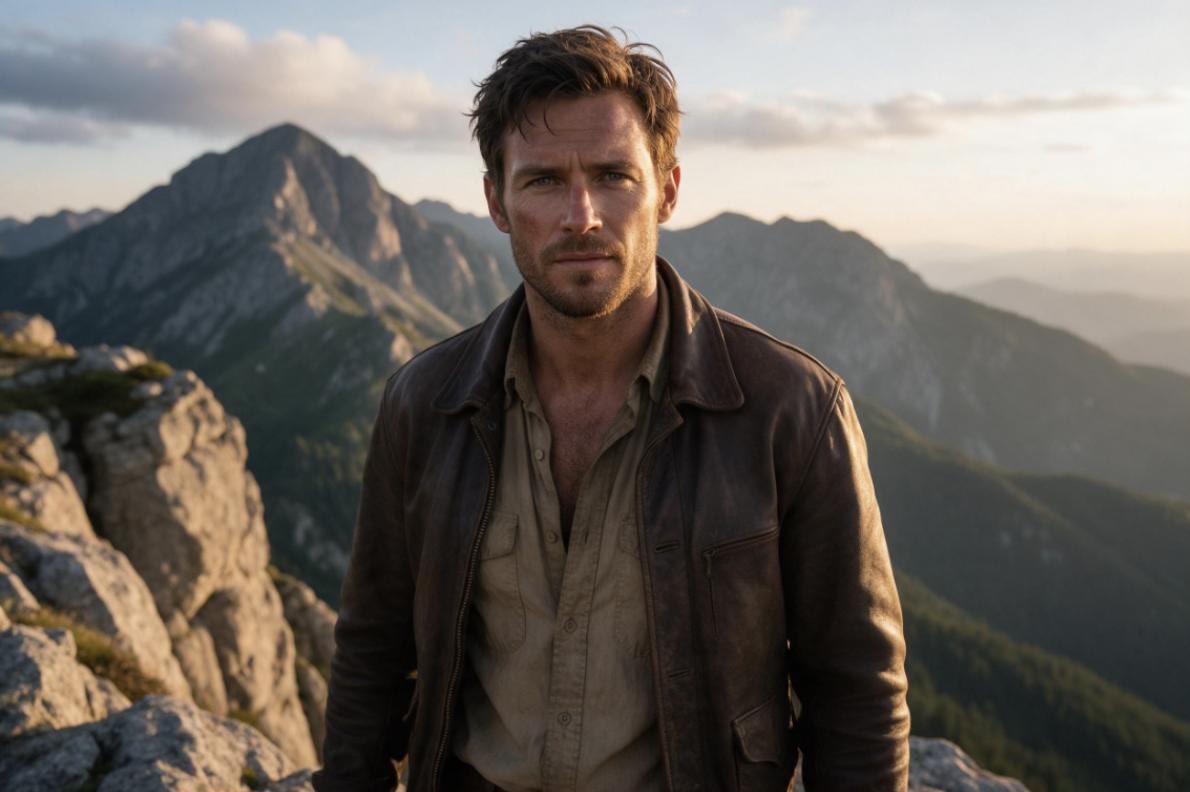
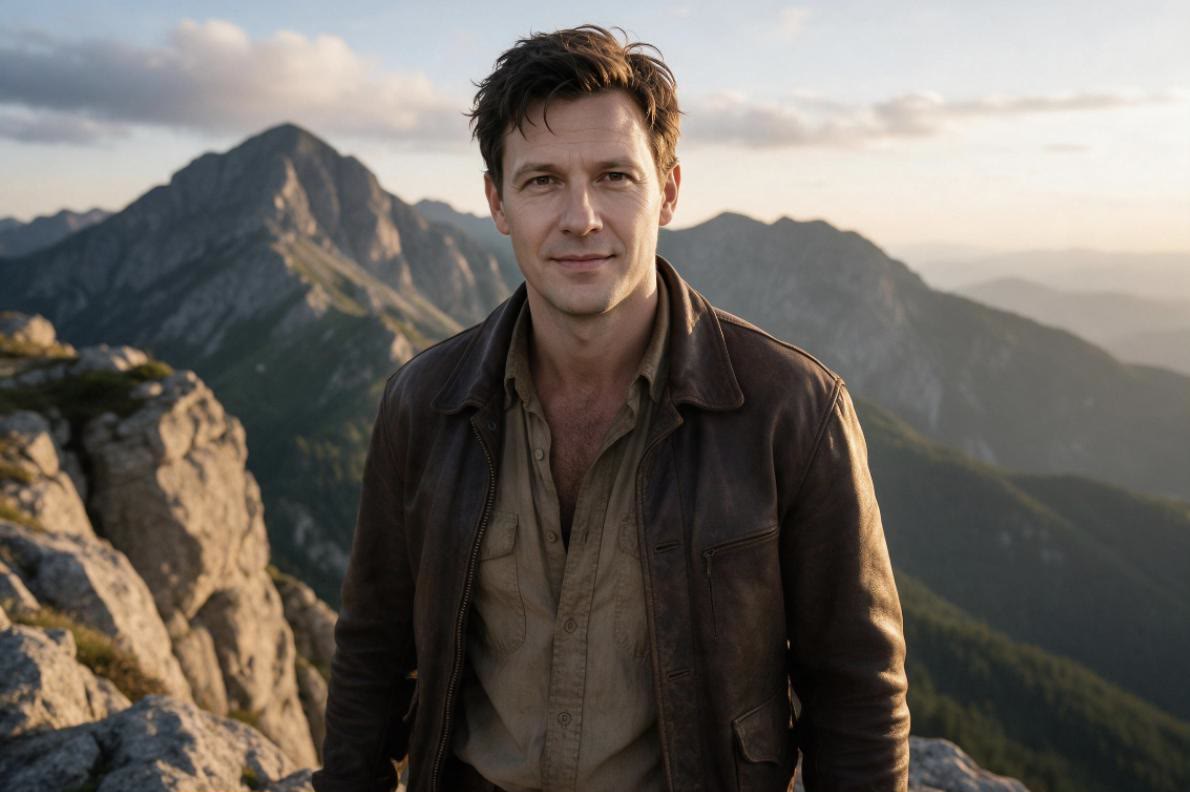
How to swap a face in an image with AI on KreatorFlow: the step-by-step flow, which photos work best, what it costs (4 credits) and the rules for responsible use.
- 4 credits per image
- JPG, PNG or WebP up to 50 MB
- Only the face changes
- Video too
Short answer
Face Swap replaces the face of one person in your image with the face from another photo, and keeps everything else as it was: hair, clothes, background and lighting. Add the image to change and a clear photo of the new face, pick which face to change and press Swap face. Each swap costs 4 credits, and failed swaps are refunded automatically. Only use faces you have the right or permission to use.
Updated:
How to swap a face in KreatorFlow, step by step
- 1
Open Face Swap
In the Image menu, choose Face Swap. On the left you get two slots: the image to change, and the new face.
- 2
Add the image to change
Upload a JPG, PNG or WebP of up to 50 MB, or pick one of your own creations from My images. This is the picture whose face will be replaced.
- 3
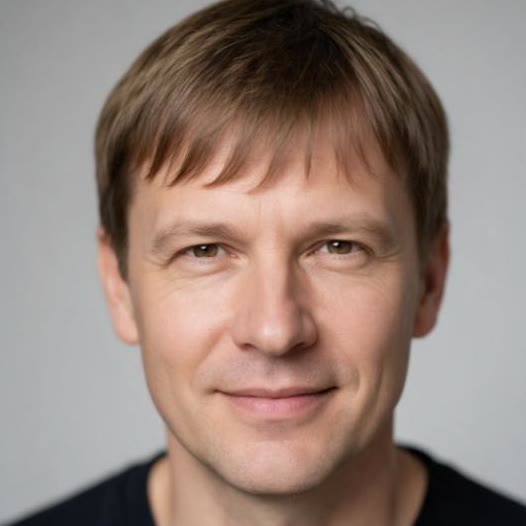
Add the new face
A clear, front-facing, well-lit photo of the face you want to use. If that photo has several people in it, the studio tells you: one clear face gives the best result.
- 4
Pick the face to change
The studio finds the faces in your image right in your browser. With more than one person, tap the one to change. If the face you want is not picked up, press Select the face myself and drag a box from forehead to chin.
- 5
Press Swap face
The button shows the cost: 4 credits. When the swap is done, download it or find it later in the History tab. If a swap fails, the credits go back to your balance automatically.
Examples made on KreatorFlow
These are the same examples the studio shows. Both the pictures and the faces are AI-generated, so no real person appears in them.
Portrait: the face changes, the hair, clothes and scenery stay
Before After 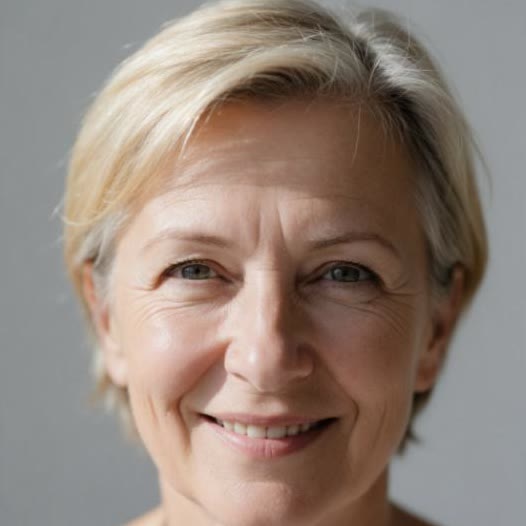
Two people: only the face you pick changes
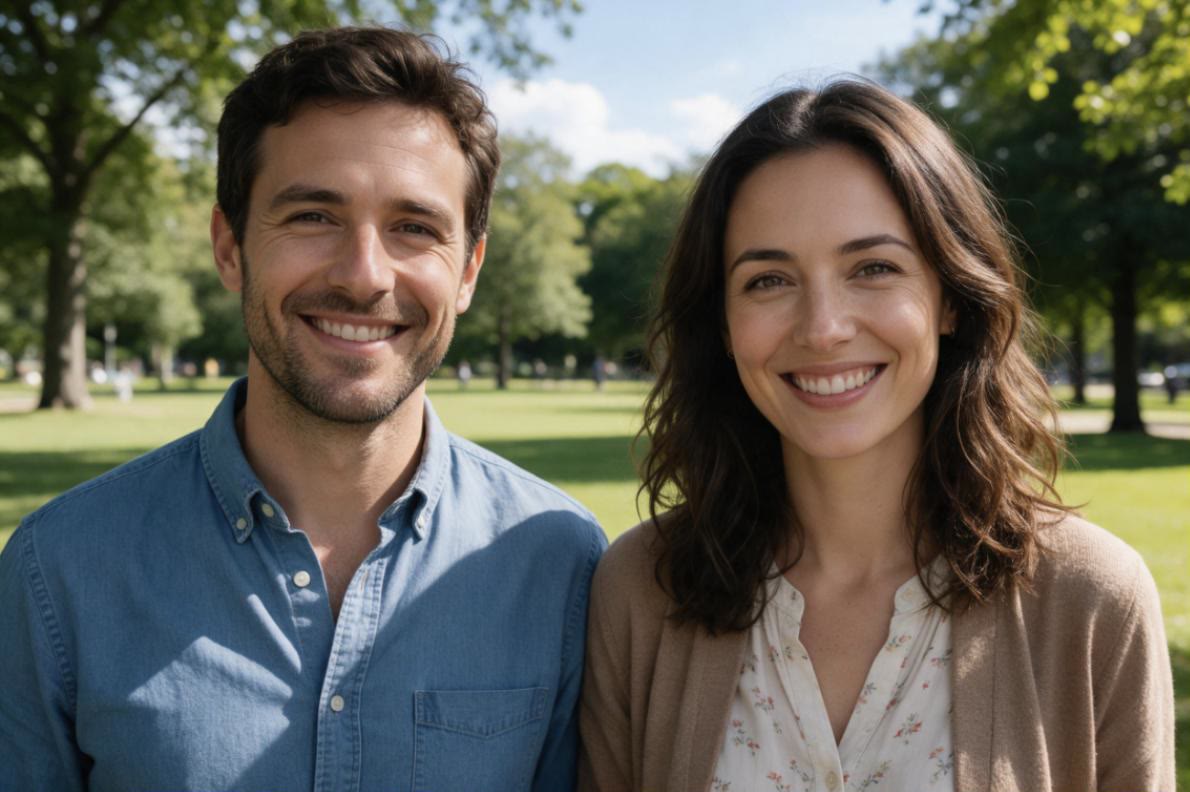
Before 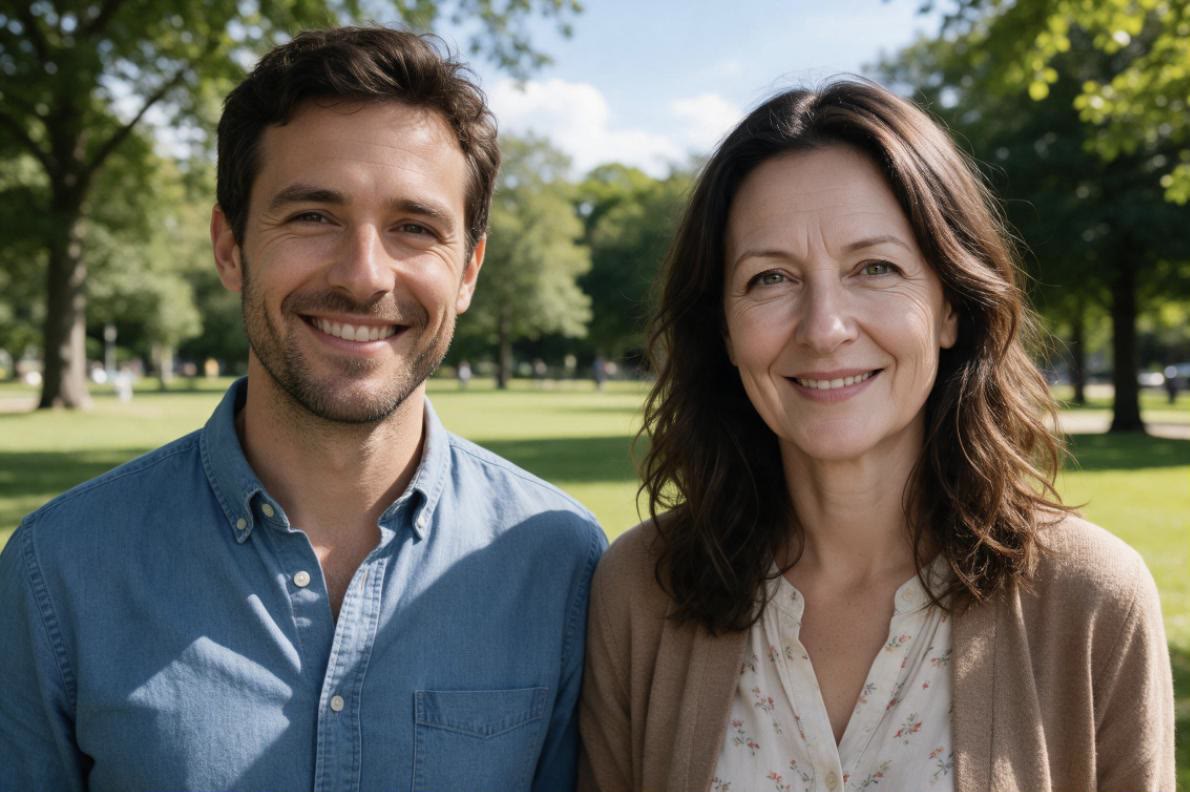
After 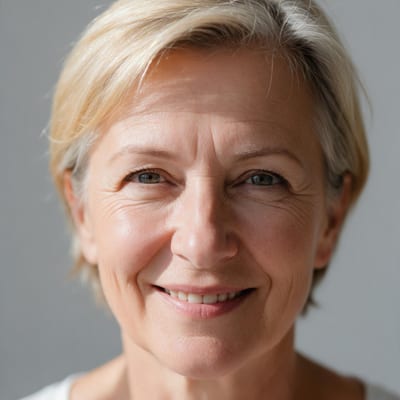
Group of four: the face was chosen by drawing a box
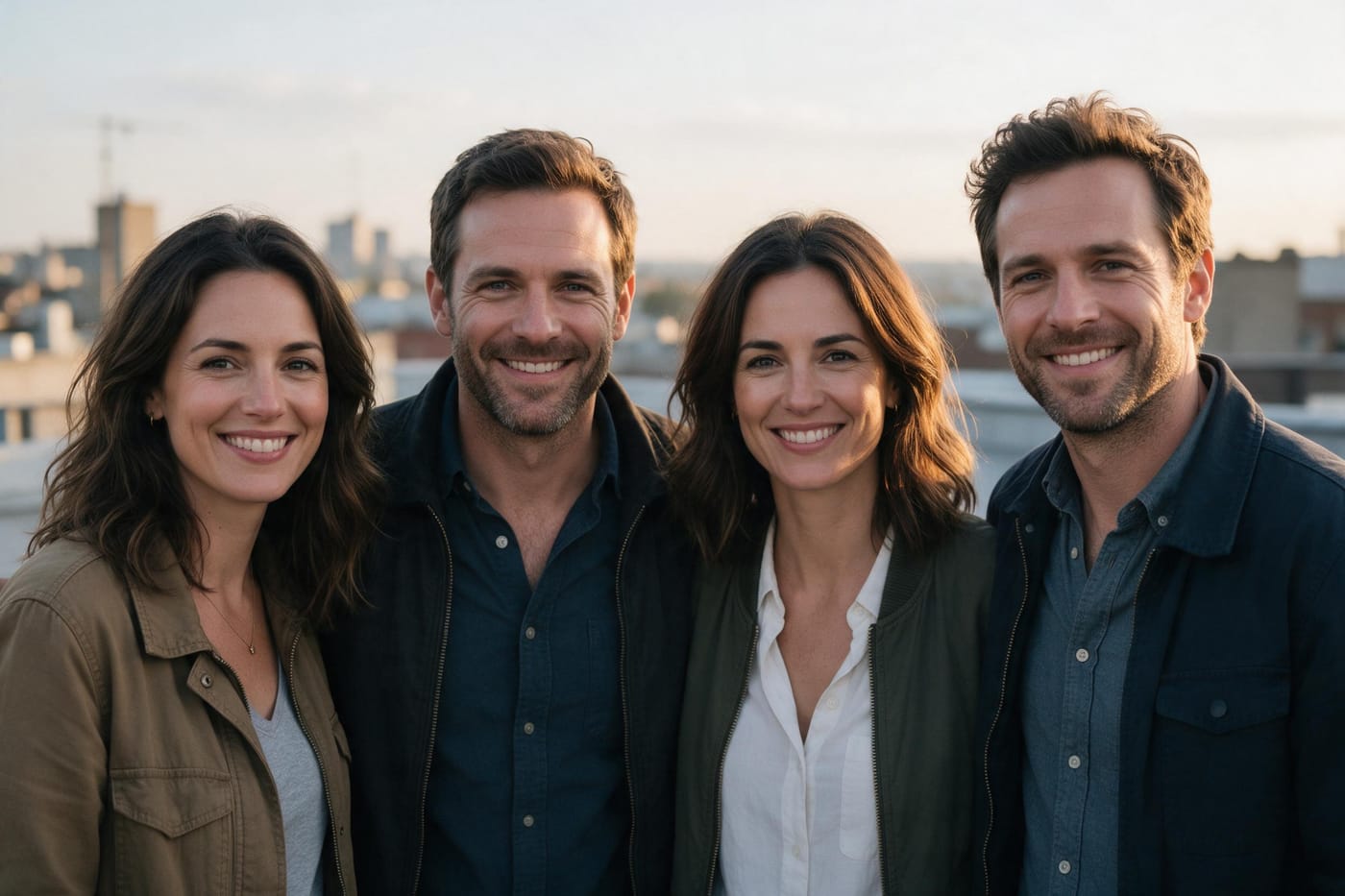
Before 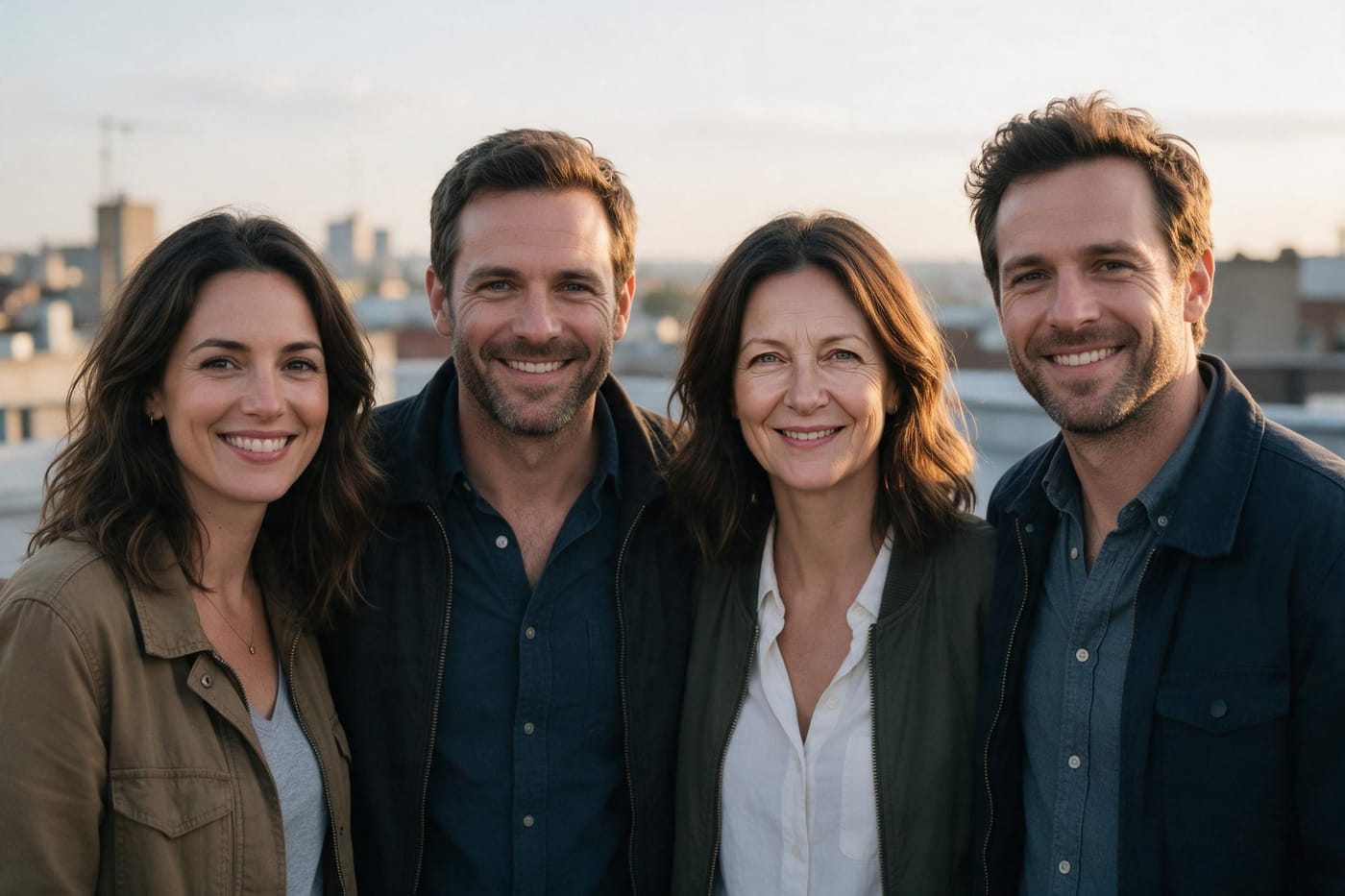
After
What it costs
Credits come from the same code the studio charges with. New accounts get 10 one-time starter credits, enough for 2 image swaps of AI-made pictures (photos of real people need an upgraded account).
| Job | Credits |
|---|---|
| Image face swap | 4 |
| Video face swap, 4 s at 720p | 22 |
| Video face swap, 4 s at 1080p | 32 |
| Video face swap, 10 s at 720p | 54 |
| Video face swap, 10 s at 1080p | 80 |
| Video face swap, 30 s at 720p | 160 |
| Video face swap, 30 s at 1080p | 240 |
What AI face swap is
A face swap takes the face of one person in an image and replaces it with the face from another photo. Older tools cut and pasted, and it showed: the lighting did not match, the skin tone jumped at the edge, and the head angle looked off.
An image model redraws the new face inside the scene instead. It follows the light, shadows, head angle and focus of the original picture. The hard part is keeping the model from touching anything else, which is why Face Swap does not ask it to redraw your whole image, only the face.
That makes it useful for much more than a joke: you can keep a character's face consistent, put yourself into a scene you generated, or show the same consenting model in several shots. It also makes it easy to misuse, which is why the rules section below matters as much as the tips.
What happens when you press Swap face
First, the studio cuts a square around the head you picked, about 2.4 times the size of the face, and sizes it to between 768 and 1536 pixels a side. The face then fills most of what the model sees, even when it is small in a full-body or group shot.
Next, Seedream 5.0 Pro swaps the face in that crop, with a fixed instruction: the person must clearly be the one in the new photo (eyes, eyebrows, nose, lips, jawline, face shape, age and skin tone), while the hair and hairline, head pose, glasses, body, clothing, background and lighting of your image stay the same. The art style is kept too: a photo stays a photo, and a painting or drawing stays in that style. KreatorFlow is an official BytePlus partner.
Finally, only the face area is pasted back onto your original image, with a soft edge that follows the outline of the face so the hair is never replaced. Everything outside the face stays pixel-identical. If no face is found, for example in a heavily stylised drawing, the swap runs on the whole picture instead.
Which photos work best
Most of the result depends on the photo of the new face. The more of that face the model can see clearly, the closer the likeness. These tips come from how the tool works and from what the studio itself warns about:
- For the new face: front-facing, evenly lit, sharp, and with nothing covering it (hands, hair, sunglasses or a mask).
- One person in the new-face photo. With several, the model can pick up features from the wrong person.
- In the image you change, a larger face is better. A face smaller than 2% of the image's short side is too small to swap reliably: crop the image or use a closer shot.
- Side views, deep shadow and very small faces are harder and may look less alike.
- The hair comes from your image, not from the new face. If you want a different hairstyle, choose a target picture that already has it.
- Phone photos are turned upright automatically. Images over 48 megapixels cannot be processed.
Photo or video
Face Swap also works on video: in the Video menu, choose Face Swap. Add a clip of 4 to 30 seconds (MP4, MOV or WebM, up to 200 MB) and a headshot of the new face. The studio finds the faces on the first frame; with several people, tap whose face changes, or describe the person.
The difference from images: in a video, that person gets the new face and its hair, while their moves, lips, clothes, the background and the sound of your clip stay as they were. Add up to 4 headshots of the same face from different angles for a closer likeness. It runs on the Kitsune engine and, like all video, starts on the Creator plan; Pro, Max and Business also render 1080p and 4K. The cost depends on the clip length and resolution, and the button shows it before anything is charged.
What people use it for
Uses that fit the tool well, always with faces you have the right to use:
- Creative edits: put yourself into a scene you generated, an imaginary film poster or a portrait from another era.
- Memes and jokes with your own face, or with friends who are happy to be in them.
- Characters: keep the same face on an invented character across many images. You can pick your own creations as the target or as the new face.
- Product and marketing: show the same model, with their consent, in several shots or settings without reshooting.
- Illustration: change the face in a drawing or painting and keep its style.
Responsible use: the rules
Swapping a face changes who appears in a picture, so Face Swap comes with clear rules. They come from our Acceptable Use Policy and from the checks the studio runs on every swap.
If you see content that breaks these rules, report it to support@kreatorflow.ai.
- Only use faces you own or have permission to use. The policy says not to upload another person, celebrity or public figure without the rights and authorisation needed, and you are responsible for the consents and the likeness and publicity rights behind what you make.
- No impersonation or deception: the policy prohibits fraud, phishing, impersonation and misleading commercial activity.
- No sexual content of real people: non-consensual intimate imagery and sexual deepfakes are prohibited. Face Swap refuses any image with nudity or sexual content, drawings included.
- No minors: Face Swap refuses images of children or anyone who looks under 18. When there is doubt about age, the person is treated as under 18.
- Both images are checked before any credits are reserved, and the result is checked before it is delivered. If the check cannot run, the swap does not start; if a result is stopped, the credits are refunded.
- Photos of real people need an upgraded account: any plan or credit pack unlocks it.
- When the policy is broken we may remove content, restrict features, suspend or terminate accounts, and report serious illegal content to the authorities.
Face Swap
Swap a face in your own image
Two images, one click, 4 credits. Only the face changes, and if anything fails the credits come back.
Frequently asked questions
How much does a face swap cost?
4 credits per image. New accounts get 10 one-time starter credits, enough for 2 swaps of AI-made pictures. If a swap fails or the safety check stops it, the credits are refunded. Video face swap is priced by clip length and resolution, and the cost is shown before you start.
Does it change the hair or clothes?
Not on images. Only the face area is replaced; the hair, clothes, background and lighting of your image stay exactly as they were.
Can I swap one face in a group photo?
Yes. The studio detects the faces and you tap the one to change. If a face is not picked up, draw a box around it with Select the face myself. Only the face you choose changes.
Does it work on drawings or anime?
Yes. The swap keeps the image's own style. When no face is detected, draw the box yourself or let the swap run on the whole picture.
Can I use a celebrity's or someone else's face?
Only if you have the rights and permission needed. The Acceptable Use Policy does not allow uploading another person, celebrity or public figure without them, and it prohibits impersonation and sexual deepfakes.
Why was my swap refused?
The safety check stops any image with nudity or sexual content and any image of someone who looks under 18. If the check cannot run, the swap does not start either. Nothing is charged in these cases.
Which file types work?
JPG, PNG or WebP images up to 50 MB each. You download the result as a JPG, and it stays in your History.
Try Face Swap
Each image swap costs 4 credits, and failed swaps are refunded automatically. Only use faces you have the right or permission to use.