


Try this in the studio
How to get text that reads
- 1
Choose a shape that fits the layout
3:4 or 2:3 for a poster, 4:3 for a menu board, 16:9 or 21:9 for a banner. The studio offers 1:1, 3:4, 4:3, 2:3, 3:2, 9:16, 16:9 and 21:9.
- 2
Quote every word
Type each piece of text in quotes, exactly as it should appear, with its case and punctuation. Name the language when you mix scripts ("Japanese dish names with small English names under them").
- 3
Say where each block goes
"Title across the top", "date line under the title", "small text bottom left". Short blocks of a few words come out cleaner than long paragraphs.
- 4
Pick 2K for the smallest text
More pixels help tiny lettering. 2K costs 2 credits instead of 1 credit.
- 5
Proofread and fix one line at a time
Read every word. If one line is wrong, edit with a prompt that names only that line and its correct wording.
Text examples made with Seedream 5.5
A poster with small corner text, a hand-lettered window sign and a bilingual Japanese and English menu.
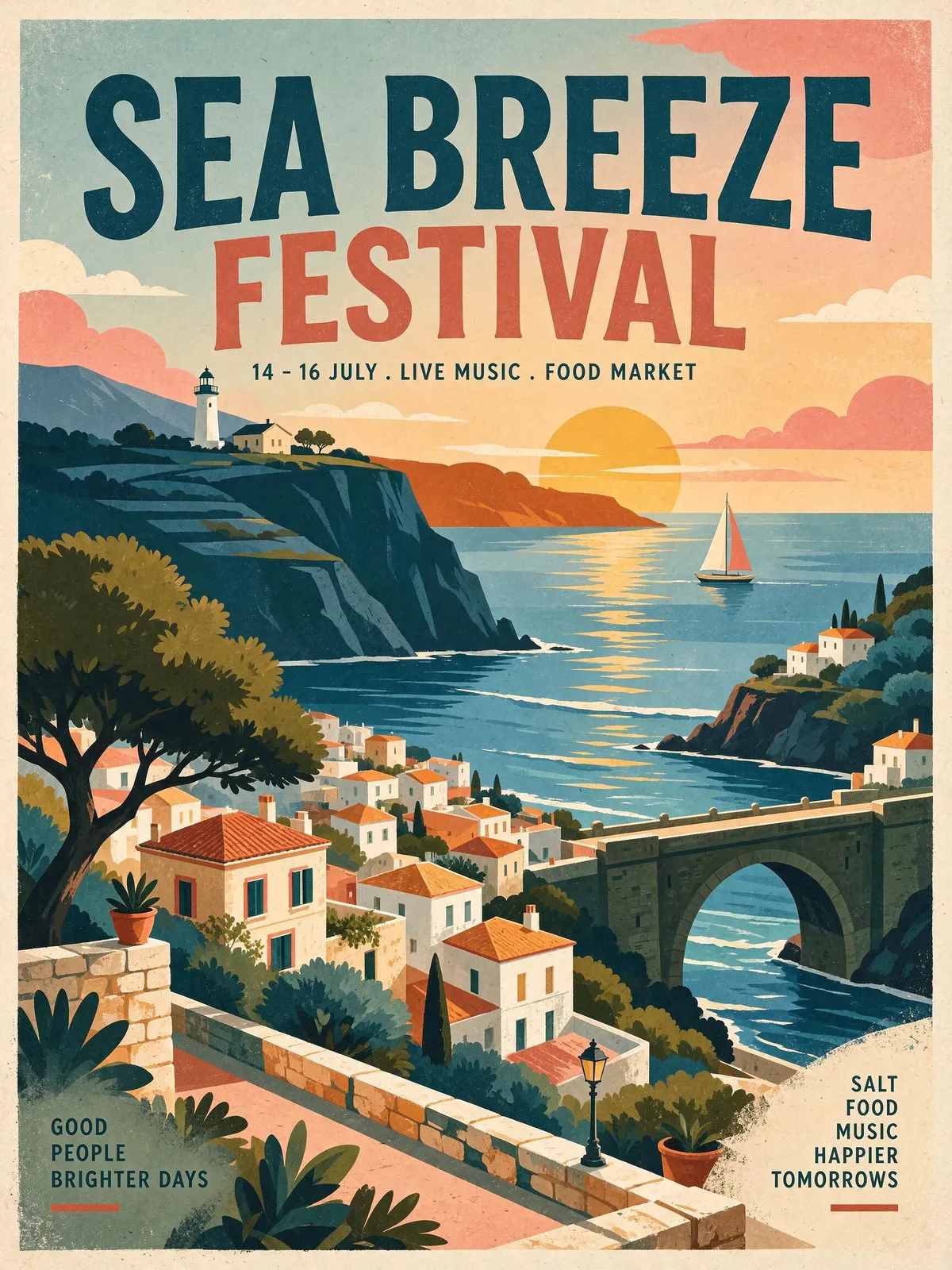
Poster with a headline, a date line and two small corner blocks of text, all spelled correctly. 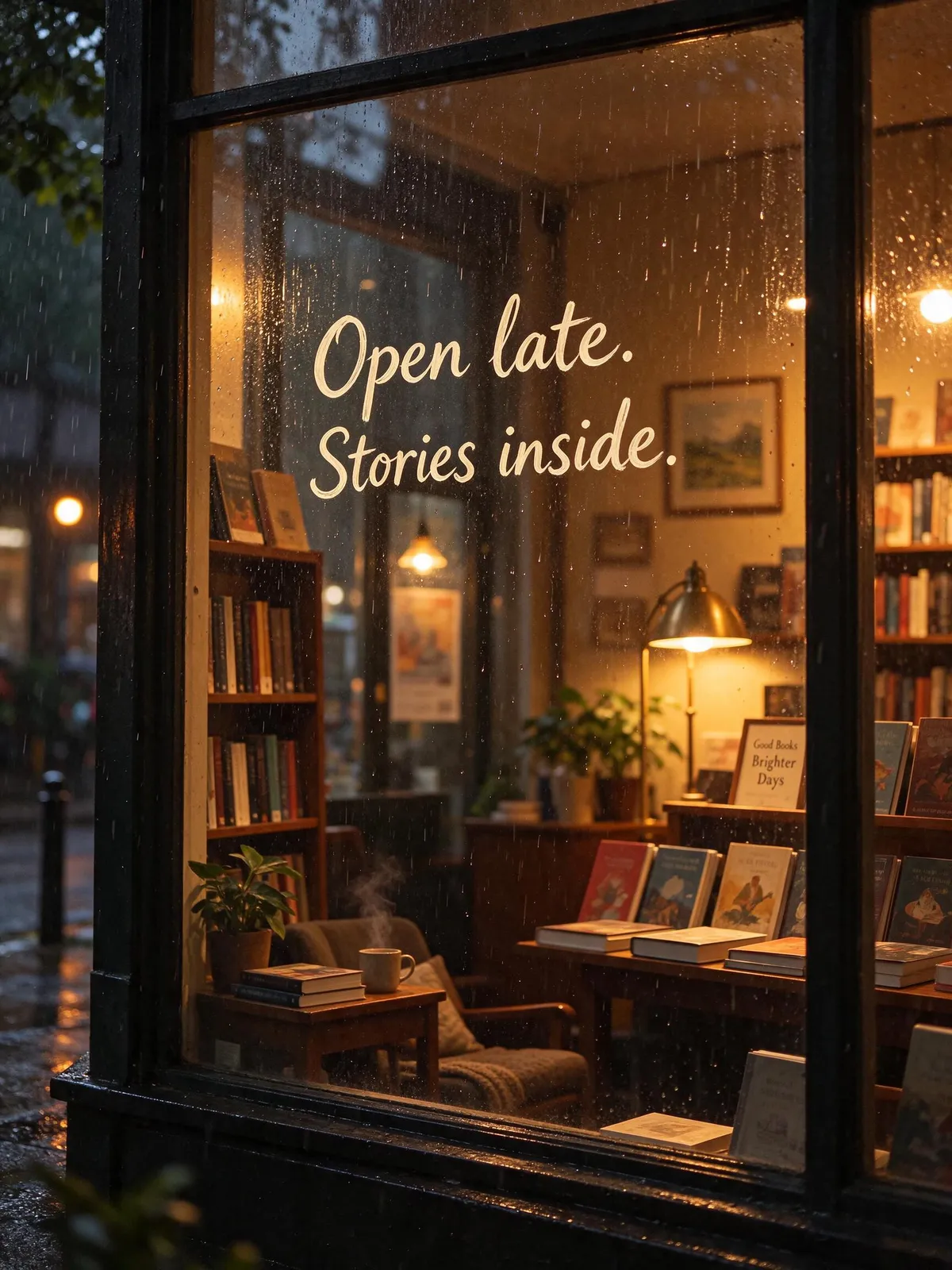
Hand-lettered window sign: "Open late. Stories inside." in script on wet glass. 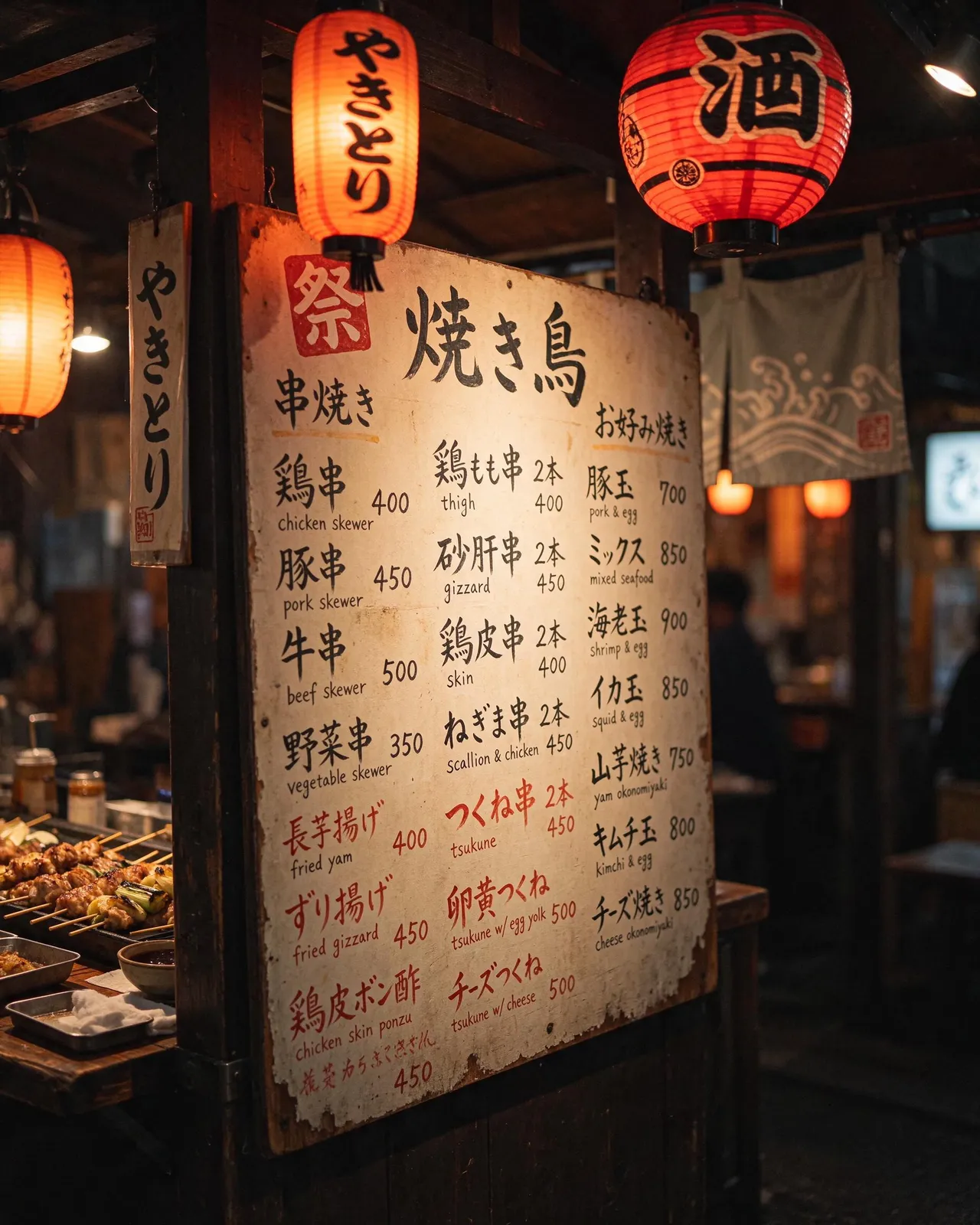
Bilingual menu: Japanese dish names with small English names and prices under them.
Text prompts to copy
Festival poster
Retro screen-printed travel poster, 3:4. Big title across the top: "SEA BREEZE FESTIVAL". Under it in small capitals: "14 to 16 JULY · LIVE MUSIC · FOOD MARKET". A coastal village, a lighthouse and a sailing boat at sunset. Bottom left in small text: "GOOD PEOPLE BRIGHTER DAYS".
Bilingual menu board
Hand-painted menu board at a night food stall, lit by red paper lanterns. Japanese dish names in brush lettering, each with a small English name and a price under it: 焼き鳥 "chicken skewer" 400, 豚串 "pork skewer" 450, 野菜串 "vegetable skewer" 350.
Shop window sign
Rainy evening, a bookshop window seen from the street. Painted on the glass in white script: "Open late. Stories inside." Warm lamps, shelves and a reading chair behind the glass.
Product label in two languages
Close-up of a glass jar of honey on a wooden shelf. Kraft paper label with "Wildflower Honey" in English and "Miel de fleurs sauvages" in French underneath, small "250 g" at the bottom. Soft window light.
What works and what to check
Short headlines, date lines, prices and two or three words per block come out reliably. The more text you ask for and the smaller it is, the more you need to proofread. Mixed scripts work, as our Japanese and English menu shows, but check characters you cannot read yourself with a native speaker before you print.
- Quote the exact words, with punctuation
- One idea per text block, a few words each
- Name the language for each block when you mix them
- Use 2K for very small lettering
- Proofread every line, then fix single lines with an edit
Change the words afterwards
With Layers you can split a finished poster into its parts, then re-word, move or resize a text layer without making the whole image again.