On this page
- Short answer
- How to make the Hotel Lobby AI video, step by step
- Prompts for the Kitsune prompt box
- Which Kitsune option gives which result
- What a Hotel Lobby clip costs in Kitsune
- What is the Hotel Lobby AI trend?
- Who can you put in it, and what about the song?
- Should you use object swap, motion transfer or face swap?
- How do you prepare the photos?
- What versions can you make?
- Is the Hotel Lobby AI trend free on KreatorFlow?
- How do you post it so it does well?
- Why do results go wrong, and how do you fix them?
- What if your clip is refused?
- Frequently asked questions
Short answer
To make the Hotel Lobby AI trend, save the Hotel Lobby clip, trim it to the part you want (4 to 30 seconds), open Kitsune's Object swap, add one clear photo per performer as Image 1 and Image 2, and say who replaces whom. Only use people who agreed, then add the song from TikTok's or Instagram's sound library.
Try this in the studio
How to make the Hotel Lobby AI video, step by step
- 1
Get your clip ready
Save the Hotel Lobby clip from TikTok, Instagram or YouTube (the original performance or any trend video you like). Trim it to the part you want, between 4 and 30 seconds (Kitsune uses the first 30 seconds of anything longer), and crop it to 9:16 if you want a vertical post, because Kitsune keeps your clip's framing. MP4, MOV or WebM up to 200 MB.
- 2
Pick two photos of people who said yes
One photo per performer: you and a friend, you and your partner, or two pets. JPG, PNG or WebP, up to 50 MB each. Waist-up or full-body photos work best for object swap, because the new performer's face, hair, body and clothes all come from the photo.
- 3
Open Kitsune on Object swap
In Kitsune, choose the Object swap tab. Drop your clip into the Video slot, then add the first photo and the second photo to the New subject slot. Each tile shows its number: the first is Image 1, the second is Image 2.
- 4
Say what to replace and who goes where
Type "both performers" in What to replace. In the Prompt box, say which image takes which side, for example "Image 1 replaces the person on the left and Image 2 replaces the person on the right." When your prompt names the images, Kitsune follows it.
- 5
Choose a resolution and check the cost
Pick 480p, 720p, 1080p or 4K (1080p and 4K on Pro, Max and Business). The Generate button shows the exact credits before anything is charged: a 15-second clip at 720p is 80 credits.
- 6
Generate, check and download
Press Generate. A 15-second clip at 720p usually takes about 6 minutes, and it finishes in the background if you leave the page. Watch it to the end, check both faces and the hands, then download it from your history.
Prompts for the Kitsune prompt box
Paste one into Kitsune's Prompt box (up to 1,800 characters) and put the matching words in What to replace. Kitsune already keeps the clip's moves, camera and framing, so your prompt only says who goes where. Don't type @ in Kitsune: pick saved characters in the image slot instead.
Two people (Object swap, What to replace: both performers)
Image 1 replaces the person on the left and Image 2 replaces the person on the right. Keep every move, the lip movement, the camera and the lobby exactly as in the clip.
Couple, in your own outfits
Image 1 replaces the person on the left and Image 2 replaces the person on the right, each wearing the outfit from their own photo. Keep the lighting and the timing of the clip.
Two pets in the booth (Object swap)
Image 1, the cat, replaces the person on the left and Image 2, the dog, replaces the person on the right. Each animal copies the person's moves and head turns and stays the same size in the frame.
Saved characters (pick them in the New subject slot)
Image 1 replaces the person on the left and Image 2 replaces the person on the right. Keep each character's face, hair and style exactly as in their image, in every frame.
Your brand mascot plus you (Object swap)
Image 1, the mascot, replaces the person on the left and Image 2 replaces the person on the right. Keep the mascot's colours and proportions from Image 1 and keep the clip's lobby and moves.
Motion transfer, a new lobby of your own
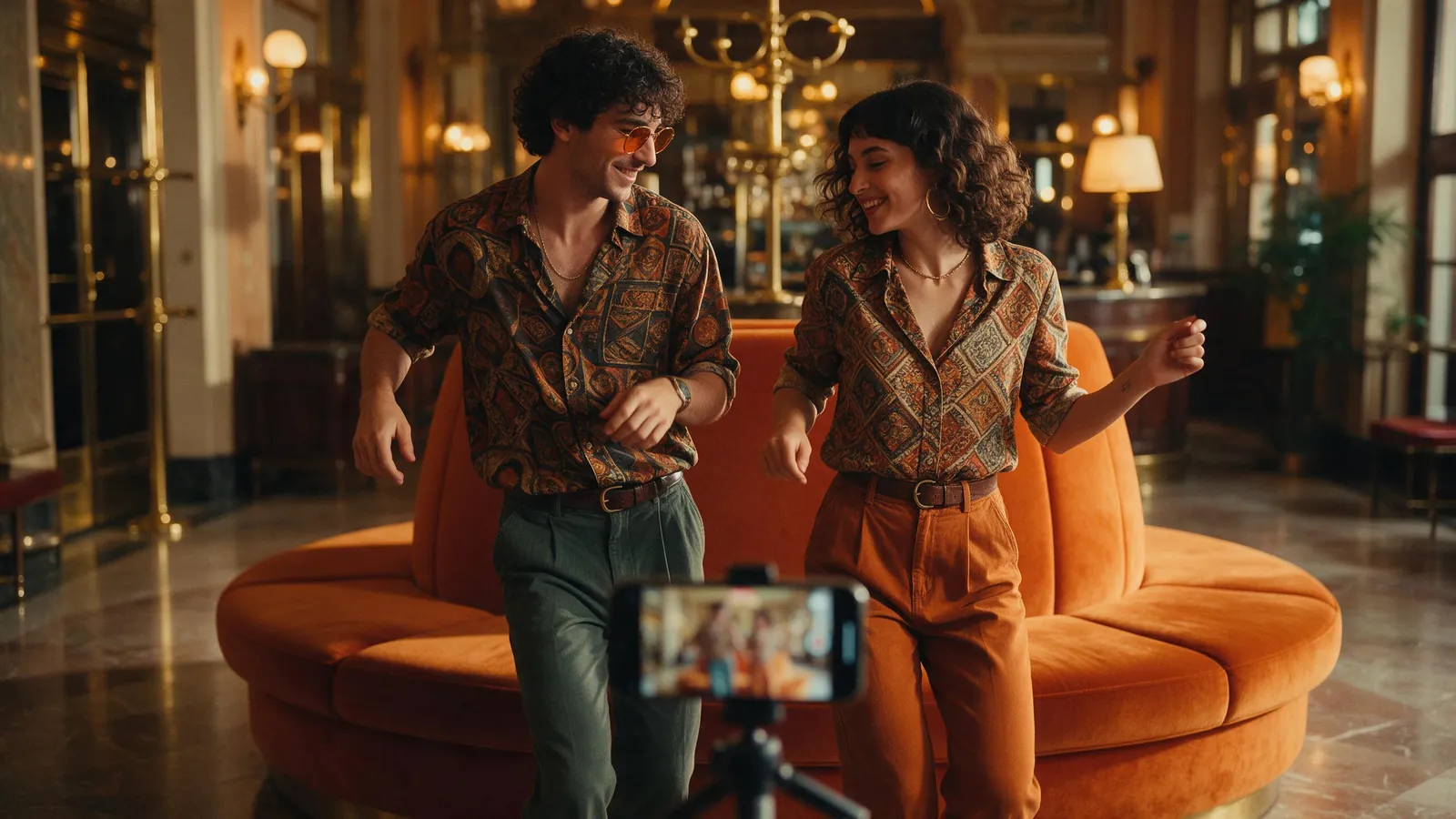
Image 1 is the performer on the left and Image 2 is the performer on the right. A warm vintage hotel lobby with an orange velvet booth and brass lamps, soft tungsten light, filmed handheld on a phone.
Which Kitsune option gives which result
Costs and waits for a 15-second clip at 720p, from the studio's own credit code and its render estimate.
| Option | What changes | Photos | Best for | Cost (15 s, 720p) | Typical wait |
|---|---|---|---|---|---|
| Object swap | Both performers, head to toe; the room, camera and moves stay | Image 1 and Image 2, one per person | The classic trend look: friends, couples, pets, characters | 80 credits | about 6 minutes |
| Motion transfer, Different people | Everything: your two characters perform the same moves in a new scene you describe | Image 1 and Image 2, cast left to right | A new lobby, a cartoon look or a scene of your own | 80 credits | about 6 minutes |
| Video Face Swap | One person's face and hair per run; bodies and outfits stay | One headshot per run | Keeping the original outfits and changing faces only | 160 credits for both faces (two runs) | about 6 minutes per run |
Sources, as checked:
- Complex, Mark Elibert, "Quavo and Takeoff's 'Hotel Lobby' Performance Has Become a Viral AI Meme" (published 27 Sep 2026, read 17 Oct 2026): complex.com/music/a/markelibert/quavo-takeoff-hotel-lobby-ai-trend-tiktok
What a Hotel Lobby clip costs in Kitsune
Kitsune charges by the length of your clip and the resolution, and the seconds you upload count as well as the seconds rendered, so trimming to the part you want saves credits. Waits are the studio's estimate at 720p.
| Clip length | 480p | 720p | 1080p | Typical wait (720p) |
|---|---|---|---|---|
| 4 s | 22 credits | 22 credits | 32 credits | about 4 minutes |
| 10 s | 54 credits | 54 credits | 80 credits | about 5 minutes |
| 15 s | 80 credits | 80 credits | 120 credits | about 6 minutes |
| 30 s | 160 credits | 160 credits | 240 credits | about 7 minutes |
Kitsune is available on any paid plan or credit pack. 1080p and 4K come with Pro, Max and Business. If a job fails or is refused, the credits are refunded.
What is the Hotel Lobby AI trend?
The Hotel Lobby AI trend is a meme format that recasts Quavo and Takeoff's 2022 performance of "Hotel Lobby" with new people. According to Complex (Mark Elibert, published 27 September 2026), the duo performed the song on A COLORS SHOW in 2022 under their Unc & Phew name, and the AI version started spreading on TikTok in early September 2026, reportedly beginning with two cats recreating the performance.
The format keeps the original moves, lip-sync and audio and changes who appears to perform. Because the original is a back-and-forth between two performers, it needs two images, one per person. Complex lists couples, TV characters and footballers among the pairs people swapped in. Takeoff died in November 2022, and some fans have objected to using his likeness; Complex also reports that Quavo reposted the original COLORS video on 23 September.
This guide shows how to make your own version in KreatorFlow, as of October 2026, with your own clip and photos of people who are happy to be in it. KreatorFlow has no connection with Quavo, Migos, COLORS or any label, and none of them endorse this guide.
Who can you put in it, and what about the song?
Put in only people who agreed: yourself, and friends or a partner who said yes. Pets you own, characters you made and your own brand mascot are great. A celebrity, a footballer or anyone who didn't agree is not, and our Acceptable Use Policy does not allow uploading another person, celebrity or public figure without the rights and permission to do so.
For the music, the easiest route is the platform itself: when you post, add the song from TikTok's or Instagram's sound library, and follow each platform's rules on AI content.
What our tools allow. Under Kitsune's upload slots the studio says: "Only use footage you own or have permission to use. Clips that show a real person's face may be refused by the model; if that happens your credits are refunded." If a clip is refused, try a shorter cut or another trend video, or use the motion transfer version. The model's review can also refuse a clip it reads as copyrighted footage, such as a music video, film or TV clip, and a photo that looks like a public figure, celebrity or logo. Kitsune warns you before you generate when an image looks like a well-known film, TV or game character. We don't promise that any plan gets a clip through the model's review, and if a job is refused, your credits are refunded.
- Yes: you, friends who said yes, your partner (with their OK), your pets, characters you made, your own mascot.
- No: celebrities, athletes, politicians, ex-partners, strangers, or anyone who didn't agree.
- Never photos of children, and never anything sexual or meant to deceive.
- Be respectful: the original features an artist who has died. Keep it a tribute to the format, not a joke about him.
Should you use object swap, motion transfer or face swap?
Use Object swap for the classic look. It keeps your clip's room, light, camera and every move, and replaces both performers with the people in Image 1 and Image 2, head to toe. Put "both performers" in What to replace and name the sides in the prompt.
Use Motion transfer when you want a different scene. Your two characters perform the same moves and timing, but the model builds a new scene from your prompt (for example, a vintage lobby of your own design) instead of keeping the original room. With two images, choose Different people in the image slot so each image is cast left to right; Same character would treat the photos as angles of one person.
Use Video Face Swap (in the Video menu) when you want to keep the original outfits and change faces only. It changes one person's face and hair per run, so two performers take two runs: swap the left face, then pick that result from your generations and swap the right one. That is 160 credits for a 15-second clip at 720p, against 80 for one object swap.
How do you prepare the photos?
Use one clear, front-facing photo per person, in even light, with nothing covering the face. The model copies what it can see, so the photo decides most of the likeness.
- Face to the camera, eyes visible, no sunglasses, masks, hands or hair across the face.
- One person per photo. Crop a group shot down to one person before you upload it.
- For object swap, a waist-up or full-body photo also gives the outfit: the clothes in the photo are the clothes in the video.
- More angles of the same person help: Kitsune takes up to 8 images per job. With two performers, keep it to one photo each unless your prompt says which image belongs to whom.
- Pets: a clear front or side photo, sitting upright if you can, so the model reads the animal's shape.
What versions can you make?
Any pair works if everyone in it agreed. These are the versions that suit the format best, each with a prompt above:
- Couple or best friends: you and your partner or a friend who said yes, each in the outfit from your own photo.
- Pets in the booth: two cats, a cat and a dog, or your pet and you. The trend reportedly started with cats.
- Your saved @characters: pick them in Kitsune's New subject slot. A new character costs 4 credits to make, and a character you designed yourself is the safest pick for a public post.
- Brand mascot: your own mascot next to a team member who agreed, for a playful brand post.
Is the Hotel Lobby AI trend free on KreatorFlow?
Not the video itself. Kitsune is available on any paid plan or credit pack. New accounts also get 25 one-time starter credits for images and video. On a plan, a 15-second Hotel Lobby clip at 720p costs 80 credits, and the Generate button shows the cost before anything is charged.
There is no one-click Hotel Lobby template on KreatorFlow yet. The steps and prompts on this page are the template: the trend clip, two photos, one prompt, generate.
How do you post it so it does well?
Post it vertical, start on the most recognisable beat, and add the sound in the app. Kitsune puts your clip's own sound back on the result, so before you post, turn the original sound down to zero in the TikTok or Instagram editor and add the song from the app's sound library instead. That keeps the music licensed through the platform, and your post can show up on the sound's page.
- 9:16 vertical: crop the clip before you upload it, since Kitsune keeps the clip's framing.
- Hook in the first second: start right on the first big move or line, not on a slow lead-in.
- Caption it plainly: say who is in it and that it is an AI remake of the trend, and use the platform's AI-generated label where it has one.
- Hashtags: the trend's own tag plus one or two about who's in it (your pets, your duo). Keep tags about your version, not about the artists.
Why do results go wrong, and how do you fix them?
Most problems come from the clip, the photos or the left-right mapping. Here is what to change:
- The two people came out swapped: say the sides in the prompt ("Image 1 replaces the person on the left") and check the tile numbers in the slot.
- Both performers look like one person: name both images in the prompt, or put "both performers" in What to replace so each image is used for one person.
- The face doesn't look like your friend: use a sharper, front-facing photo in even light, or add a second angle of the same person and say which images belong to whom.
- Outfits look wrong: object swap takes clothes from the photos. Use photos in the outfits you want, or Video Face Swap to keep the original outfits.
- The clip was refused: the model's review refuses some clips that show a real person's face or that it reads as copyrighted footage. Your credits are refunded. Try the motion transfer version, or make the scene from your own characters (below).
- An image was flagged as a known character: use a character you made yourself instead, because well-known film, TV and game characters may be stopped by the copyright check.
What if your clip is refused?
Make the scene from scratch. Save each person (with their OK) or pet as a Character, open the video studio on Seedance 2.5 and describe a two-person lobby scene in your own words with their @handles, for example: "@maya and @jordan stand side by side in a vintage hotel lobby and trade lines back and forth, one leaning toward the camera while the other nods along, handheld phone footage, warm tungsten light." A 10-second clip at 720p is 47 credits.
It is your own two-person bit, not a copy of the original, ready for the trend's sound from the app's library. KreatorFlow is an official BytePlus partner, and both Kitsune and the video studio run on ByteDance's Seedance 2.5.
Kitsune
Make your own Hotel Lobby version
Your clip, two photos of people who said yes, one prompt: 80 credits for 15 seconds at 720p.
Frequently asked questions
Is the Hotel Lobby AI trend free?
Not the video itself. Kitsune is available on any paid plan or credit pack. New accounts also get 25 one-time starter credits for images and video. On a plan, a 15-second clip at 720p costs 80 credits, shown on the Generate button before you are charged.
Do I need the original video?
Yes. Save the Hotel Lobby clip (the original performance or any trend video) from TikTok, Instagram or YouTube. Trim it to 4 to 30 seconds and upload it as MP4, MOV or WebM up to 200 MB.
Can I use a celebrity or a footballer?
No. Only put in people who agreed to it, such as yourself and friends who said yes, or pets and characters you own. Our Acceptable Use Policy does not allow uploading a celebrity or public figure without the rights and permission, and the model's review may refuse photos that look like one.
Is there a Hotel Lobby AI template or generator on KreatorFlow?
There is no one-click template yet. Kitsune is the generator: Object swap, the Hotel Lobby clip, Image 1 and Image 2, and one of the prompts on this page.
Why was my clip refused?
The model reviews every clip and image. It may refuse a clip that shows a real person's face or that it reads as copyrighted footage, such as a music video, and a photo that looks like a public figure or logo. Your credits are refunded. Try motion transfer, or make the scene from your own characters.
Should I keep the song in the video?
Add it on the platform instead: turn the original sound down to zero in the TikTok or Instagram editor and pick the song from the app's sound library, so the music is licensed through the platform.
Is this connected to Quavo, Migos or Higgsfield?
No. KreatorFlow has no connection with Quavo, Migos, COLORS, any label or Higgsfield. This guide explains how to make your own version of a public trend with our tools.