On this page
- Short answer
- The quick version, step by step
- Halloween prompt library
- Which workflow for which result
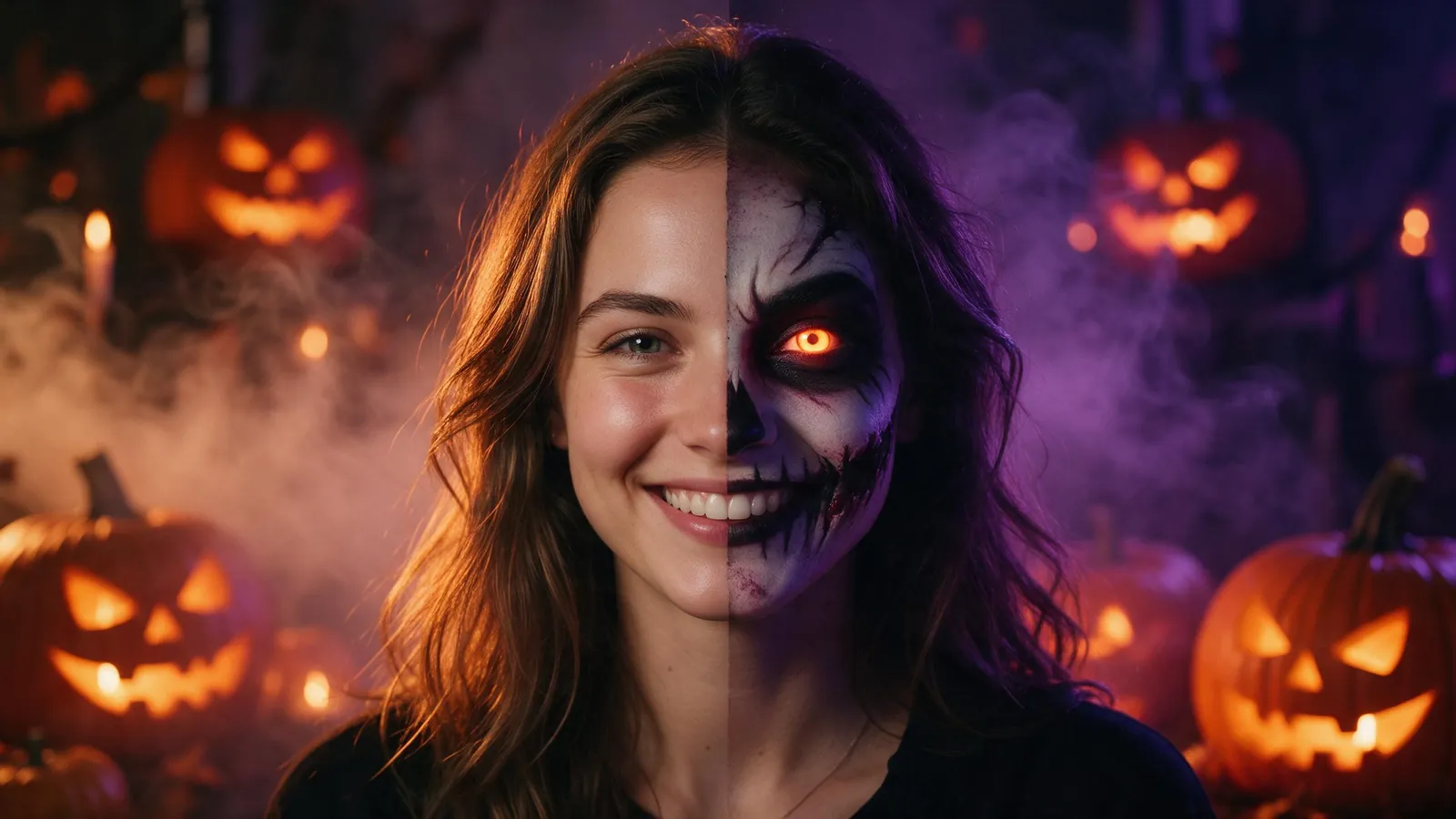
- What is the AI Halloween transformation trend?
- Workflow 1: how do you turn a photo into a Halloween transformation video?
- Workflow 2: how do you face swap or object swap onto a Halloween clip?
- Workflow 3: how do you make a full Halloween scene with a saved @character?
- How should you post a Halloween AI video so people watch it?
- What are the rules for using real people's photos?
- Templates for this guide
- Frequently asked questions
Short answer
To make an AI Halloween transformation video, edit a photo into its costume look in the image studio (2 credits), save the before and after pictures, then have Seedance 2.0 animate one turning into the other in 9:16. A 5-second 720p clip costs 15 credits. Kitsune can also swap a face or a pet into a spooky clip.
Try this in the studio
The quick version, step by step
- 1
Pick the photo
A sharp, well-lit photo of yourself or of someone who agreed to it, ideally already vertical: Edit keeps the picture's own shape, so a vertical photo gives a vertical result.
- 2
Edit it into the costume
Open the image studio's Edit tab and describe the costume, the makeup and the new background, plus what must stay the same. One edit costs 2 credits.
- 3
Save both pictures
Save the original and the Halloween version as Assets or Characters so each gets an @handle, for example @me-before and @me-halloween. Photos of real people go into video through a saved @handle, not as a raw upload.
- 4
Animate the transformation
In the video studio, pick Seedance 2.0, set 9:16, write how the change happens (a whip pan, a mirror, a falling sheet) and name both @handles. The Whip Pan Transition template sets that camera move for you.
- 5
Post it before the 31st
Put the reveal in the first two seconds, keep it short and add your sound. Halloween 2026 falls on a Saturday, so the days before it are when costume content gets made and shared.
Halloween prompt library
20 prompts to copy. Credits on each card are for the suggested settings without a template (templates add 2 credits). 1080p needs the Pro, Max and Business plans. The cards are text only on purpose: we only show results generated from the exact prompt beside them.
Costume transformations
The core of the trend: the same person before and after. Edit prompts go in the image studio's Edit tab; video prompts name your two saved pictures by their @handles.
Photo to vampire (edit)
Turn this person into an elegant vampire: pale skin, dark red lips, subtle fangs, slicked-back hair, a high-collared black cape with a deep red lining. Keep their face, expression, pose and the framing exactly the same. Change the background to a candlelit stone hallway. Photorealistic, soft warm candlelight.
Why it works: It says what changes and, just as clearly, what must stay, so the person is still recognisably themselves.
- Image studio, Edit
- Seedream 5.0 Pro
- 1K
- 2 credits
Pumpkin-patch scarecrow (edit)
Dress this person as a scarecrow: a patched flannel shirt, straw sticking out of the cuffs and collar, a battered wide-brimmed hat, stitched-on face paint around the mouth. Keep their face, pose and framing the same. Put them in a pumpkin patch at dusk with a low orange sky and a thin ground fog.
Why it works: Face paint and props read as a costume while the face underneath stays the same person.
- Image studio, Edit
- Seedream 5.0 Pro
- 1K
- 2 credits
Whip-pan costume reveal
@me-before stands in a bright living room and looks into the camera. The camera whips fast to the right with heavy motion blur and lands on @me-halloween in the same pose, same spot in frame, now in a dim candlelit room. They slowly smile. Vertical, handheld phone feel.
Why it works: The motion blur hides the cut, and keeping the same pose and spot in frame makes it read as one person changing.
- Seedance 2.0
- 5 s
- 720p
- 9:16
- 15 credits
Mirror transformation
@me-before looks into a bathroom mirror and the lights flicker. In the reflection, @me-halloween looks back. The person turns from the mirror toward the camera and is now @me-halloween too. Slow push-in, cold blue light with one warm flicker, quiet hum, then silence.
Why it works: A mirror gives the change a reason to happen on screen, and the turn to camera lands the reveal.
- Seedance 2.0
- 8 s
- 720p
- 9:16
- 24 credits
Ghost-sheet drop
A figure under a plain white bedsheet with two cut-out eye holes stands in a dark hallway. The sheet drops to the floor in one motion, revealing @me-halloween standing in the same place, lit from below by a flashlight. Static camera, eye level, a soft whoosh as the sheet falls.
Why it works: The sheet is a natural wipe: the reveal happens in a single physical action the model can follow.
- Seedance 2.0
- 6 s
- 720p
- 9:16
- 18 credits
Your face on a costumed performer
Put the face from the new-face photo on the person in the black cape. Keep their costume, makeup, moves, the candlelit set and the sound exactly as they are.
Why it works: Video face swap only changes the face, so the costume, moves and set of the clip you generated carry over.
- Kitsune face swap
- 10 s clip
- 720p
- 54 credits
Costumed character does the dance
The character in Image 1, in their full skeleton costume with glowing face paint, performs the dance from Video 1, matching every move, the camera and the timing. Put them in a foggy suburban street lit by jack-o'-lanterns.
Why it works: Motion transfer copies the moves of a dance clip, so your costumed character joins a trend without anyone being filmed in costume.
- Kitsune motion transfer
- 10 s clip
- 720p
- 54 credits
Spooky portraits
Stills to post on their own or to animate later. Swap @your-character for your own saved character, or edit your own photo.
90s bedroom, someone in the doorway (edit)
Restyle this photo as a 1990s film still: grainy, warm tungsten bedside lamp, a corded phone in the person's hand, pastel bedding and posters on the wall. In the dark doorway behind them, add a tall masked figure in a black hooded robe, half in shadow, watching. Keep the person's face and pose the same.
Why it works: This is the widely shared masked-intruder look described generically, so it needs no franchise name to work.
- Image studio, Edit
- Seedream 5.0 Pro
- 1K
- 2 credits
Ghost-sheet photoshoot
@your-character sits on the floor of a sunlit vintage bedroom wearing a white bedsheet ghost costume with two eye holes, sunglasses on over the sheet, holding a vinyl record. 35mm film photo, soft window light, muted autumn colours, vertical.
Why it works: The deadpan ghost-sheet shoot is a seasonal favourite; the props give it a personality the sheet hides.
- Seedream 4.5
- 9:16
- 4 credits with a character
Found-footage VHS still (edit)
Make this photo look like a frame from a 1994 home video tape: soft focus, colour bleed, scan lines, a slight tracking wobble at the bottom, an orange date stamp in the corner reading OCT 31 1994. Add a faint pale figure at the end of the hallway behind the person. Keep the person unchanged.
Why it works: Naming the tape artefacts one by one gets a believable VHS look instead of a generic filter.
- Image studio, Edit
- Seedream 5.0 Pro
- 1K
- 2 credits
Horror-movie scenes
Original horror shots with one clear scare and one camera move. Describe the threat; never name a film or its villain.
Hallway realisation
A woman in a nightgown at the end of a long, dim hotel corridor holds a candle. The corridor stretches behind her as the camera pulls back and zooms in at the same time. Her face slowly changes as she realises she is not alone. Low hum, a door creaks shut somewhere behind her.
Why it works: The push-pull stretch is the classic horror beat; one face and one realisation keep it readable.
- Seedance 2.0
- 5 s
- 720p
- 9:16
- 15 credits
Haunted house fly-through
The camera glides over a dead lawn toward a crooked Victorian house at night, through a cracked upstairs window, into a dusty nursery lit by moonlight. A rocking chair starts to rock on its own as the camera arrives. Wind outside, then a slow creak.
Why it works: Outside, then through an opening, then a payoff inside: three stages the template already paces.
- Seedance 2.0
- 10 s
- 720p
- 9:16
- 30 credits
Camcorder in the woods
Shaky handheld camcorder footage at night: a flashlight beam sweeps across bare trees and fog. The beam stops on a figure standing perfectly still far away between the trees, then the figure is gone. Heavy breathing, crunching leaves, a VHS timestamp in the corner.
Why it works: Found footage hides imperfections by design, which makes it a cheap, forgiving format to draft on Fast.
- Seedance 2 Fast
- 8 s
- 720p
- 9:16
- 20 credits
Something tall in the cornfield
Extreme low angle from the ground in a cornfield at dusk. A tall scarecrow-like creature with a carved pumpkin head, its eyes glowing orange, slowly turns its head down toward the camera. Backlit by a red sky, corn stalks rustling, a low rumble.
Why it works: Looking up makes anything loom, and a single slow head turn is scarier than a lot of movement.
- Seedance 2.0
- 5 s
- 720p
- 9:16
- 15 credits
Pet costumes
Pets are the easiest stars of Halloween video: nobody to ask for consent, and a costume they never have to sit still in.
Dog in a pumpkin costume (edit)
Dress this dog in a cosy orange pumpkin costume with a green stem hat. Keep the dog's breed, fur, face and pose exactly the same. Put it on a porch with carved jack-o'-lanterns and fairy lights at dusk. Photorealistic, warm light.
Why it works: Keeping the breed, fur and face fixed makes it unmistakably your dog, just in costume.
- Image studio, Edit
- Seedream 5.0 Pro
- 1K
- 2 credits
Cat in a witch hat
The cat from image 1 sits on a windowsill wearing a small black witch hat, a full moon outside. It slowly turns to the camera and blinks once, and the candle beside it flickers. Static close-up, soft purple and orange light, a quiet purr.
Why it works: One small action and a static camera keep the cat looking like your cat.
- Seedance 2 Fast
- 5 s
- 720p
- 9:16
- 12 credits
Swap your pet into a costume clip
Replace the dog in Video 1 with the dog in a dragon costume from Image 1. Keep every move, the camera and the background exactly as they are.
Why it works: Film your pet once doing anything, then swap in the costumed version without dressing them up again.
- Kitsune object swap
- 8 s clip
- 720p
- 43 credits
Halloween ads for shops
Short seasonal ads for a product, a café or a costume shop. Add your product photo as a reference so the label and shape stay right.
Seasonal candle reveal
The candle from image 1 sits on a dark wooden table between small carved pumpkins. Fog rolls across the frame and clears as the camera slowly pushes in, the flame catches and lights the label. Warm amber light, shallow depth of field, no on-screen text.
Why it works: Fog makes a built-in reveal, and pointing at image 1 keeps your real product in the shot.
- Seedance 2.0
- 5 s
- 1080p
- 9:16
- 29 credits
Costume shop hook
@your-character holds up a black velvet cape to the camera in a cluttered costume shop, swings it on in one move and strikes a dramatic pose, then grins. "Last-minute costume? Done." Handheld, warm shop lights, vertical.
Why it works: The line and the action land in the first seconds, which is the whole job of a hook.
- Seedance 2.0
- 8 s
- 720p
- 9:16
- 24 credits
Which workflow for which result
Credits are for the example in each row, read from the same code the studio charges with. The studio shows the exact cost on the Generate button before anything is charged.
| Workflow | Best for | Tools | Example job | Credits |
|---|---|---|---|---|
| 1. Photo to costume to video | Before and after reveals of you or a friend | Seedream 5.0 Pro Edit, then Seedance 2.0 | Two edits (two costumes to choose from) and one 5 s clip at 720p | 19 |
| 2. Face or object swap onto a clip | Putting a face, pet or prop into a spooky scene | Seedance 2.0, then Kitsune | One 10 s clip at 720p, then a 10 s swap at 720p | 84 |
| 3. A short scene with an @character | A recurring Halloween character across several shots | Characters, then Seedance 2.0 | One saved character and three 5 s clips at 720p | 49 |
| Drafts | Testing ideas before the final render | Seedance 2.0 Fast | One 5 s clip at 720p | 12 |
Seedance 2.0 price per clip in the Halloween sale
$0.0375/ credit
Max first month: $60 for 1,600 credits = $0.0375 per credit.
+800 bonus credits, claimable daily in your first month (not counted in this price).
Regular price: Max at $99 a month for 1,600 credits = $0.0619 per credit.
| Clip | Sale, first month | Regular price | Credits |
|---|---|---|---|
| 5 s · 480p | $0.45 | $0.74 | 12 |
| 15 s · 480p | $1.35 | $2.23 | 36 |
| 5 s · 720p | $0.56 | $0.93 | 15 |
| 15 s · 720p | $1.69 | $2.78 | 45 |
| 5 s · 1080p | $1.09 | $1.79 | 29 |
| 15 s · 1080p | $3.19 | $5.26 | 85 |
| 5 s · 4K | $2.63 | $4.33 | 70 |
| 15 s · 4K | $7.88 | $12.99 | 210 |
The sale price is the first month of a new Max subscription (or an upgrade) started by 31 Oct 2026, 23:59 UK time; the plan then renews at $99 a month. Every price on this page counts only the plan's guaranteed credits. Halloween bonus credits and daily bonus credits have to be claimed, so they are not counted. Clip credits are the studio's own prices. Developer API tokens are not part of the sale.
What is the AI Halloween transformation trend?
It is a short vertical video where an ordinary photo of someone turns into their Halloween look on screen: a vampire, a scarecrow, a ghost, a pumpkin-headed creature. The appeal is the reveal. Viewers see the real person for a second, then the costume lands, usually on a fast camera move, a flicker or a falling sheet.
It sits next to a few other Halloween formats that come back every October and mix well with it: the masked-intruder photo trend (widely called the "Ghostface" AI trend after the October 2025 wave, where someone in a dark hooded robe appears behind you in a 90s bedroom), ghost-sheet photoshoots, VHS and found-footage looks, makeup transformations and pets in costume. You can make every one of them without naming a film or its villain, and you should: describe an original look instead.
For Halloween 2026 the tools have caught up with the idea. An image model can change the costume and keep the face, and a video model can animate the change between two pictures, so the whole thing takes a few generations instead of an afternoon of makeup. KreatorFlow is an official BytePlus partner and runs ByteDance's Seedream and Seedance models on BytePlus, ByteDance's official AI platform.
Workflow 1: how do you turn a photo into a Halloween transformation video?
Edit the photo into its Halloween version, save both pictures, then ask Seedance 2.0 to animate one becoming the other. This gives the classic before and after reveal and is the cheapest way to get it: two edits and a 5-second clip come to 19 credits.
Step 1, the edit. Open the image studio, switch to Edit (it runs Seedream 5.0 Pro at 1K) and add the photo. Describe the costume, makeup and background in one go, then say what must not change: "keep their face, expression, pose and the framing exactly the same". Edit keeps the picture's own shape, so start from a vertical photo if you want a vertical video. Each edit costs 2 credits; make two or three looks and keep the best.
Step 2, save the pair. Save the original photo and the edited one as Assets (or as Characters if the person will appear again). Each gets an @handle. Seedance does not take a raw photo of a real person as a reference, so the saved @handle is how a real face gets into the video.
Step 3, the transformation. In the video studio, choose Seedance 2.0 and 9:16. Write the change as one physical event with a start and an end: who is in frame first, what triggers the change, who is there after. Keep the pose and the spot in frame the same on both sides of the change. Clips run 4 to 15 seconds; 5 to 8 is plenty for a reveal. A 5-second clip costs 15 credits at 720p, and 12 credits on Seedance 2.0 Fast for a draft.
Transformation prompt (Seedance 2.0)
@me-before sits on a sofa scrolling her phone, lit by a lamp. The lamp flickers twice and goes out. When it flickers back on, @me-halloween sits in exactly the same pose and place, now lit by a cold blue light, and slowly looks up at the camera. Static camera, vertical, a low hum and a single heartbeat thud on the reveal.
Workflow 2: how do you face swap or object swap onto a Halloween clip?
Generate the Halloween clip first, then let Kitsune put a new face or a new subject into it. Kitsune works on a clip of 4 to 30 seconds and has three modes: face swap puts a new face on one person and keeps everything else, object swap replaces one subject (a person, a pet, a prop) with the one in your image, and motion transfer makes your character copy every move, the camera and the timing of the clip.
Step 1: make the Halloween clip. The most reliable source is one you generated: a masked figure in a hallway, a vampire at a candlelit table, a skeleton dancing on a porch. A 10-second Seedance 2.0 clip at 720p costs 30 credits. Footage you filmed yourself works too, as long as you own it.
Step 2: for a face swap, open Face Swap in the Video menu, add the clip and one clear, front-facing photo of the new face (up to 8 photos of the same face from different angles help the likeness). With several people in frame, tap the one whose face changes. For an object swap, open Kitsune, choose Object swap and add the clip plus an image of the new subject, or pick a saved character.
Step 3: check the price on the button and generate. A 10-second clip at 720p costs 54 credits; Kitsune also renders 1080p and 4K on the Pro, Max and Business plans. Kitsune keeps the source clip's own sound.
Prefer stills? Image Face Swap does the same on a picture for 4 credits: swap your face onto a costumed portrait, then animate it with workflow 1.
Workflow 3: how do you make a full Halloween scene with a saved @character?
Save one character, then write three or four short shots that all call it by its @handle. This is how you tell a tiny Halloween story (arrive at the haunted house, hear something, turn around, the reveal) with the same face and costume in every shot. A saved character costs 4 credits, and three 5-second shots at 720p bring the whole scene to 49 credits.
Step 1: open Characters and create one from photos or from a description, in costume. An invented character is the easiest: there is nobody to ask, and it can be as creepy as you like within the rules. Give it a clear handle such as @lantern-witch.
Step 2: plan the shots. One action and one camera move per shot: a wide establishing shot, a close-up of a reaction, a reveal. Keep the location, time of day and light the same in every prompt so the cuts match.
Step 3: generate each shot in the video studio with Seedance 2.0, name the @handle in every prompt, and keep 9:16. Draft on Fast, render the keepers on Seedance 2.0, then cut them together in any phone editor. Seedance 2.0 can generate sound with the clip (footsteps, a creak, a whispered line) at no extra credits.
Shot 3 of a scene (Seedance 2.0)
Close-up of @lantern-witch on the porch of an abandoned house at night, holding a glowing paper lantern. She hears a knock behind the door, freezes, then slowly turns her head toward the camera and smiles too wide. Slow push-in, lantern light flickering on her face, the knock repeats once.
How should you post a Halloween AI video so people watch it?
Show the reveal early, keep it vertical and short, and let the sound carry the scare. These are the settings and habits that suit the format:
- Format: 9:16 for TikTok, Reels and Shorts. Set it in the video studio before you generate rather than cropping later, so nothing important ends up outside the frame.
- Hook: the change should happen in the first one or two seconds. Open on the ordinary photo for a beat, then the costume. If the reveal comes later, put a short caption at the top ("wait for it") to hold people.
- Length: one reveal is 4 to 8 seconds. A small story of three shots is 15 to 25 seconds once cut together. Loops work well: end on a frame that matches the start.
- Audio: Seedance 2.0 can generate sound with the clip (footsteps, a creak, a whispered line) at no extra credits. Kitsune keeps the source clip's own sound. Add trending music inside TikTok or Instagram rather than in the clip itself.
- Captions: say what it is in plain words ("turned my photo into a vampire"). People search for the look, and the caption helps the platform show it to them.
- Timing: Halloween 2026 is on Saturday 31 October. Post your first versions in the week before, and keep the best format going until the weekend.
- Label it: most platforms ask you to mark realistic AI-generated video as AI. Use the platform's AI label when you post.
What are the rules for using real people's photos?
Only use photos of yourself or of people who have agreed to it, and never of children. A Halloween transformation changes how a real person looks, so the same rules apply as to any face edit. They come from our Acceptable Use Policy and from what the studio itself checks.
If you see something that breaks these rules, report it to support@kreatorflow.ai.
- Consent first: ask the person before you edit, swap or animate their photo, and before you post the result. The policy does not allow uploading another person, a celebrity or a public figure without the rights and permission needed.
- No minors: do not put children's photos into any of these workflows, costume or not. Face Swap refuses images of anyone who looks under 18. For kids' costume ideas, use an invented character or a pet.
- Nothing sexual and nothing deceptive: sexual content of real people, sexual deepfakes, impersonation and fraud are prohibited. A scary face on a friend who said yes is fine; a fake video meant to fool people is not.
- Images: photos of real people need an unlocked account, which means any live plan or a credit pack bought in the last 30 days.
- Video: save the photo as a Character or Asset first and use its @handle; Seedance does not take a raw photo of a real person.
- Kitsune and video face swap: Only use footage you own or have permission to use. Clips that show a real person's face may be refused by the model; if that happens your credits are refunded. A clip you generated on KreatorFlow is the safest source.
- Use footage you own. The model's review can refuse a clip that looks like copyrighted footage, such as a film, TV or music-video clip, and refused jobs are refunded.
- No named characters: describe an original costume ("a masked figure in a black hooded robe") instead of naming a franchise character. It keeps you clear of trademarks and of refusals.
Templates for this guide
Each template has its own page with a preview, the credit cost and a link to the studio.
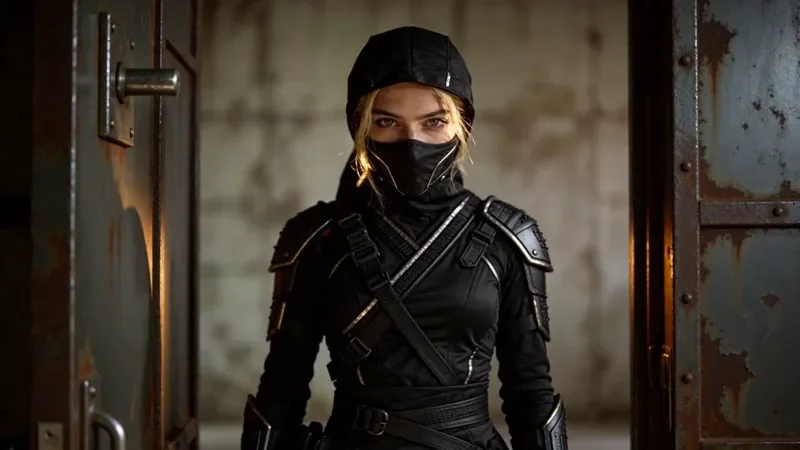
Whip Pan Transition
31 creditsA fast whip pan with motion blur that lands in a new scene, matched on an object in the same spot.
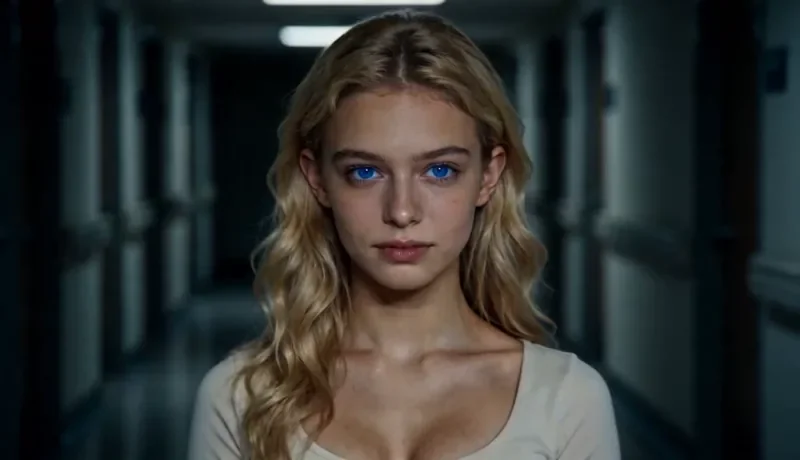
Dolly Zoom
25 creditsThe Vertigo effect: the subject stays the same size while the background stretches away behind them.
Through the Window Drone
59 creditsA drone glide that flies through a window or doorway and continues into the space inside.
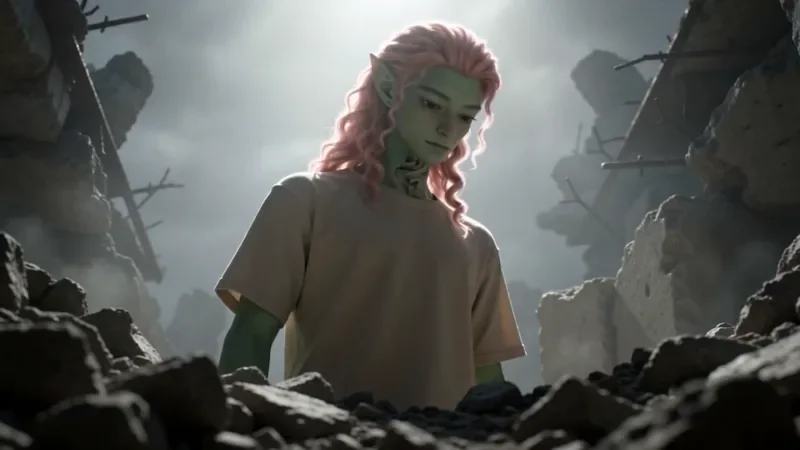
Worm's Eye Hero Shot
36 creditsAn extreme low angle from the ground that makes your subject tower over the camera, backlit against the sky.
Product Reveal
36 creditsA short cinematic reveal with a smooth camera move and premium lighting for ads and storefronts.
UGC Hook
48 creditsA vertical, social-first UGC opener with handheld movement and the product clearly in frame.
Frequently asked questions
Is there a free AI Halloween video generator?
New accounts get 25 one-time starter credits, which cover image edits of AI-made pictures. Free video covers Seedance 2 Fast and Seedance 2.0 Mini at 480p only, queued and rate limited. Other video models and 720p and above need a plan. Kitsune is available on any paid plan or credit pack. The prompts on this page are free to copy.
How much does an AI Halloween transformation video cost?
On KreatorFlow the photo edit costs 2 credits and a 5-second Seedance 2.0 clip at 720p costs 15 credits, so one transformation comes to 17 credits. Drafts on Seedance 2.0 Fast cost 12 credits per 5 seconds.
Can I do the Ghostface AI trend without using the character?
Yes, and it is the safer way. Describe the look generically, for example a tall masked figure in a black hooded robe standing in a dark doorway behind you in a 90s bedroom. The "90s bedroom" prompt in the library does exactly that.
Can I face swap myself into a Halloween video?
Yes. Generate a Halloween clip, then open Face Swap in the Video menu and add a clear photo of your face. Only the face changes; the costume, moves and sound stay. A 10-second clip at 720p costs 54 credits. Use only your own face or one you have permission to use.
Why was my real photo refused?
Photos of real people need an unlocked account (any live plan, or a credit pack bought in the last 30 days), and for video they go in through a saved Character or Asset, not a raw upload. Images of anyone who looks under 18 are refused. Refused jobs are refunded.
What aspect ratio and length should I use?
9:16 for TikTok, Reels and Shorts, set in the studio before you generate, and 4 to 8 seconds for a single reveal. Seedance 2.0 makes clips of 4 to 15 seconds.
Can I make Halloween videos of my pet?
Yes, and pets are ideal. Edit a photo of your pet into a costume and animate it, or film your pet once and use Kitsune object swap to put the costumed version into the same clip.
Can a shop use these for Halloween ads?
Yes. Add your product photo as a reference so the label stays right, and start from the Halloween ads prompts. The Product Reveal template sets the camera move for you. 1080p needs the Pro, Max and Business plans.