

Get started
Your first Canvas workflow: image to video
- 1
Open Canvas on a computer
Canvas needs a screen at least 768 pixels wide, so use a laptop or desktop. On a phone you get a link to send to your computer.
- 2
Add an Image node
Pick Image in the side panel. Type what you want to see in its prompt box and press Generate. The picture appears on the node.
- 3
Add a Video node and wire them
Add a Video node, then drag from the dot on the right edge of the Image node to the Video node. The image now flows in as the video's reference.
- 4
Describe the motion and generate
Write what happens in the Video node and press Generate. It makes a 5-second clip from your image, right on the board.
- 5
Keep building
Wire the clip into a Video edit node to restyle or extend it, or into a Kitsune node to move a character. Change a prompt upstream and generate again to try another version.
The Canvas nodes
Every node runs the same tool as its studio page, at the same credit price.
| Node | What it does | Wire in |
|---|---|---|
| Image | Makes an image from a prompt | Optional: images to use as references |
| Image edit | Edits or restyles an image | The image to edit |
| Video | Makes a 5-second clip | Optional: an image to animate |
| Video edit | Restyles, transforms or extends a clip | A video |
| Kitsune motion transfer | Puts a reference video's motion onto a character | A video and a character image |
| Kitsune object swap | Swaps a subject in a clip | A video and the new subject |
| Face Swap | Changes a face in an image or video | The image or video, then a headshot |
| Character | Creates a character | Nothing |
| Upload / Asset | Brings in your own image or clip | Nothing |
What is KreatorFlow Canvas?
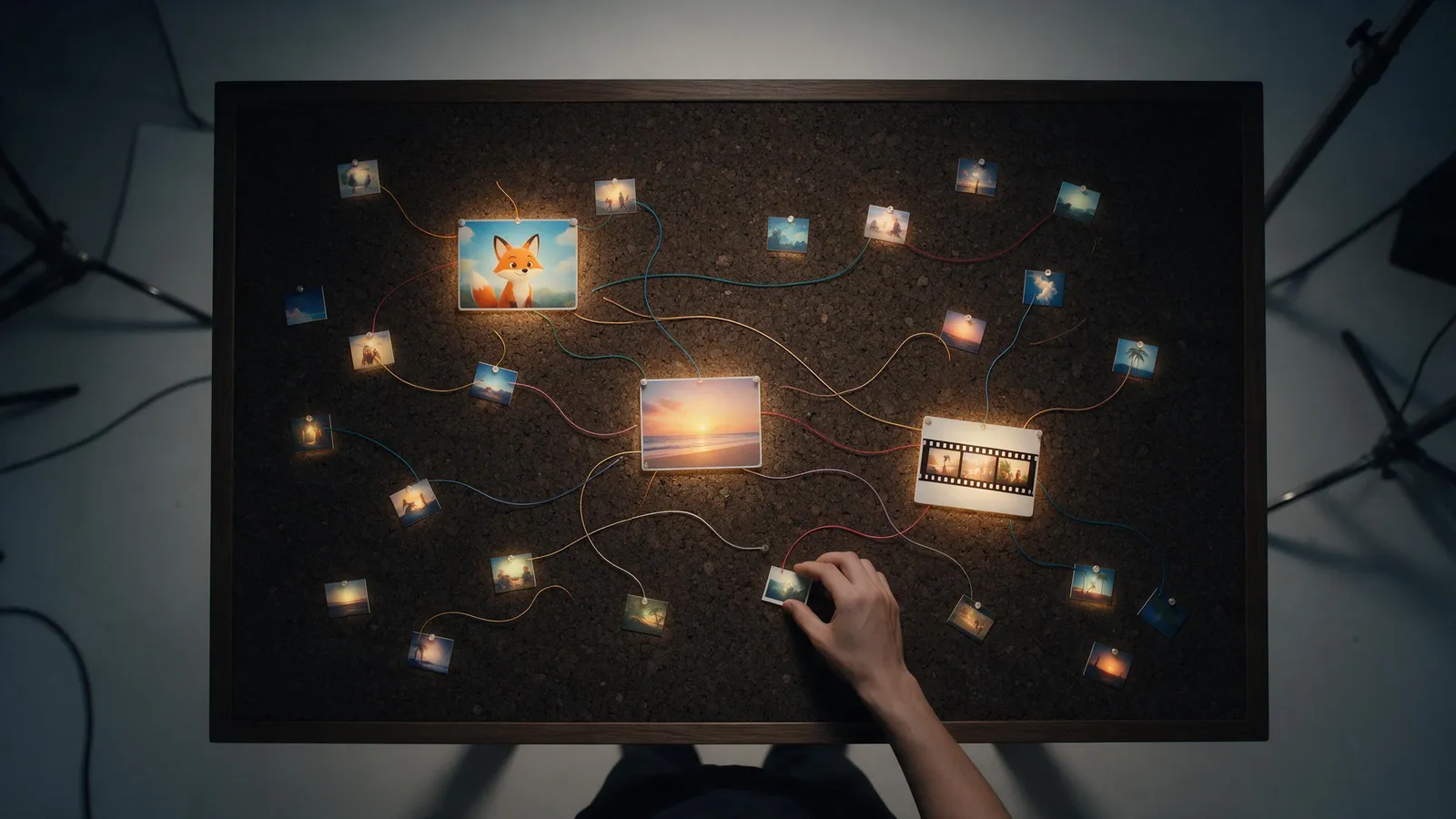
KreatorFlow Canvas is a board where every tool is a node. Add an Image, Video, Edit, Kitsune, Face Swap, Character or Upload node, wire one node's result into the next, and press Generate on each. Your workflow saves on its own, even while it generates. Cartoon Story builds a whole cartoon of 30 seconds to 2 minutes from one idea.
It is useful when one result feeds the next: an image that becomes a video, a character that appears in several clips, or a clip you want to edit. You see the whole chain on one board instead of copying files between pages.
Start with the free tutorial
The first time you open Canvas, a short guided tutorial adds an example Image node and Video node, already wired together, and walks you through them. The tutorial uses example results, so it costs nothing. You can replay it from the side panel.
How saving and projects work
Canvas saves your workflow on its own a moment after every change, including while a node is generating. Leave and come back, and your nodes, wires and results are where you left them.
- The side panel lists your projects. Click one to switch to it.
- Double-click a project's name, or use the pencil, to rename it.
- Use the bin to delete a project. You confirm before anything is removed.
- Generated images and clips also go to your library, like anything made in the studios.
Make a cartoon with Cartoon Story
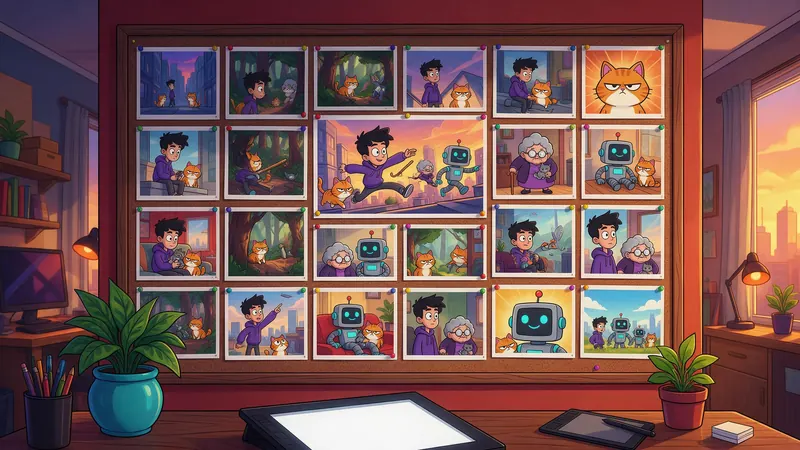
Cartoon Story turns one idea into a short cartoon on the board. Type the idea, pick a length (30 seconds, 1 minute, 1.5 minutes and 2 minutes) and a style, and add your character if you have one: generate it, upload an image or pick a saved @character. It writes the story first, so you can reword, retime, reorder, add or remove scenes before anything is generated.
When you press Generate, it lays out the character, the scenes and a Stitch node, makes the scenes in a 9:16 shape with sound, and joins them into one video. The character is wired into every scene, so the same face carries through.
- Writing the story costs no credits. Credits are used when the scenes are generated.
- Each scene is a normal node. If one comes out wrong, change its prompt and generate that scene again, then stitch.
- Stitch needs at least two finished scenes.
What Canvas costs
Canvas itself is free to open. Each node uses credits when you press Generate, at the same price as the same tool in its studio, and a node that fails gives its credits back automatically. A 5-second Video node clip at 720p costs 24 credits.
KreatorFlow is an official partner of BytePlus, a ByteDance company.
Good to know
- Canvas is built for a laptop or desktop screen (768 pixels wide or more). On a phone, use the Video studio or Kartoonz instead.
- The Video node always makes a 5-second clip. For other lengths, sizes or models, use the Video studio and bring the clip in with an Upload / Asset node.
- Cartoon Story is on the Creator plan and above, like Kartoonz. Every other node follows the same plan rules as its studio.
Frequently asked questions
What is KreatorFlow Canvas?
KreatorFlow Canvas is a board where every tool is a node. Add an Image, Video, Edit, Kitsune, Face Swap, Character or Upload node, wire one node's result into the next, and press Generate on each. Your workflow saves on its own, even while it generates. Cartoon Story builds a whole cartoon of 30 seconds to 2 minutes from one idea.
Does Canvas save my workflow?
Yes. It saves on its own shortly after every change, including while nodes are generating, and lists your projects in the side panel.
How do I connect nodes on Canvas?
Drag from the dot on the right edge of one node to another node. The first node's result flows into the second as its input or reference.
Can I use Canvas on my phone?
No. Canvas needs a screen at least 768 pixels wide. On a phone, use the Video studio or Kartoonz.
How long can a Cartoon Story be?
You pick 30 seconds, 1 minute, 1.5 minutes or 2 minutes. The story is written first, so you can edit every scene before anything is generated.
Does Canvas cost extra?
No. Each node uses the same credits as the same tool in its studio, and failed nodes are refunded automatically.