Get started
Plan a shot in Stage, step by step
- 1
Open an example
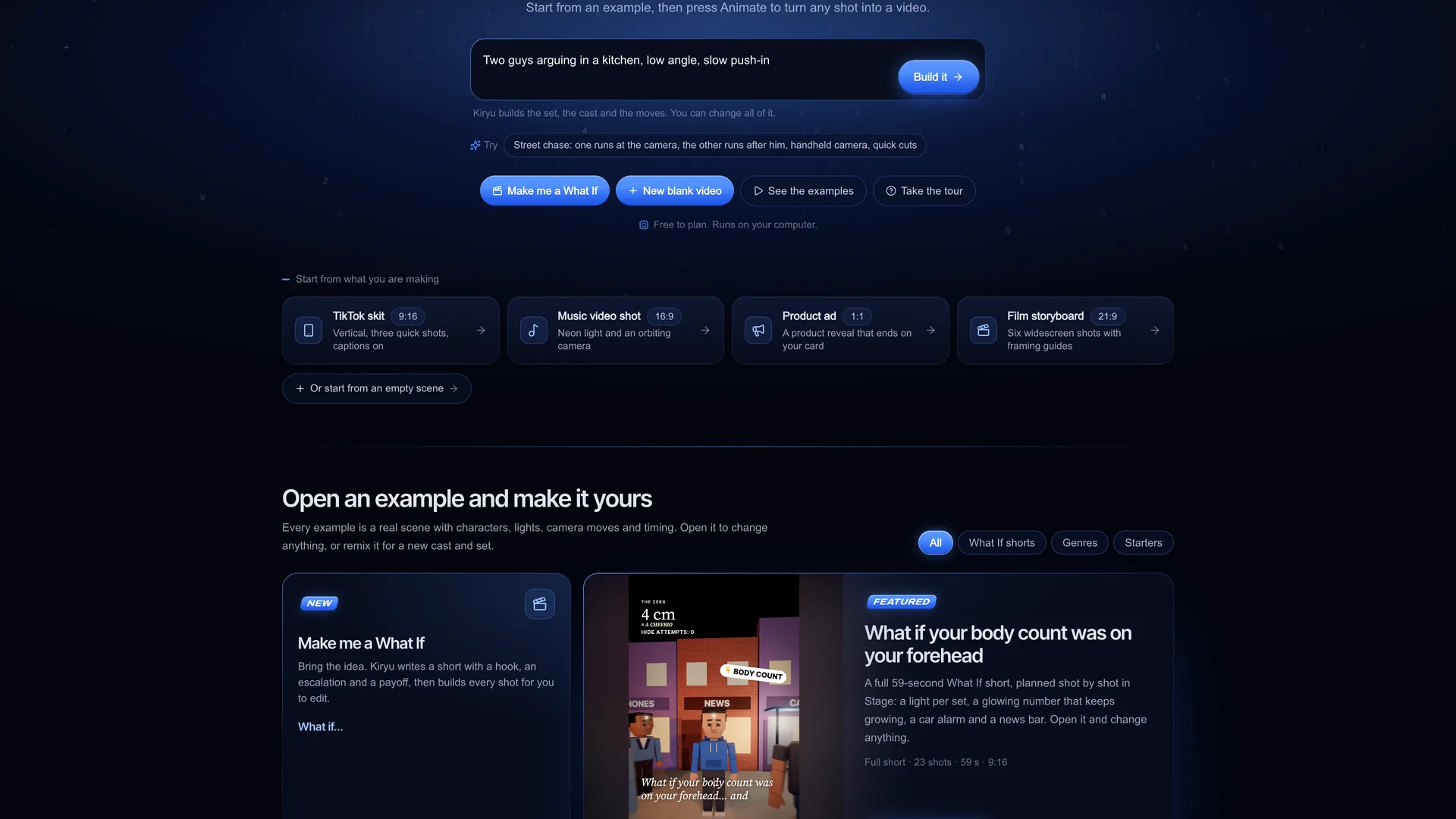
Go to /stage and pick one of 14 examples: 3 What If shorts, 7 genre scenes (a dialogue two-shot, a street chase, a horror hallway and more) and 4 starters for TikTok, music videos, ads and film storyboards. Open this loads it as it is; Remix loads it with a fresh cast. Take the tour if it is your first time: five short steps, and you can skip it.
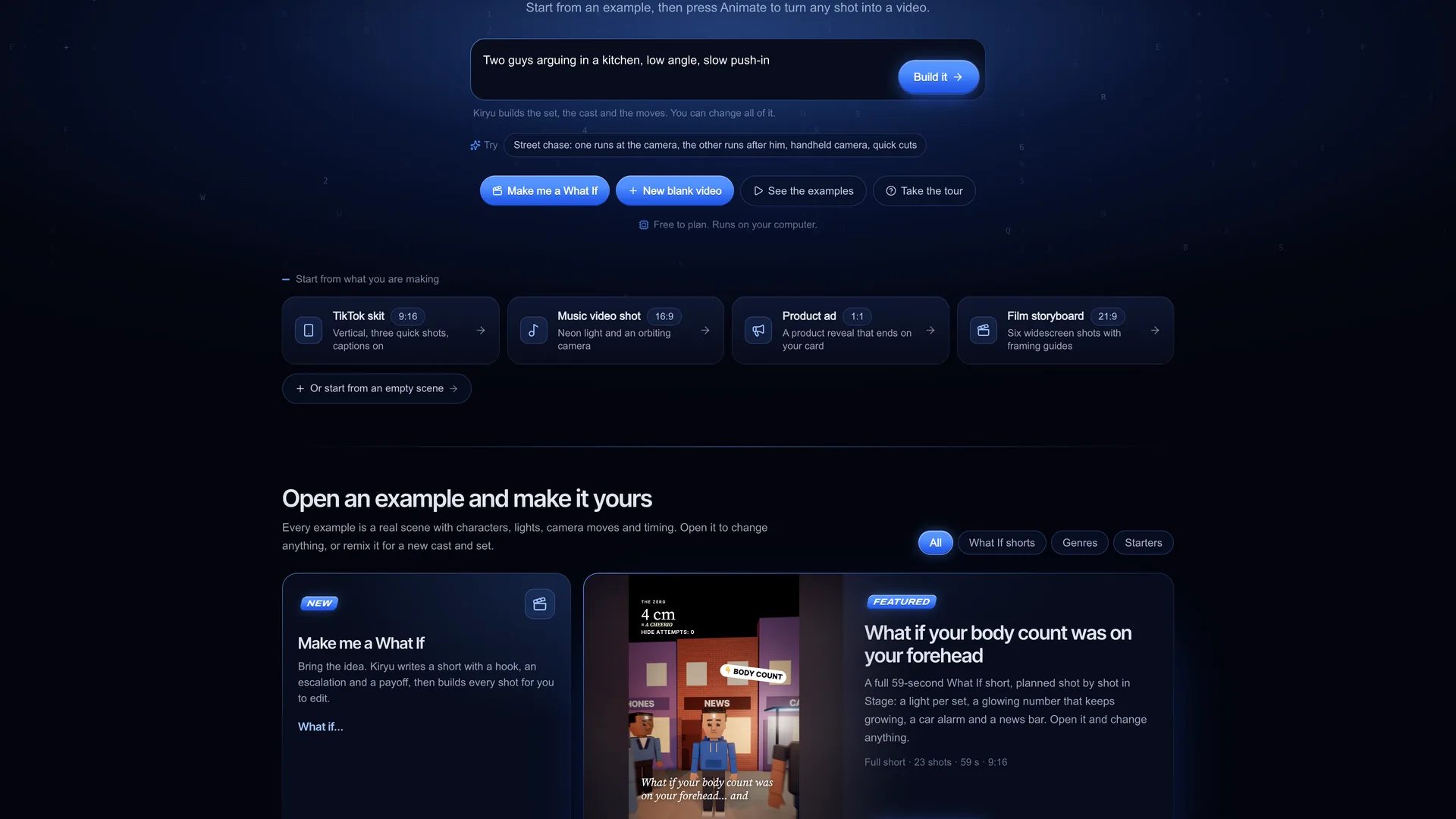
Screenshot of kreatorflow.ai, 2026-11-06 - 2
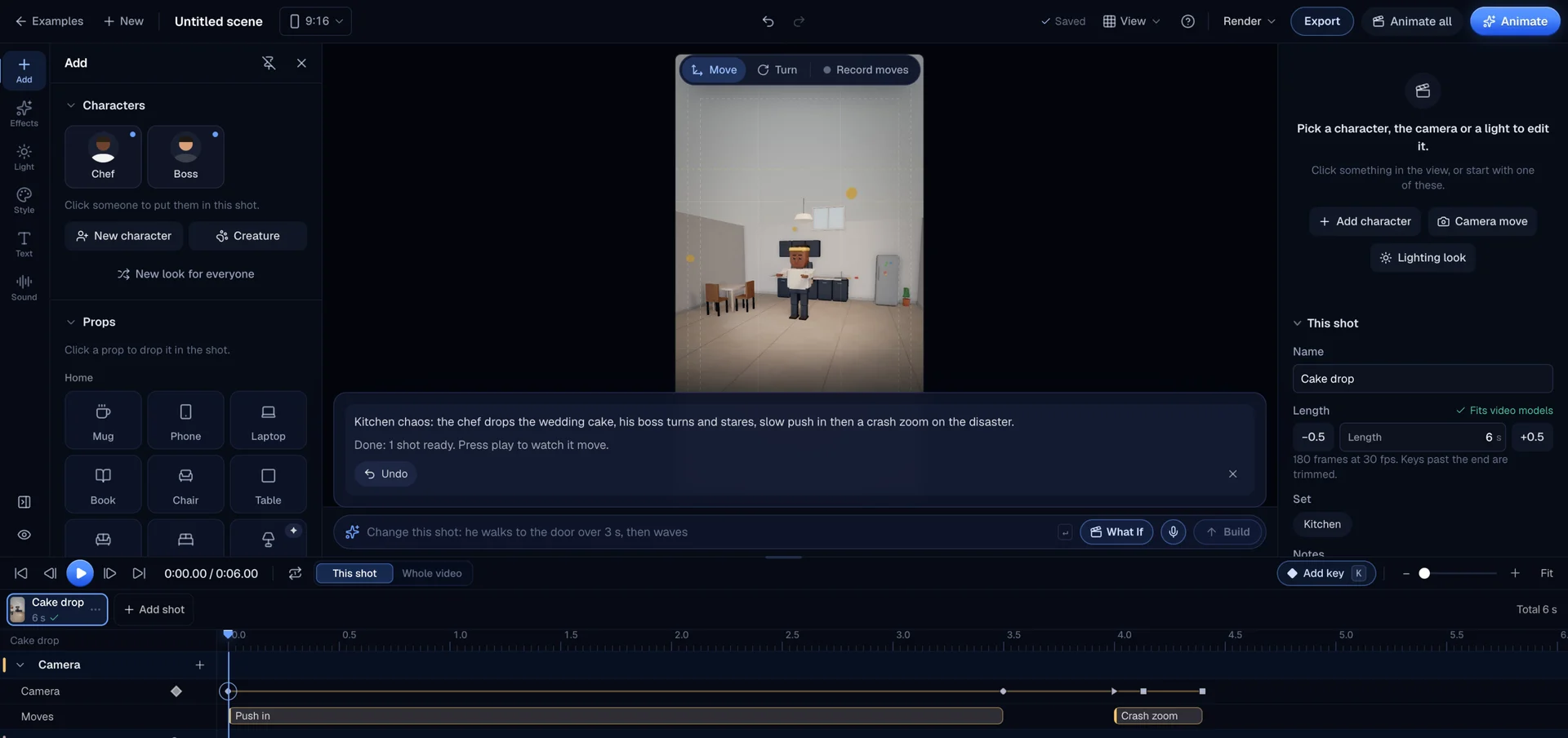
Or describe the scene to Kiryu
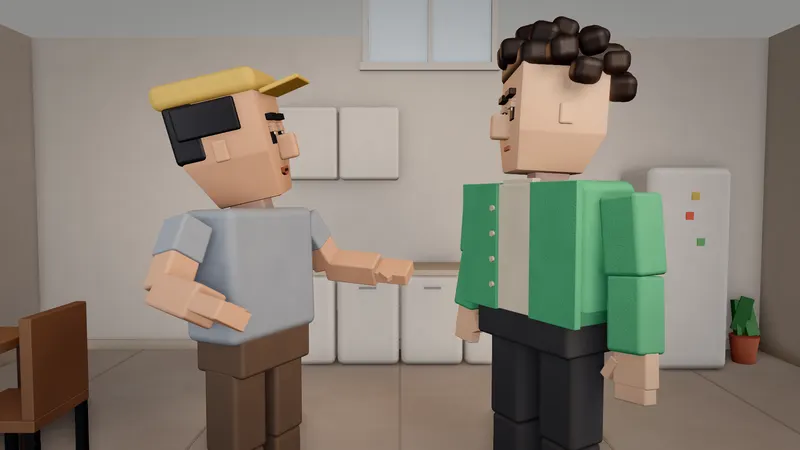
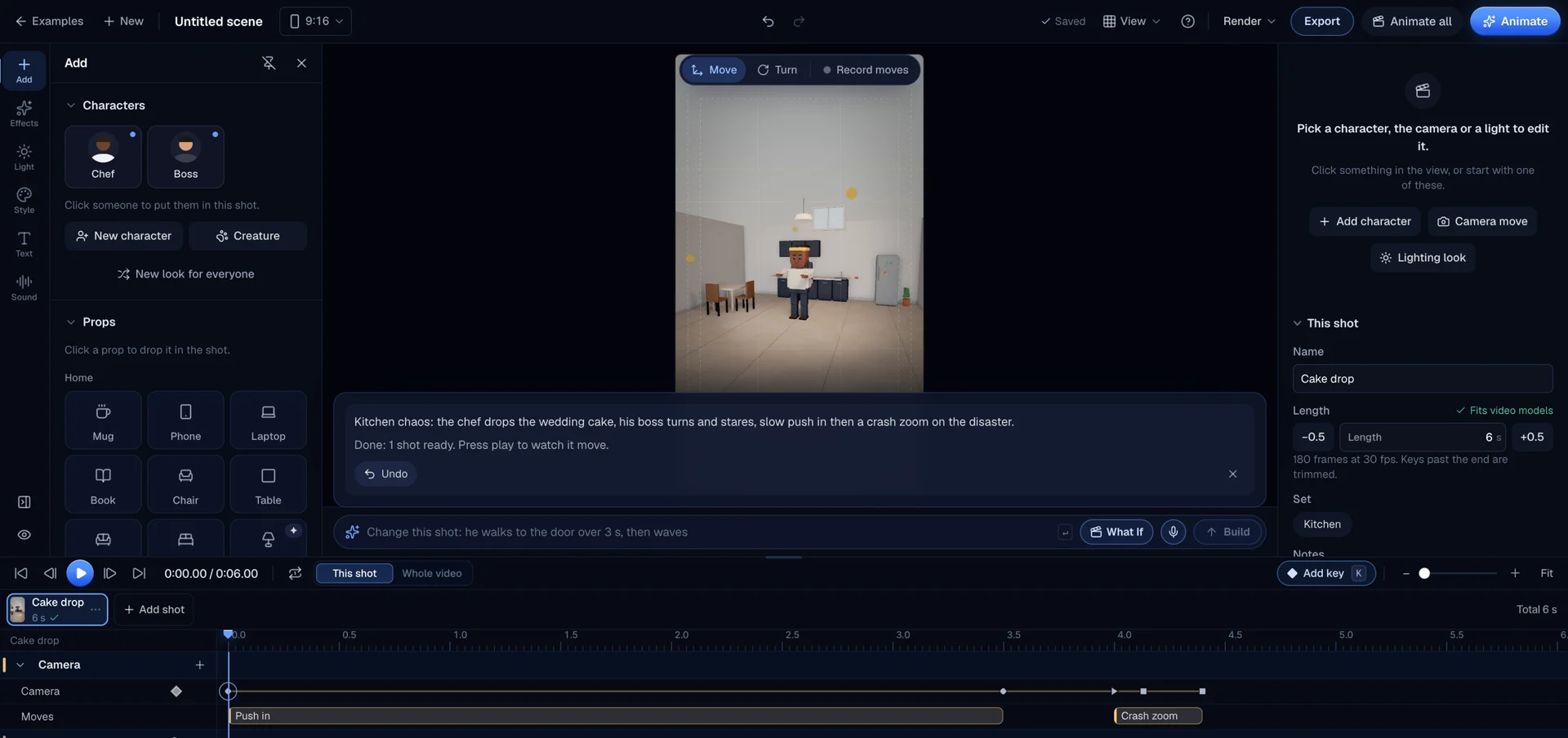
Type a scene into Describe a scene for Kiryu, for example "Two guys arguing in a kitchen, low angle, slow push-in", and press Build it. Kiryu picks the set, the cast, the poses and the camera moves and writes them as normal keyframes, so you can change every one of them. Kiryu builds are free; without an account you get a few a day, and a free account gets more.
Screenshot of kreatorflow.ai, 2026-11-06 - 3
Block the characters
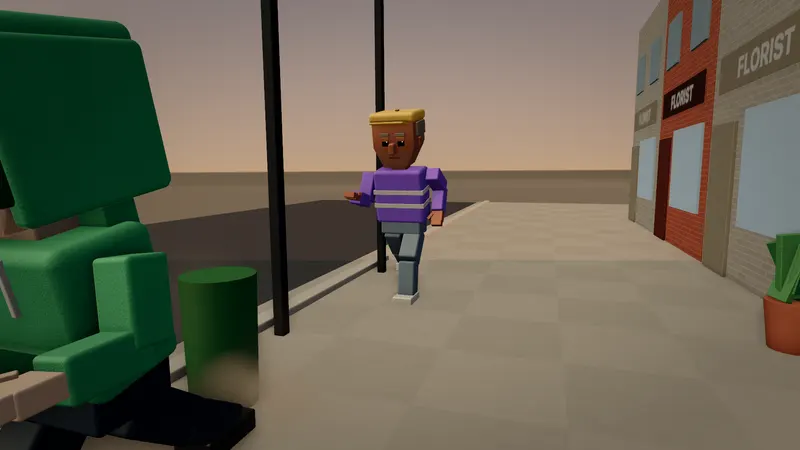
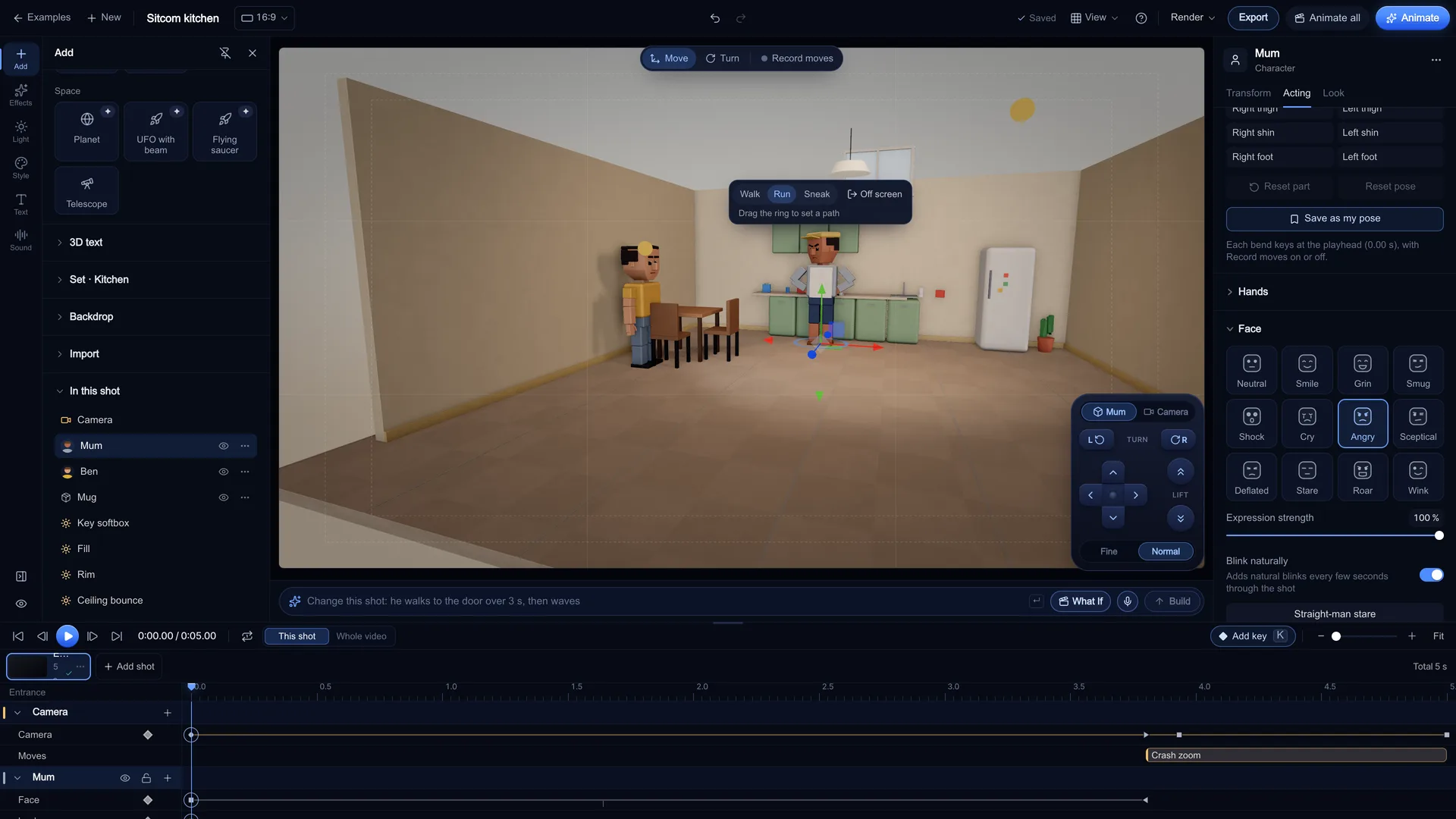
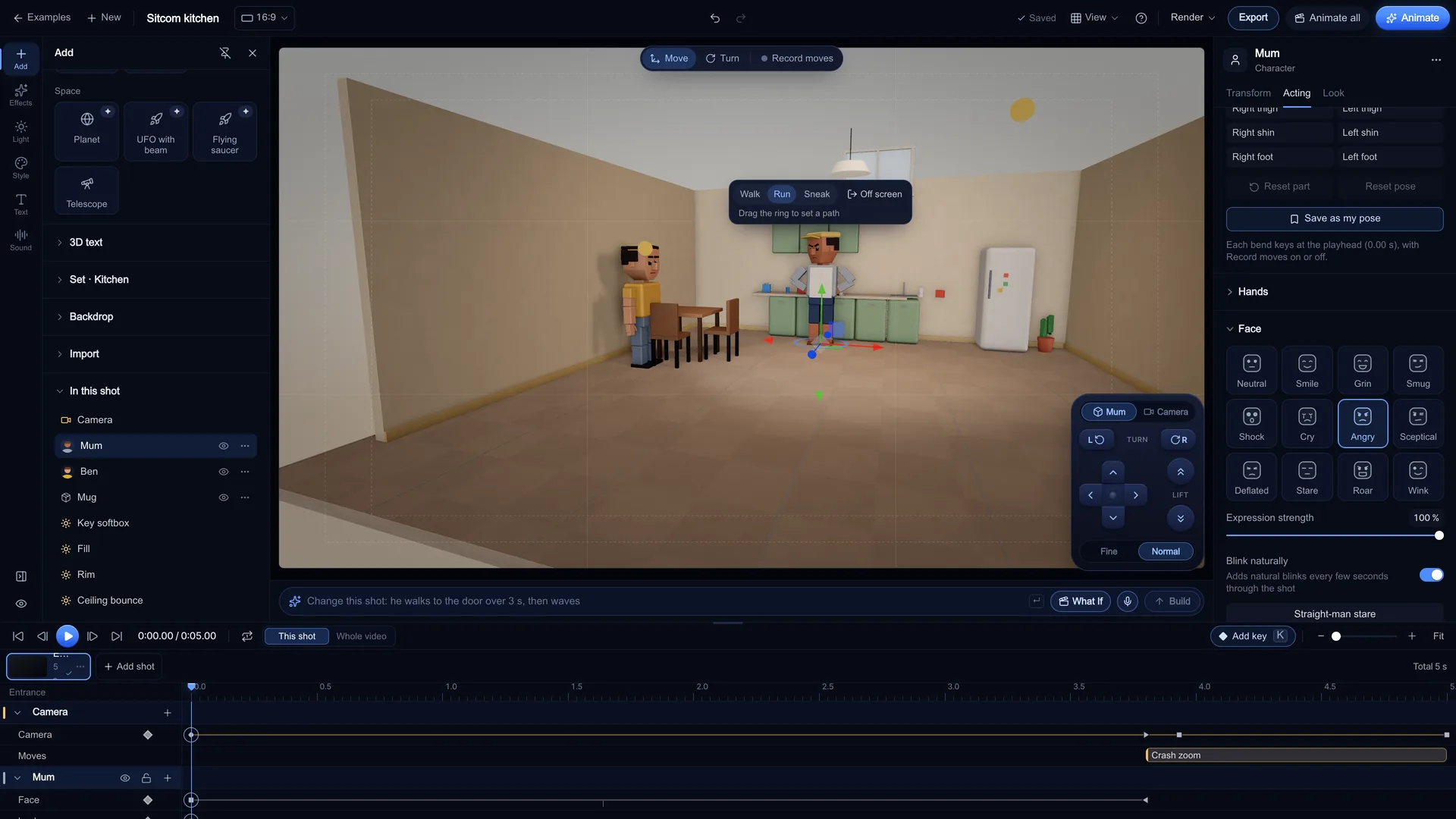
Click a character in the view and drag it to its mark with Move, or use Turn to face it the right way. In the Inspector set a Pose, an Expression and Look at (another character or The camera), or use Walk to and Run to for movement. With Record moves on, every change writes a key at the playhead.
Screenshot of kreatorflow.ai, 2026-11-06 - 4
Give the camera a move and time it
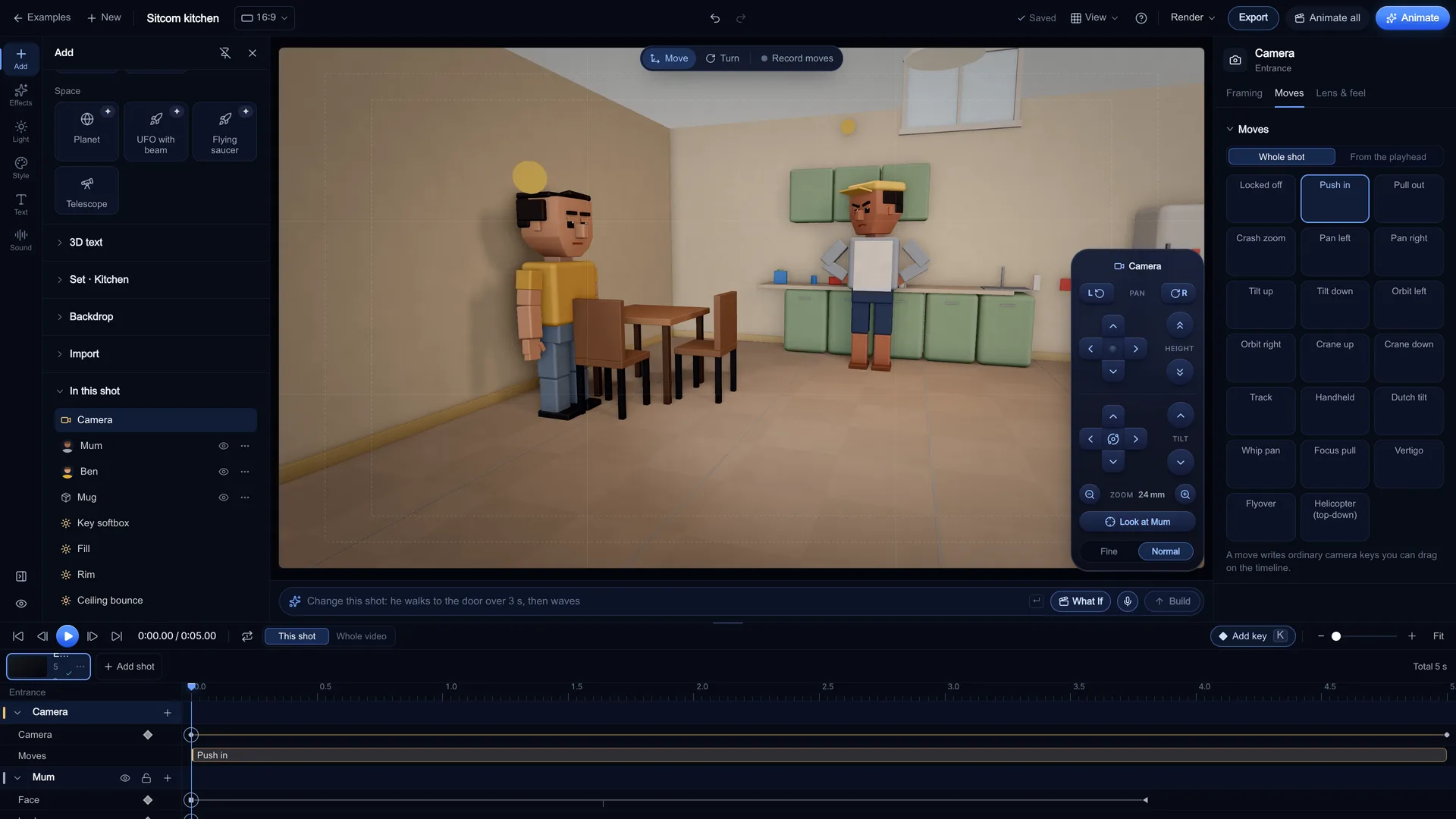
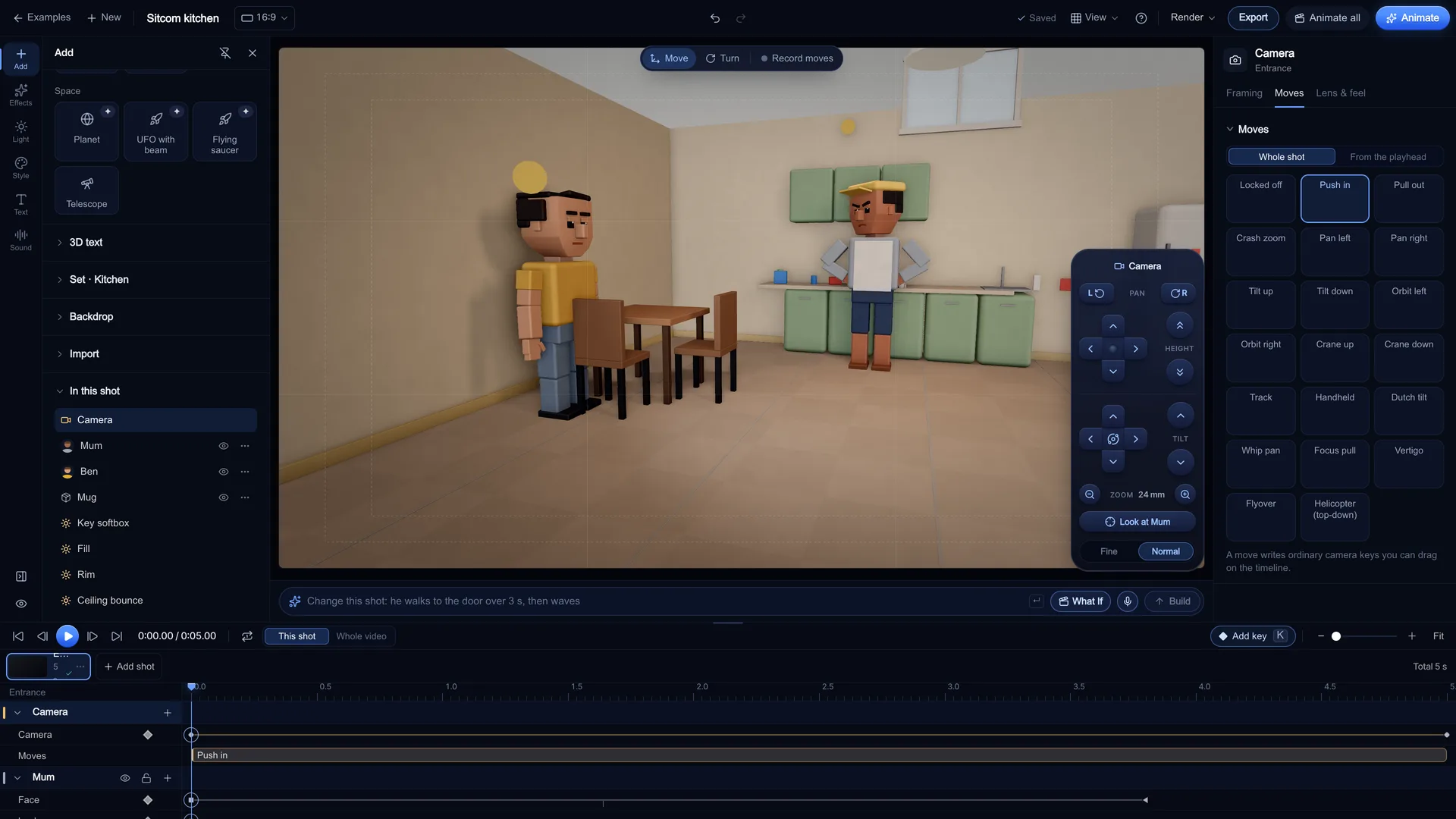
In the Camera panel choose a Framing, a Lens and a move from Camera moves, such as Push in or Crash zoom. Each move writes real camera keys on the timeline that you can drag, ease or delete. Set the Shot length (2 to 15 s), press Space to play it back, and press K to add a key at the playhead.
Screenshot of kreatorflow.ai, 2026-11-06 - 5
Animate the shot
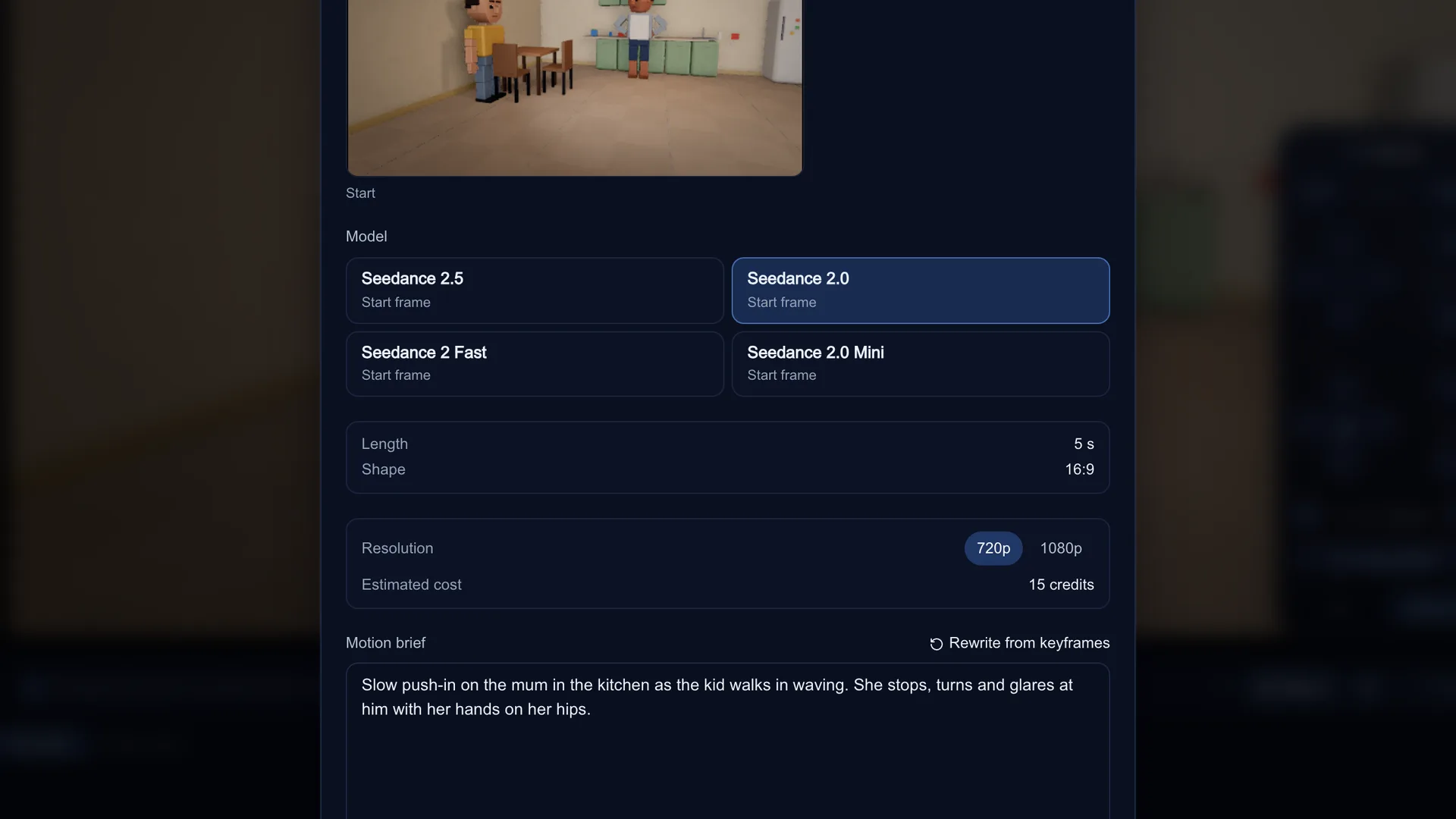
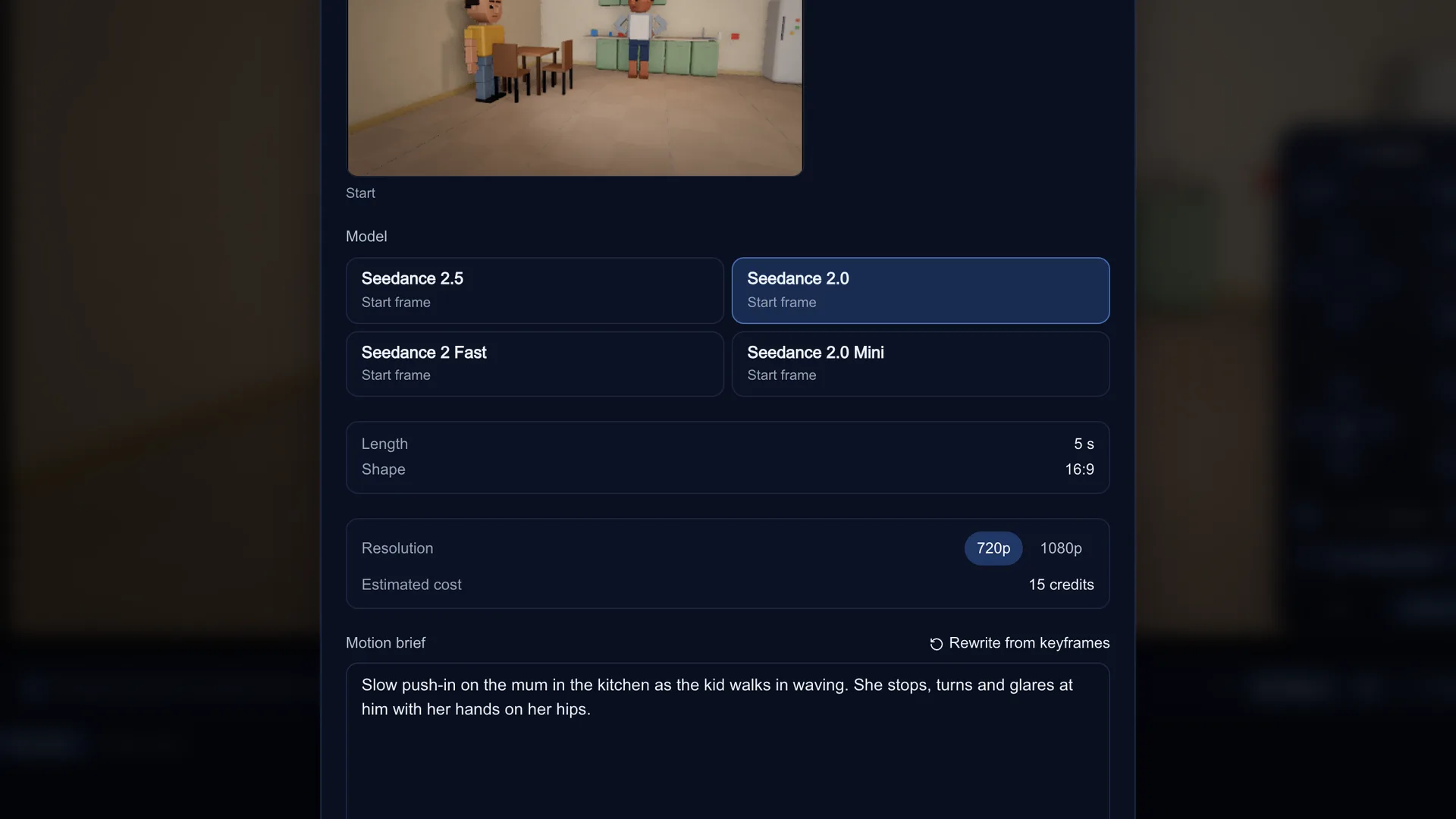
Press Animate. The Animate this shot dialog renders the start frame at the shot's shape, lets you pick a model, and snaps the length to the lengths that model makes (it tells you when it does). Check the Motion brief, then choose Open in Video studio, or Generate here after reading the Estimated cost.
Screenshot of kreatorflow.ai, 2026-11-06
Why plan in 3D before you prompt
Text-to-video is great at looks and weak at staging. Ask for "a slow push-in on two people arguing" twice and you get two different rooms, two different lenses and two different push-ins. That is fine for one clip and painful for a sequence that has to cut together.
Planning the shot in 3D first gives the model a fixed starting point: the set, where each person stands, the framing and the lens. The camera move and the action are then written out from your keyframes as a motion brief, so the model is told what happens and when instead of guessing.
It also saves credits. You can play a shot back, change the timing and try another angle as many times as you like in Stage for free, and only spend credits on the version you actually want to see as video.
What you can plan in Stage
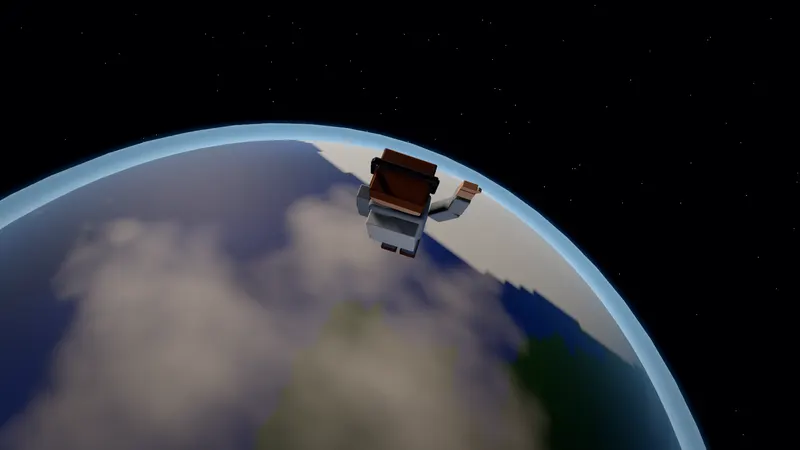
Everything below is built in. Characters are parametric (body type, hair, outfit, accessories), with poses, hand shapes, expressions, blinking and talking, and they can pick up and drop props.
| Part | How many | Examples |
|---|---|---|
| Sets | 21 | Studio, kitchen, street, pub, gym, newsroom, hallway, space |
| Framings | 11 | Extreme wide to extreme close-up, two-shot, over the shoulder, POV, insert |
| Camera moves | 21 | Push in, Crash zoom, Orbit left, Crane up, Whip pan, Vertigo dolly zoom and Flyover |
| Lenses | 6 presets plus any mm | 14 mm, 24 mm, 35 mm, 50 mm, 85 mm and 135 mm |
| Lighting presets | 11 | Soft high-key, Three-point studio, Golden hour, Overcast and Night neon |
| Looks | 8 | Studio (film look), Blocky bevelled, Low-poly, Toon cel-shaded, Clay, Vinyl toy, Pixel voxel and Semi-realistic |
| Examples | 14 | 3 What If shorts, 7 genres, 4 starters |
- Shots run 2 to 15 s in 0.5 s steps, with a running total for the whole sequence
- Keys for characters, the camera and lights, with easing per key (linear, ease in and out, hold, anticipate, overshoot, bounce)
- Light effects such as flicker, lightning, sunrise and lights off, plus fog, depth of field, bloom and grain
- Overlays: captions, a BREAKING NEWS bar and ticker, a censor box that follows a body part, titles and an end card
- Voice lines in KreatorFlow voices with lip sync on the character (2 credits per started 1,000 characters, made only after you confirm), or upload your own voiceover
- Export a previs video of one shot or the whole sequence, with overlays and sound, plus PNG start and end frames
What it costs
Planning is free: opening examples, building with Kiryu, blocking, lighting, playing back and exporting a previs video cost no credits. Blocking, lighting, playback and export run on your own computer's graphics card; Kiryu builds run on our servers but charge no credits.
Credits are only spent on paid steps you confirm: turning a shot into a video, making KreatorFlow voice lines, and dictating with the mic (Speech to Text). Open in Video studio spends nothing in Stage: you see the cost in the Video studio and pay when you press Generate there. Generate here and Animate all show an estimated cost before you confirm. Right now the lowest price for a 5 s 720p clip is 9 credits on Seedance 2.0 Mini.
Read from the Video studio's own credit code with Stage's sound setting for each model. A length in brackets is the nearest length that model makes.
| Model | Planned frames | 720p 5 s | 720p 10 s | 1080p 5 s | 1080p 10 s |
|---|---|---|---|---|---|
| Seedance 2.5 | Start | 24 | 47 | 50 | 100 |
| Seedance 2.0 | Start | 15 | 30 | 30 | 60 |
| Seedance 2 Fast | Start | 12 | 24 | 20 | 40 |
| Seedance 2.0 Mini | Start | 9 | 17 | 17 | 34 |
Make a What If short
The 3 What If examples are short vertical comedies that escalate shot by shot: a number on someone's forehead that keeps growing, a news desk guest who says too much. Open one and change the cast, the lines and the timing, or sign in and use Make me a What If: type the idea, pick 9:16, 1:1 or 16:9, and Kiryu writes the hook, the escalation and the payoff, then builds every shot for you to edit.
Limits, said plainly
Stage is a planner, not a full 3D suite. Before you start:
- Editing needs a laptop or desktop. On a phone you can watch the examples and send yourself the link
- Projects are saved in this browser on this device, with a recent projects list. There is no cloud save and no live collaboration, so export the scene file to keep a copy
- Imports are .glb, .gltf and .vrm only, up to 50 MB each, and they stay in your browser. Stage does not open .blend, FBX, OBJ or USD files
- Exports are previs videos, PNG frames and a scene file that opens in Stage. Stage does not export to Blender or other 3D apps
- The built-in characters are stylised. The look of the final video comes from the video model and your brief
Where the video comes from
KreatorFlow is an official partner of BytePlus, a ByteDance company. Stage hands your shot to the same Video studio everyone else uses, with Seedance 2.5, Seedance 2.0, Seedance 2 Fast and Seedance 2.0 Mini, so a shot planned in Stage is priced and generated exactly like any other clip.
Questions other guides skip
Why not just write a better prompt?
A prompt only hints at the camera. The model decides where the characters stand, how wide the lens is and how far the camera travels, and it decides again on every run. A planned start frame fixes the composition before the model starts, and a brief written from keyframes names the moves in the order they happen, so a redo changes less.
Do I need Blender or another 3D app to plan AI video shots?
No. Stage runs in a browser tab with built-in sets, characters, lights and camera moves, so there is nothing to install or rig. If you already use Blender, you can bring your own characters, props or sets in as .glb, .gltf or .vrm files (up to 50 MB). Stage does not open .blend or FBX files and does not export to Blender.
Source: Blender: about the project
What does a planned frame actually change in the video?
Seedance takes your planned frame as the exact first frame, then follows the motion brief from there.
Frequently asked questions
Is Stage free?
Planning in Stage is free, signed in or not. Credits are only spent when you turn a shot into a video, make KreatorFlow voice lines or dictate with the mic, and you see the cost first (for example 60 credits for a 10 s 1080p Seedance 2.0 clip).
Do I need to know 3D?
No. You can start from an example or type a scene for Kiryu, then drag characters and pick camera moves from a menu. Every move is written as keyframes you can see and change on the timeline.
Does Stage work on a phone?
You can watch the examples on a phone, but editing needs a laptop or desktop: planning in 3D needs a bigger screen and a mouse. The phone page has a button to send the link to your computer.
Which models can animate my shot?
Seedance 2.5, Seedance 2.0, Seedance 2 Fast and Seedance 2.0 Mini, the same models as the Video studio. Stage snaps your shot to the nearest length each model makes and tells you when it does. Seedance takes your planned frame as the exact first frame, then follows the motion brief from there.
Is my project uploaded?
No. Projects are saved in your browser on your device, and 3D files you import stay there too. What leaves your computer is the scene text you give Kiryu, the frames and brief of a shot when you choose to animate it, the words of voice lines you choose to make, and mic recordings you dictate.
Can I bring my own 3D models?
Yes, as .glb, .gltf or .vrm files up to 50 MB, for characters, props or whole sets. Humanoid rigs work with the pose tools and VRM expressions are mapped. .blend and FBX files are not supported, so export to glTF from your 3D app first.