Get started
From planned shot to AI video, step by step
- 1
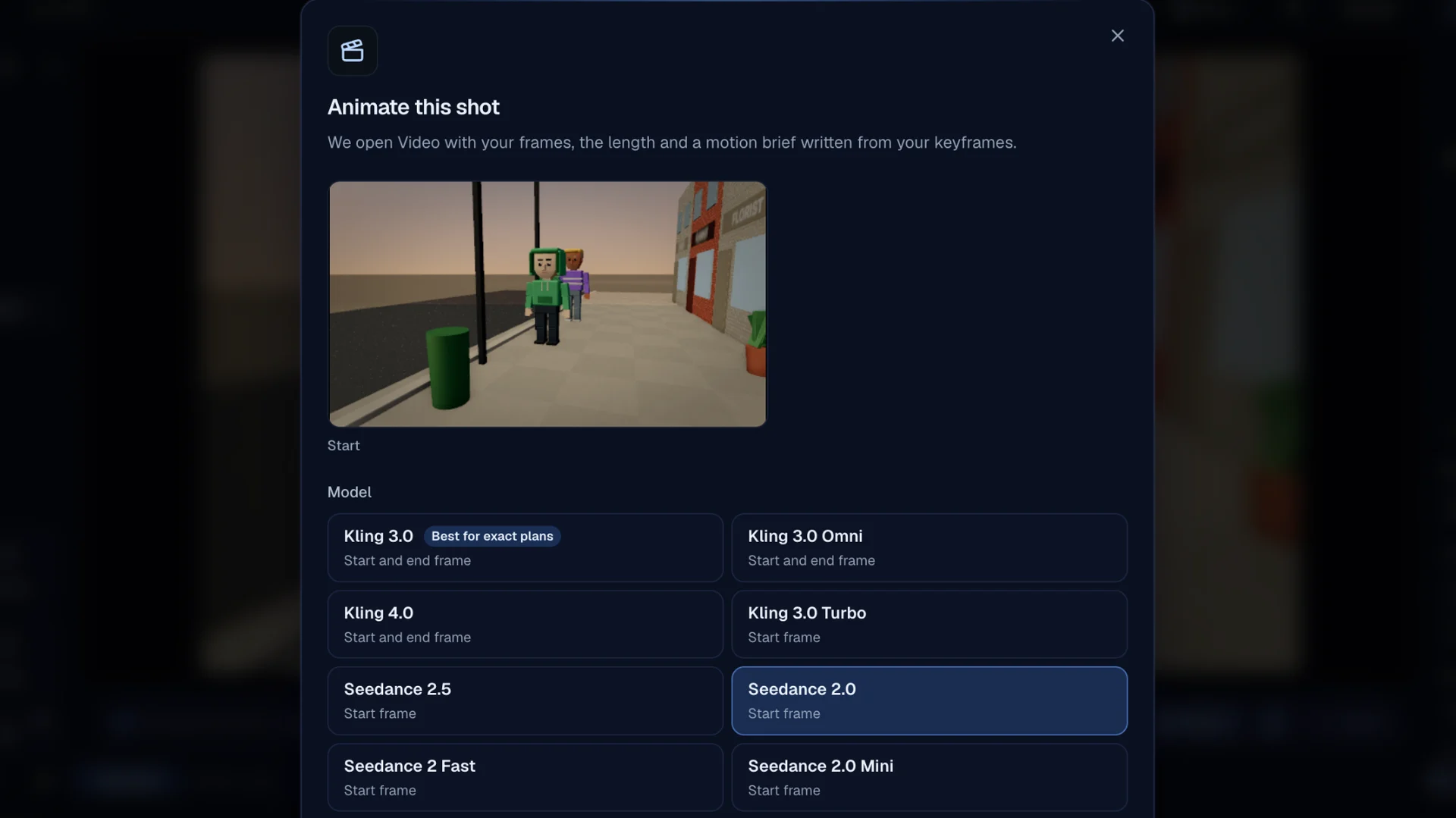
Press Animate on the shot
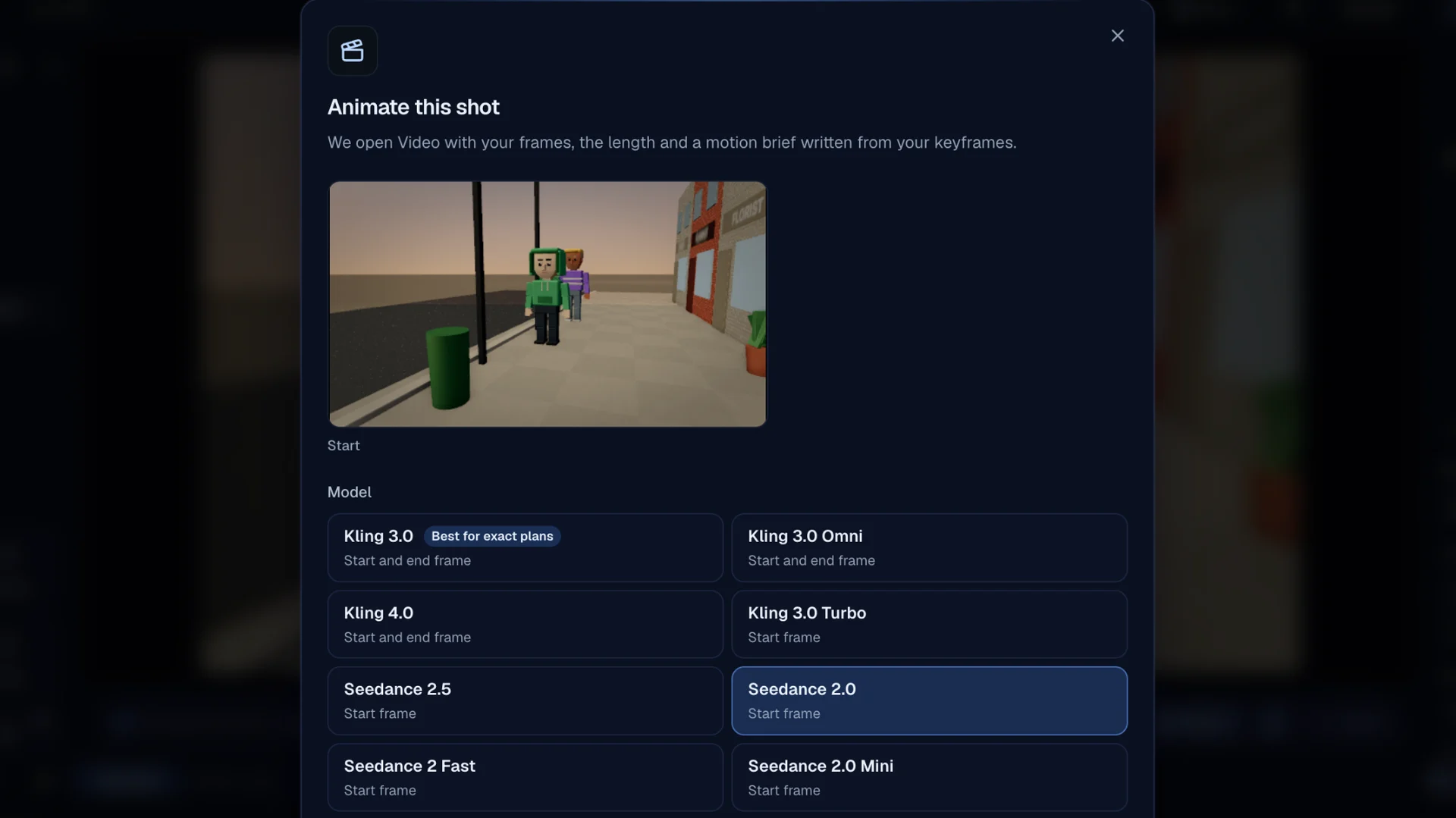
Plan the shot first: cast, set, lights and camera keys. Then press Animate on that shot in the timeline. "Animate this shot" opens and renders clean start and end frames at the model's shape, with no captions, HUD or guides on them (1280×720 for 16:9, 720×1280 for 9:16).
Screenshot of kreatorflow.ai, 2026-11-06 - 2
Pick the model
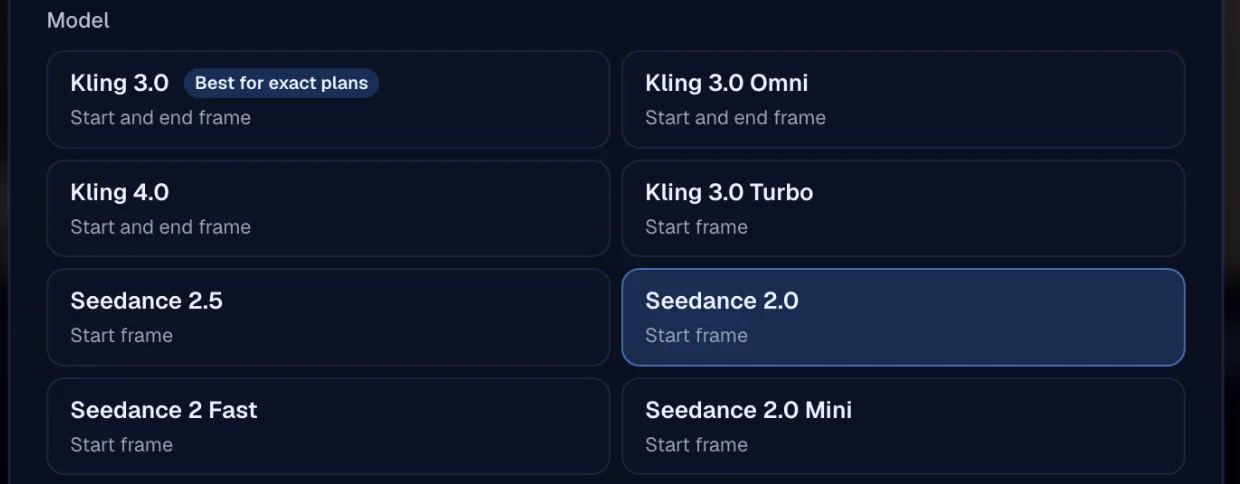
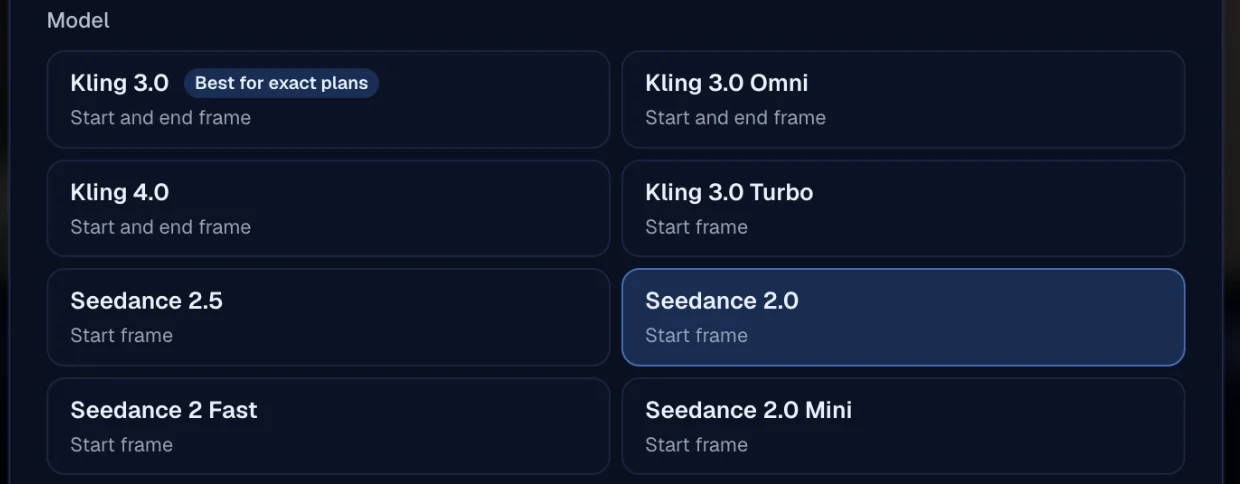
Under Model, pick the Seedance model that animates the shot. Every Seedance tile says "Start frame": Seedance pins your start frame exactly and plays your planned move from there, guided by the motion brief. Seedance 2.0 Mini is the lowest-cost option at 720p.
Screenshot of kreatorflow.ai, 2026-11-06 - 3
Check the length and shape
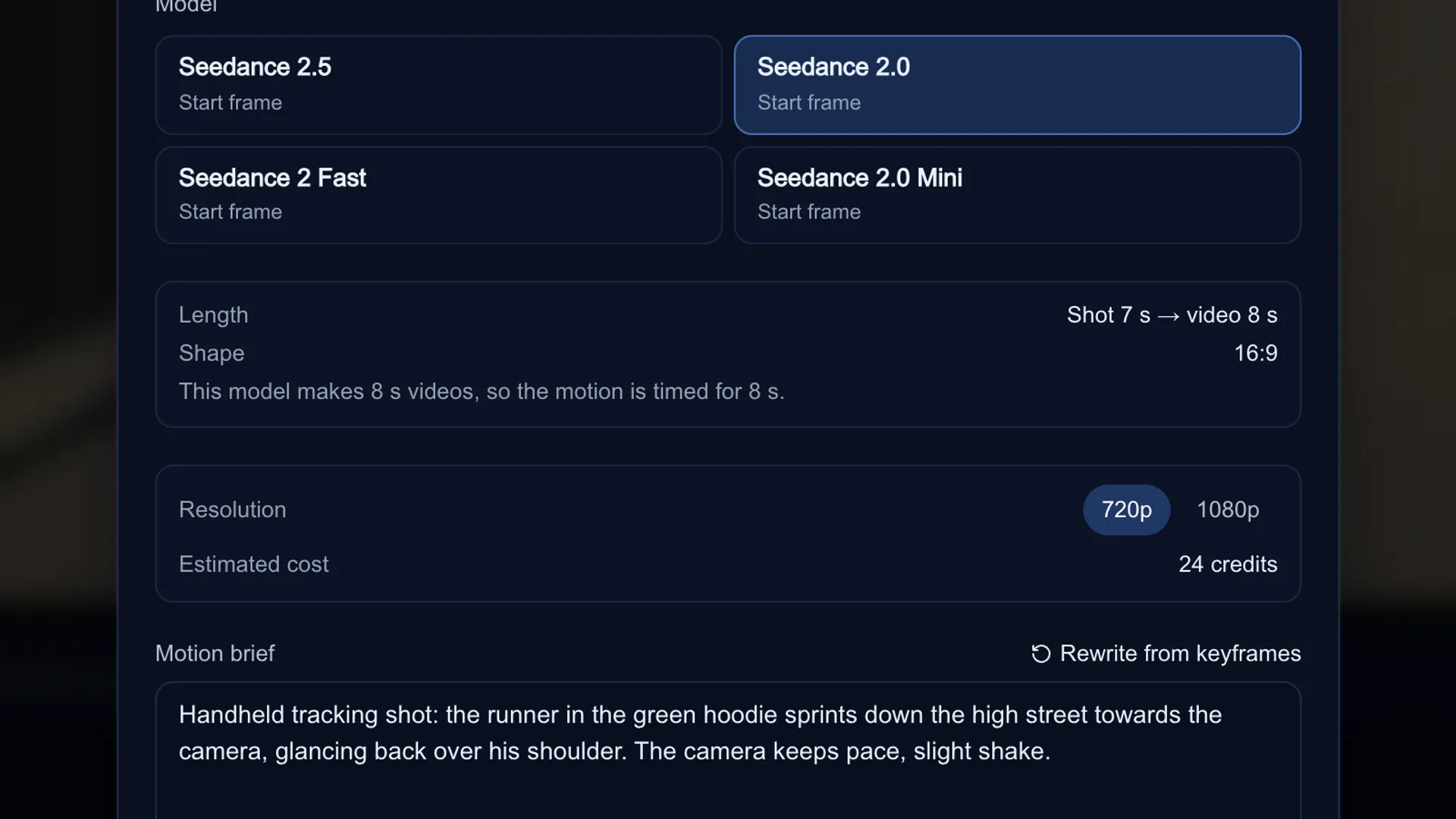
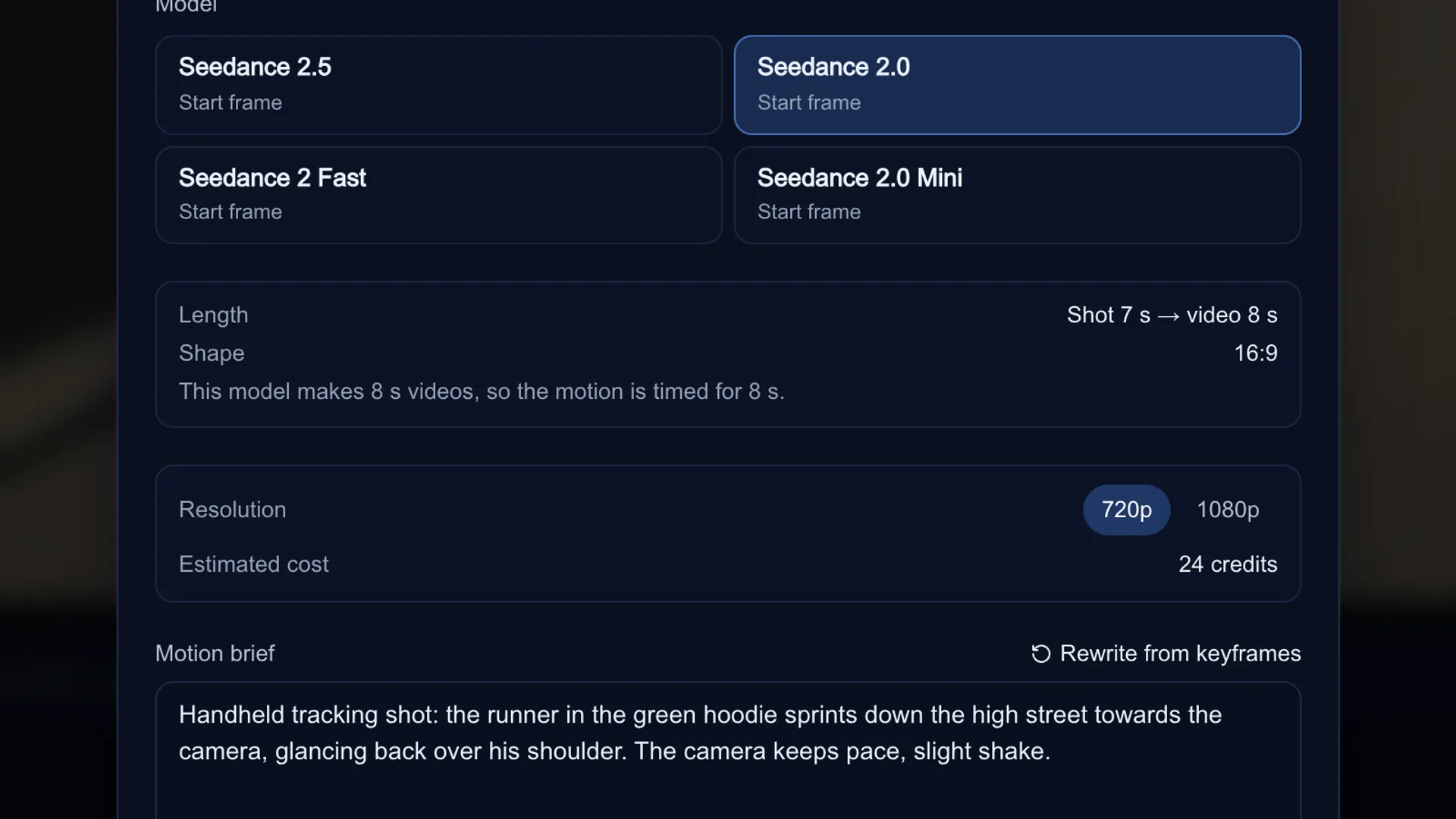
Video models only make certain lengths, so Stage snaps the shot to the nearest one the model makes (ties go longer, so the action is never cut short). The Length line shows it, for example "Shot 7 s → video 8 s", and a note says the motion is timed for the new length. If the model doesn't make your project's shape, Shape shows the nearest one and the frames are re-rendered at it, never squashed.
Screenshot of kreatorflow.ai, 2026-11-06 - 4
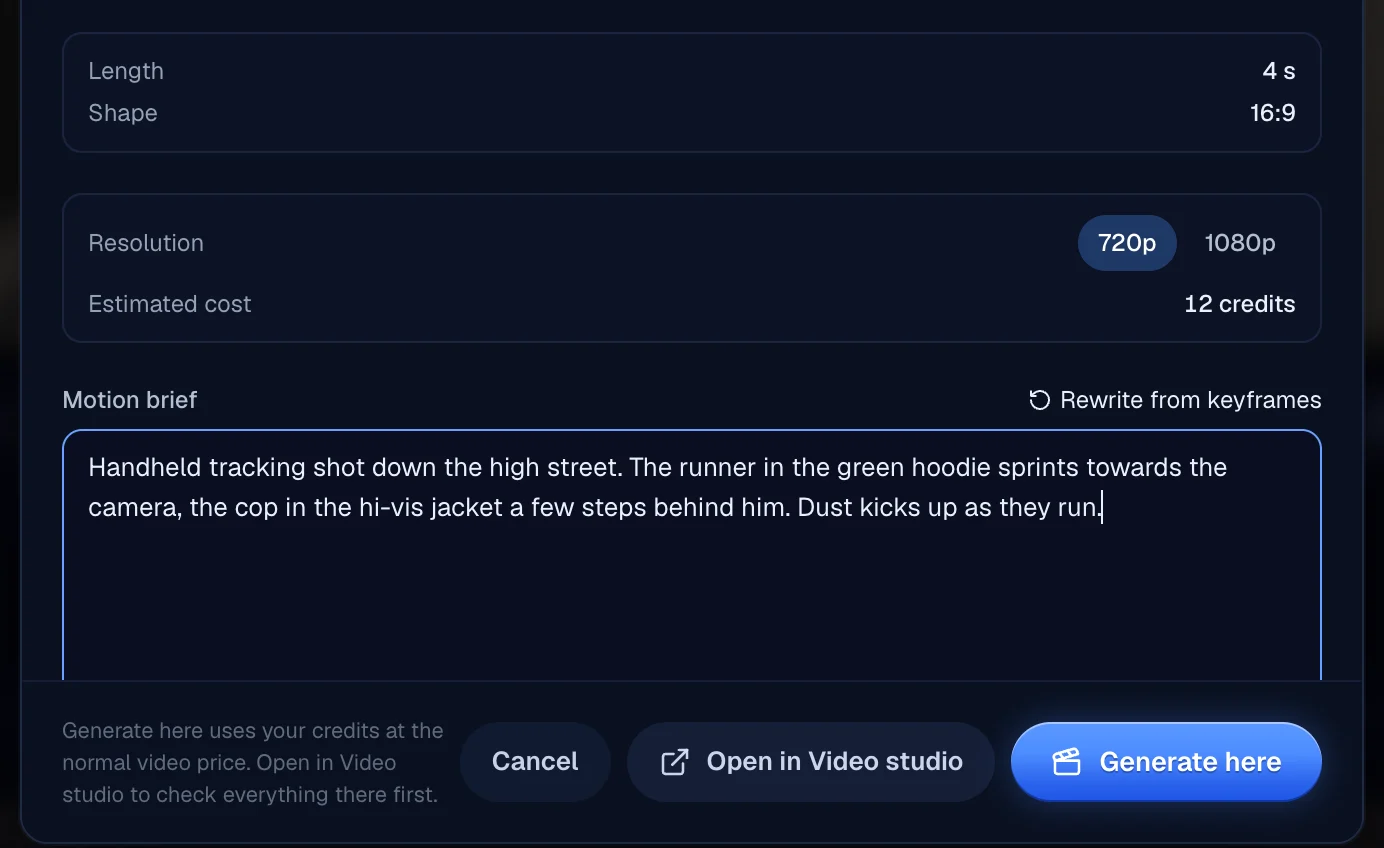
Read and edit the motion brief
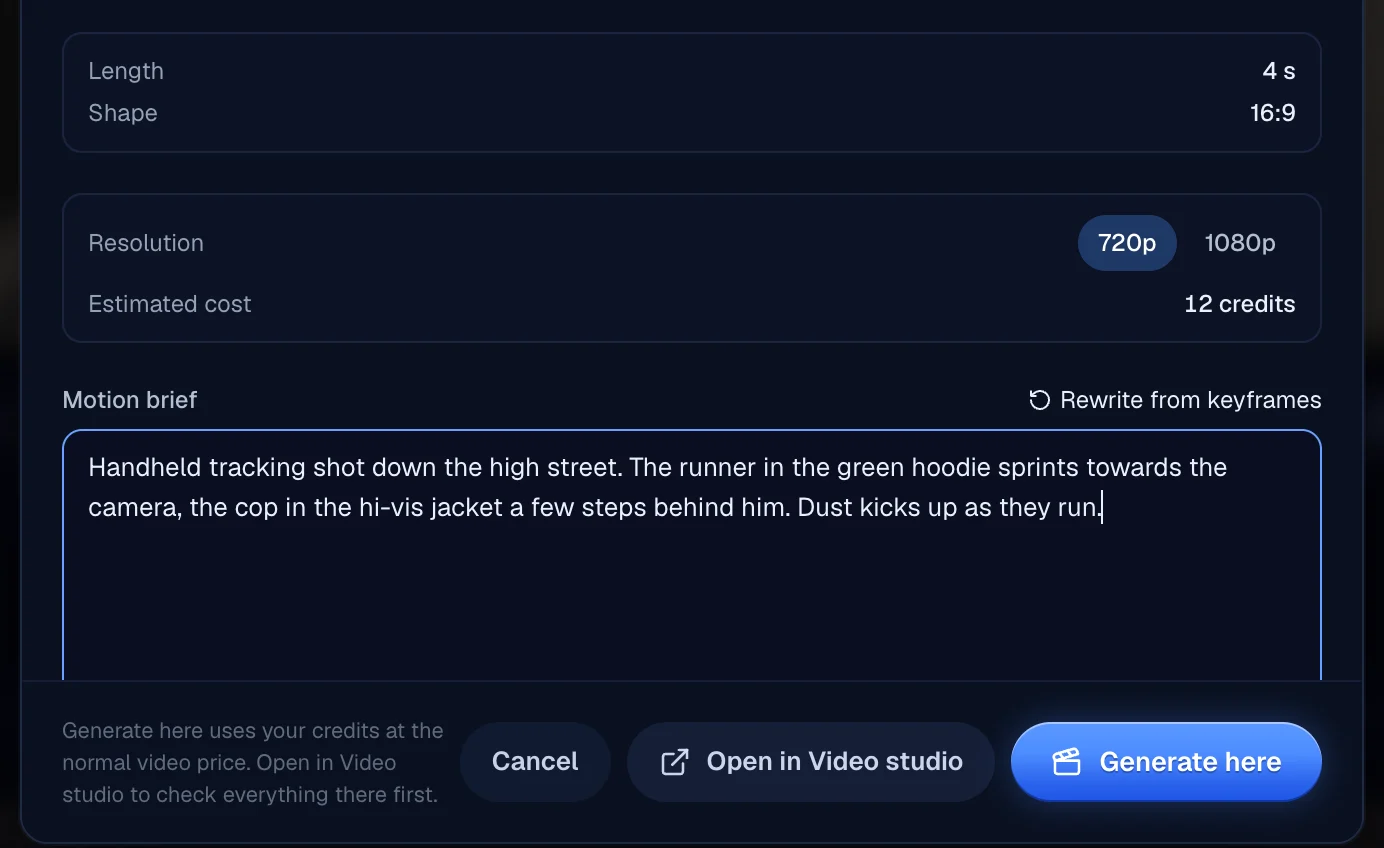
Stage writes the Motion brief from your keyframes, camera and lights: the camera move first, then what each character does and when, in seconds. Press "Show full brief" to read all of it and type over anything. "Rewrite from keyframes" puts the generated version back.
Screenshot of kreatorflow.ai, 2026-11-06 - 5
Generate here, or open in Video studio
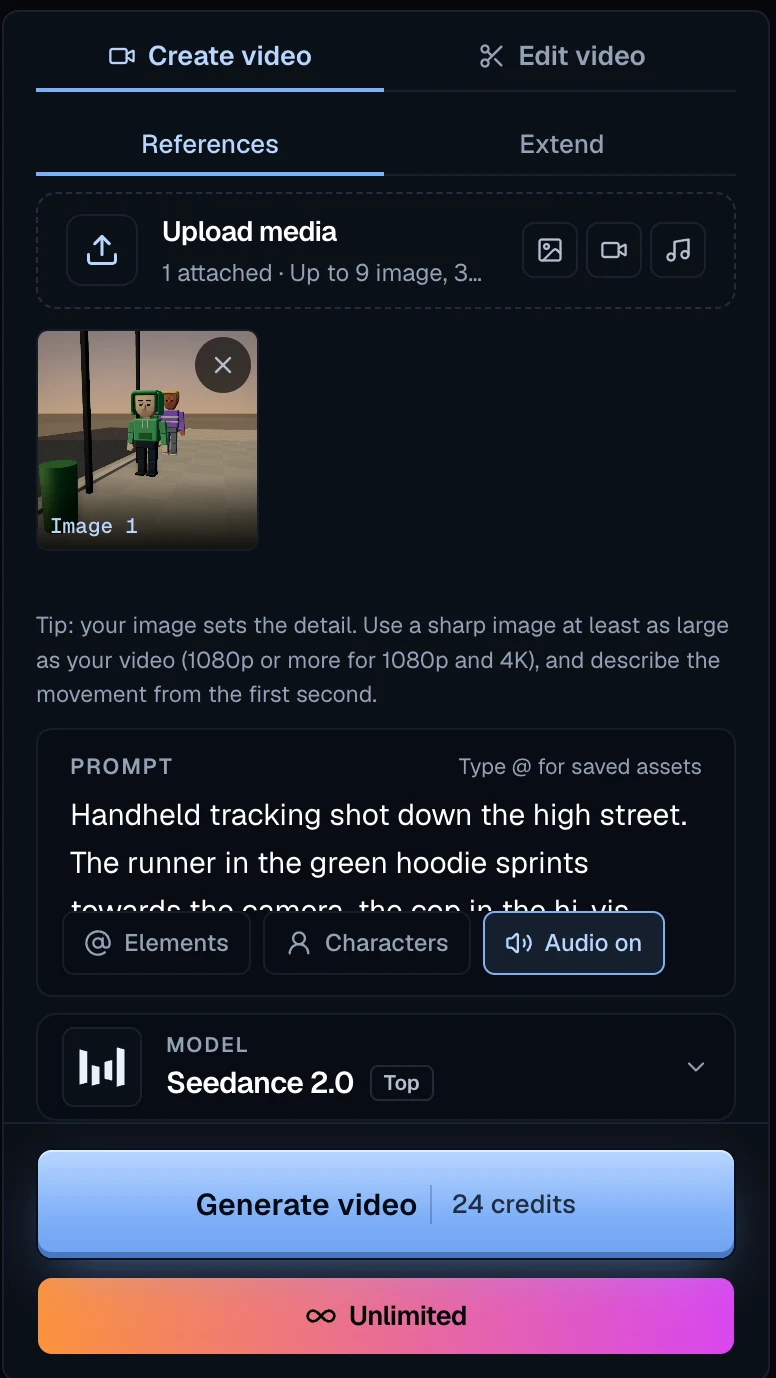
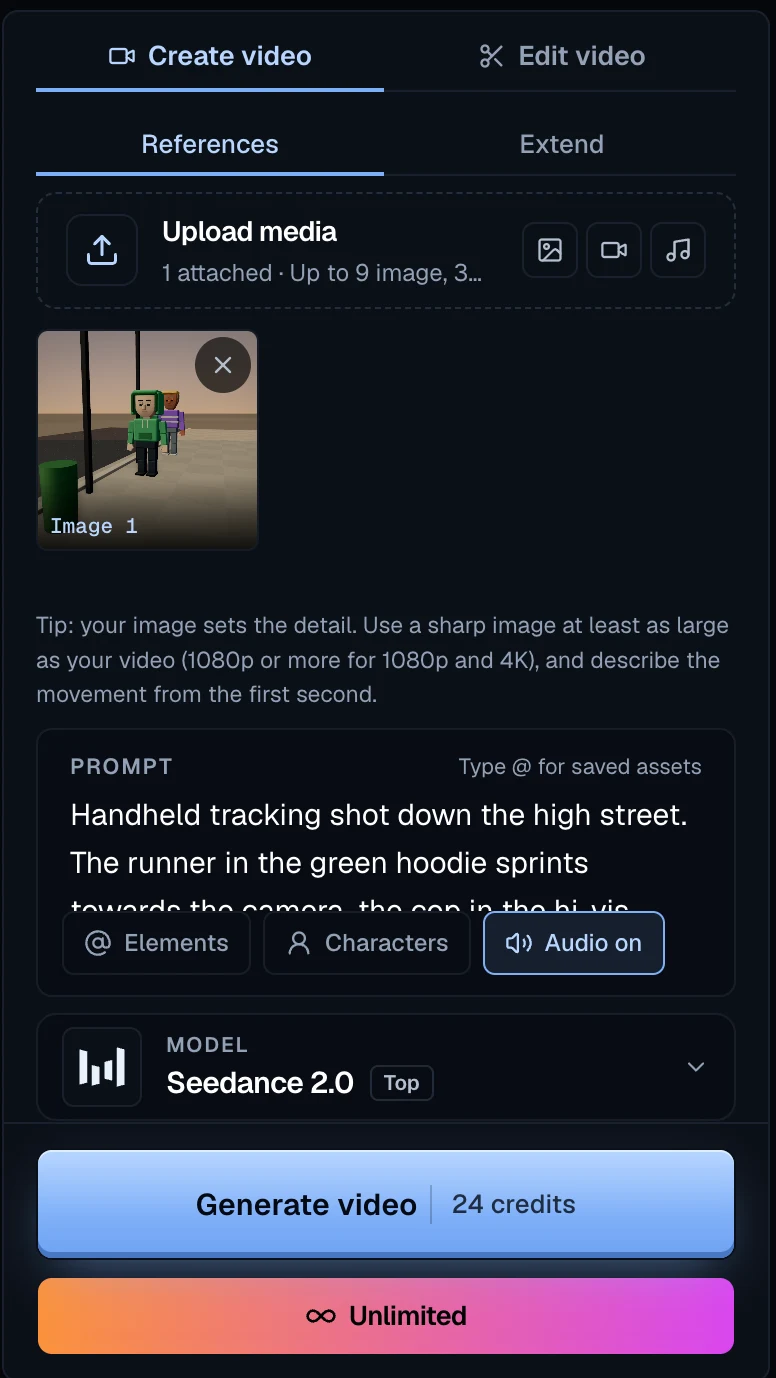
Pick 720p or 1080p and read the Estimated cost. "Generate here" sends the shot at the normal video price and the take comes back onto the shot. "Open in Video studio" uploads the frames and opens the Video studio with the model, length, shape and brief filled in; nothing is spent until you press Generate there, next to the credit cost.
Screenshot of kreatorflow.ai, 2026-11-06 - 6
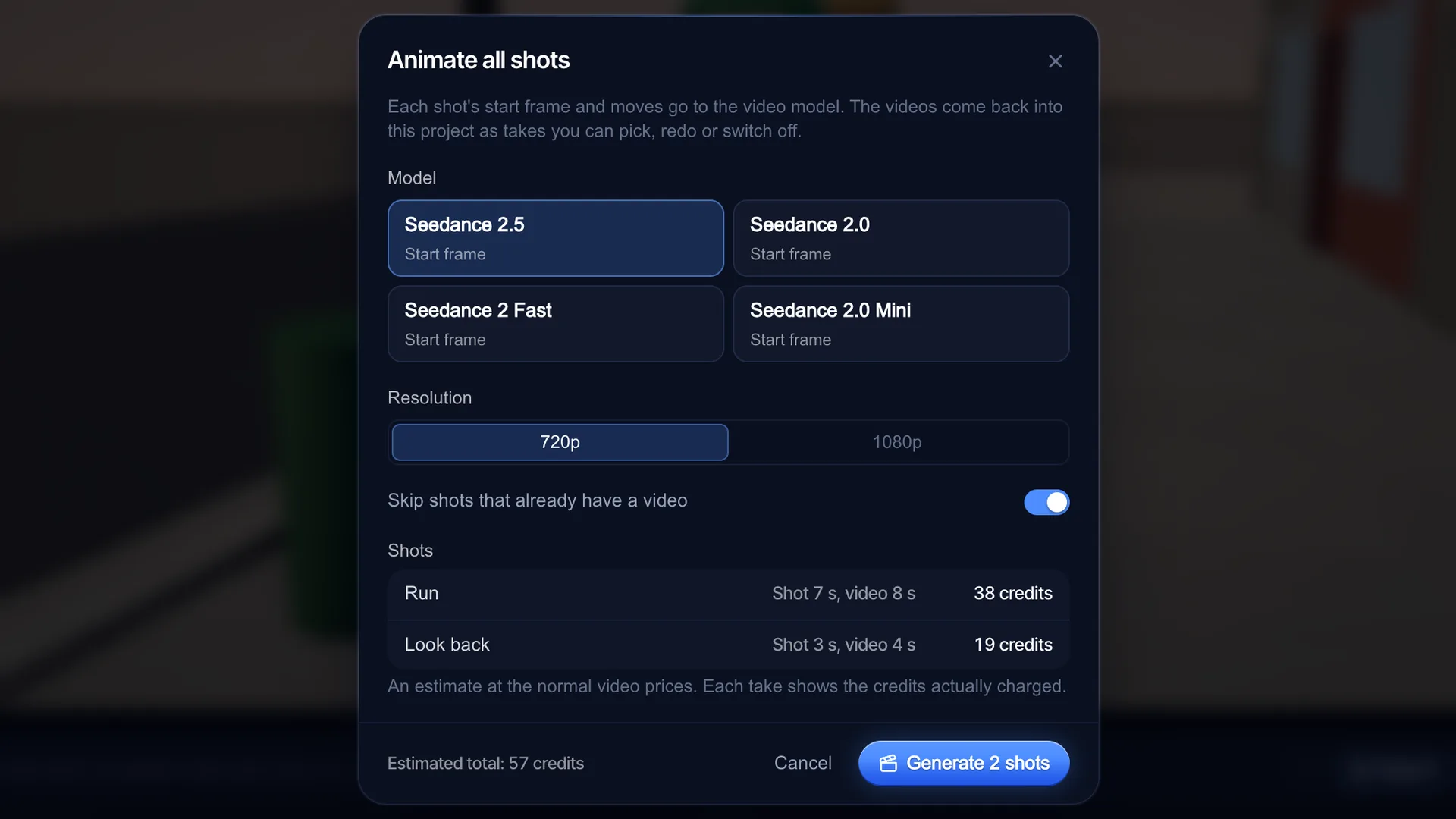
Or press Animate all
Animate all in the top bar makes a video for every shot. Pick one model and a resolution, keep "Skip shots that already have a video" on if you are redoing a few, and check the Estimated total before you press Generate. Each video lands on its shot as a take, and the viewport switches between Plan and Video.
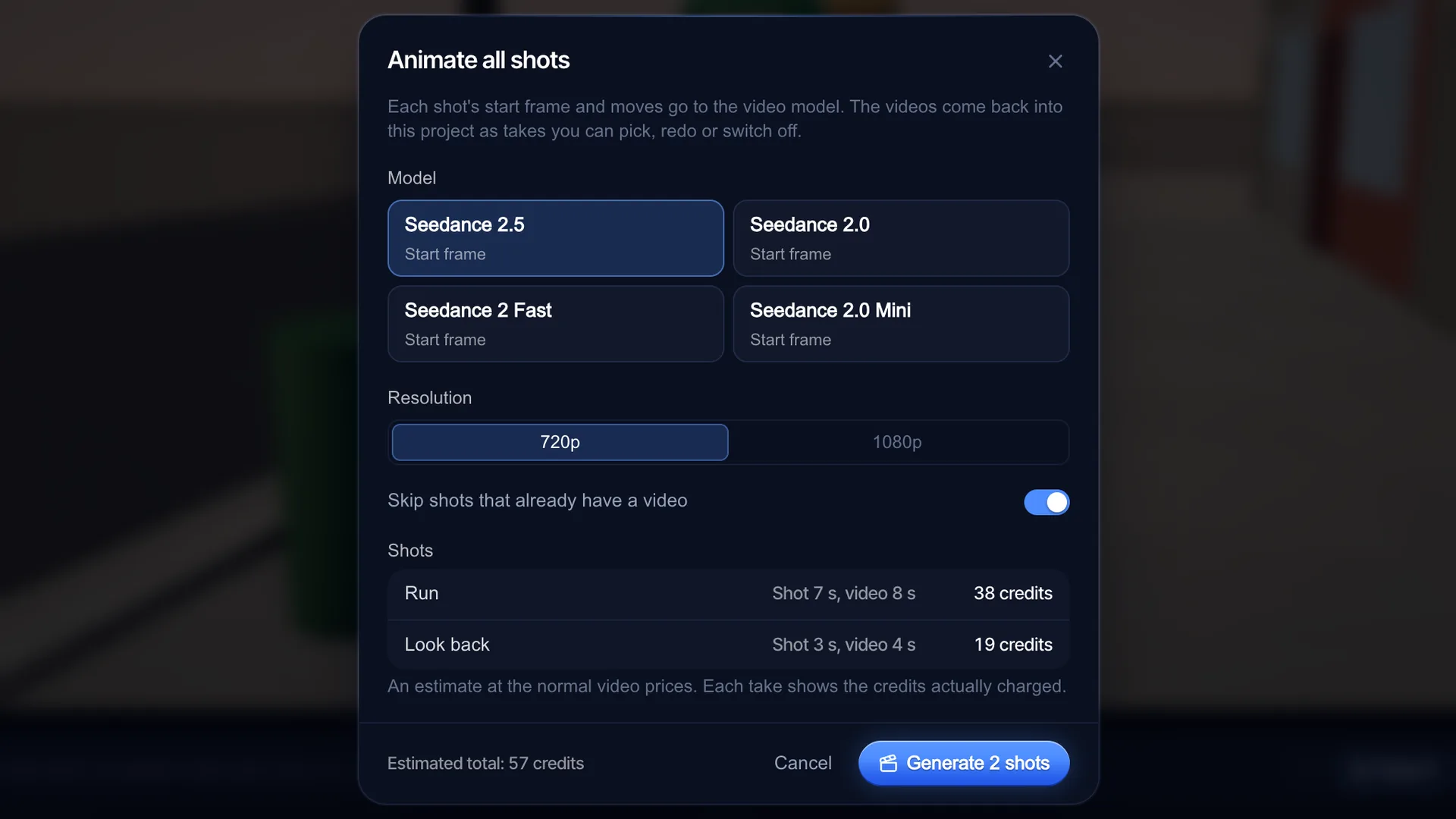
Screenshot of kreatorflow.ai, 2026-11-06
What each model takes
Stage only lists models your account can use right now. Every Seedance model pins your start frame and has no end frame, so plan each shot to start on the frame that matters and describe where it goes in the brief.
Seedance takes 16:9, 4:3, 1:1, 3:4, 9:16 and 21:9. KreatorFlow is an official partner of BytePlus, a ByteDance company.
Read from Stage's own model list. Every Seedance model gets your start frame as the exact first frame.
| Model | Start frame | End frame | Lengths | Shapes | Resolutions |
|---|---|---|---|---|---|
| Seedance 2.5 | Exact first frame | No | 4, 5, 6, 8, 10, 12, 15, 20, 25, 30 s | 16:9, 4:3, 1:1, 3:4, 9:16, 21:9 | 720p, 1080p |
| Seedance 2.0 | Exact first frame | No | 4, 5, 6, 8, 10, 12, 15 s | 16:9, 4:3, 1:1, 3:4, 9:16, 21:9 | 720p, 1080p |
| Seedance 2 Fast | Exact first frame | No | 4, 5, 6, 8, 10, 12, 15 s | 16:9, 4:3, 1:1, 3:4, 9:16, 21:9 | 720p, 1080p |
| Seedance 2.0 Mini | Exact first frame | No | 4, 5, 6, 8, 10, 12, 15 s | 16:9, 4:3, 1:1, 3:4, 9:16, 21:9 | 720p, 1080p |
What a shot costs to animate
Planning, the Animate dialog, the frames and the brief cost nothing. Credits are spent only when you press Generate here, confirm Animate all, or press Generate in the Video studio. A 5-second 720p Seedance 2.0 shot is 15 credits.
Stage offers 720p and 1080p. Lengths in brackets show where a model snaps to a different length.
Computed with the same credit code the Animate dialog and Animate all use, with each model's sound setting in Stage. Each take then shows the credits actually charged.
| Model | 720p · 5 s | 720p · 10 s | 720p · 15 s | 1080p · 5 s | 1080p · 10 s | 1080p · 15 s |
|---|---|---|---|---|---|---|
| Seedance 2.5 | 24 | 47 | 70 | 50 | 100 | 150 |
| Seedance 2.0 | 15 | 30 | 45 | 30 | 60 | 90 |
| Seedance 2 Fast | 12 | 24 | 36 | 20 | 40 | 60 |
| Seedance 2.0 Mini | 9 | 17 | 25 | 17 | 34 | 50 |
Takes: keep, redo or go back to the plan
Every generated video comes back onto its shot as a take. Press Takes on the shot to see them all with the model, length, resolution and the credits charged.
If you move a key, a light or the camera after a take was made, that take says "Plan changed since this take", so you know it no longer matches.
- Use: makes that take the shot's video in the Video view and the export
- Use the plan: goes back to the 3D render for that shot
- Redo: sends the shot again for a new take
- Remove: drops a take you don't want
- Clip sound: mixes the video's own sound under Stage's sound in the export
- A failed video says so, and its credits come back
Cutting the takes together
In the export, "Use generated clips" puts each shot's picked take into the previs video in shot order, and shots without a take use the 3D render. It needs the Exact export mode. You get one video with your overlays and Stage's sound on top.
When the video doesn't match the plan
AI video models interpret; they don't play back keyframes. These fixes help the most:
- Give each shot one main move. A push-in plus an orbit plus a crane in one shot is the most common reason a model improvises.
- Keep the brief's camera line first and short. Delete extra adjectives instead of adding more.
- Check the Length line. If the model stretched your shot, the move is timed for the new length; shorten or lengthen the shot in the timeline to match.
- Need a precise ending? Split the shot in two so the second shot starts on the frame you want.
- Fast hand or finger poses and small text rarely survive. Frame them bigger or add them in the edit.
- Redo is a fresh take at the same settings; results vary from take to take.
Questions other guides skip
Why use a start frame instead of only a text prompt?
A text prompt lets the model choose the framing, the lens and where everyone stands. A start frame fixes all three, so the video opens on the composition you planned and the brief only has to describe the motion. That is the part of a 3D blockout that carries straight into an AI video.
Does the model follow my camera keyframes exactly?
Not frame for frame. The keys reach the model as words in the motion brief (the move, its direction and its timing) plus the frames. Seedance has a fixed first frame and follows the described move from there. Simple, single moves per shot come out most faithfully.
Can I send the shot to a model outside KreatorFlow?
Stage's export saves a previs video of your shots and clean start and end frame PNGs per shot, which you can use anywhere. The Animate hand-off itself only goes to KreatorFlow's Video studio. Stage does not export camera data, .blend or FBX files.
Free to plan
Open Stage and animate your first shot
Start from one of the example scenes, move the camera, then press Animate to see the frames, brief and cost before anything is spent.
Frequently asked questions
Do I pay anything in Stage?
Planning, rendering frames and writing the brief are free. You pay credits only when you press Generate here, confirm Animate all after seeing the Estimated total, or press Generate in the Video studio. Open in Video studio itself spends nothing.
Can I animate shots on the free plan?
Planning is free for everyone. To generate, a free account can use Seedance 2 Fast and Seedance 2.0 Mini up to 720p, paid from its 25 starter credits, up to 5 clips a day, and free clips wait in a short queue first. Any other model or resolution shows "Upgrade to get access".
Why did my shot's length change?
Each video model only makes certain lengths. Stage snaps your shot to the nearest one, picking the longer one on a tie, and shows it as "Shot 7 s → video 8 s". The brief times the motion for the new length.
Can Seedance use an end frame from Stage?
No. Seedance pins the start frame only, so Stage sends just that frame and describes the rest of the move in the brief.
Is the start frame used exactly?
Yes. Stage renders a clean frame with no overlays or guides at the model's shape and sends it as the video's first frame, so the take opens on the composition you planned.
How long can the motion brief be?
Stage writes up to 1,200 characters, in order: camera, what each character does and when, then the look. You can edit it before sending.