Get started
Test any previs tool with one shot: the Stage version
- 1
Start from an example, not a blank scene
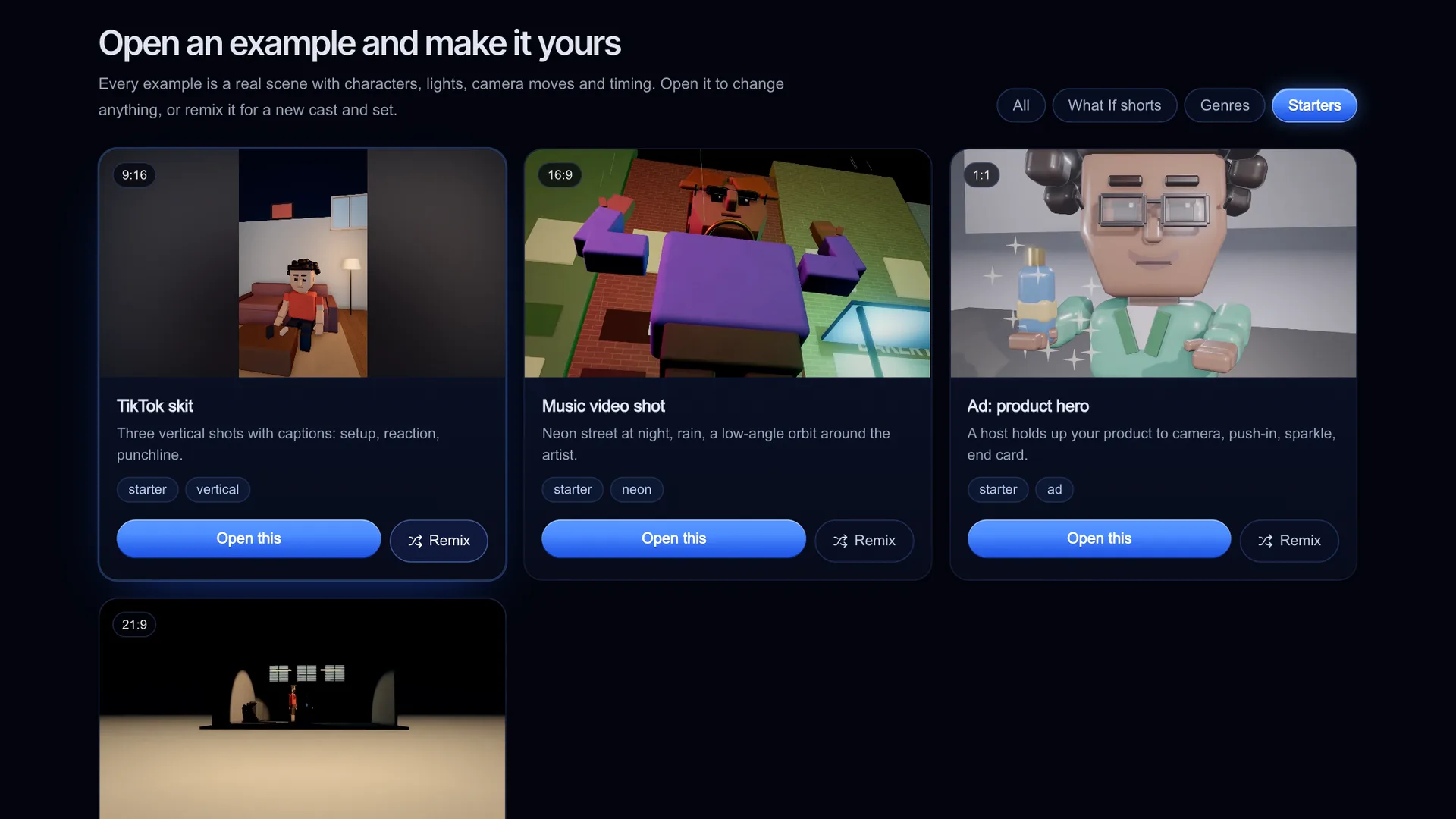
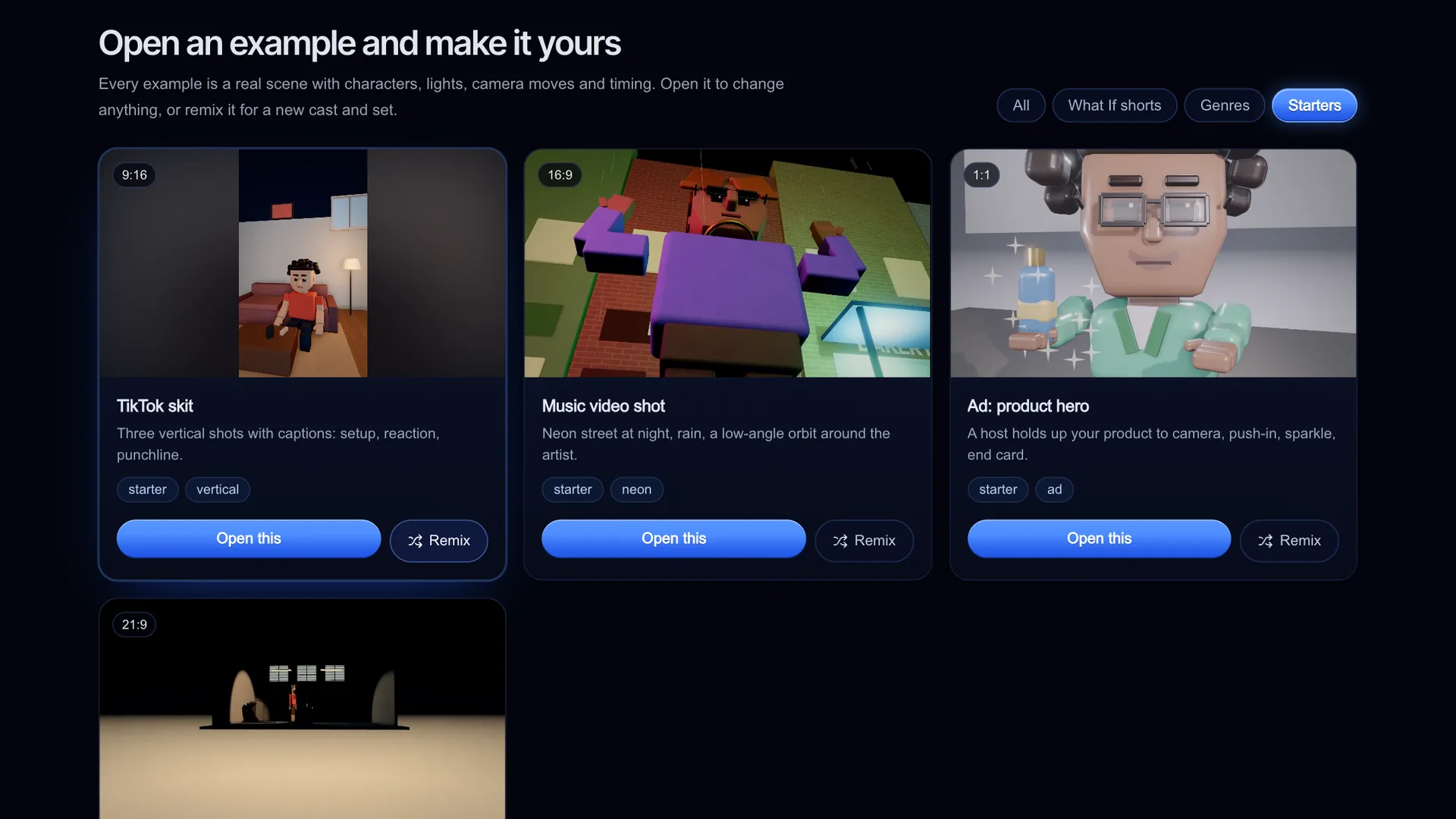
Open /stage and pick one of the 14 examples in the gallery (filters: What If shorts, Genres, Starters). Press Open this, or Remix for a new seed. A good previs tool should get you to a moving shot in minutes; this is the first thing to time in any tool you try.
Screenshot of kreatorflow.ai, 2026-11-06 - 2
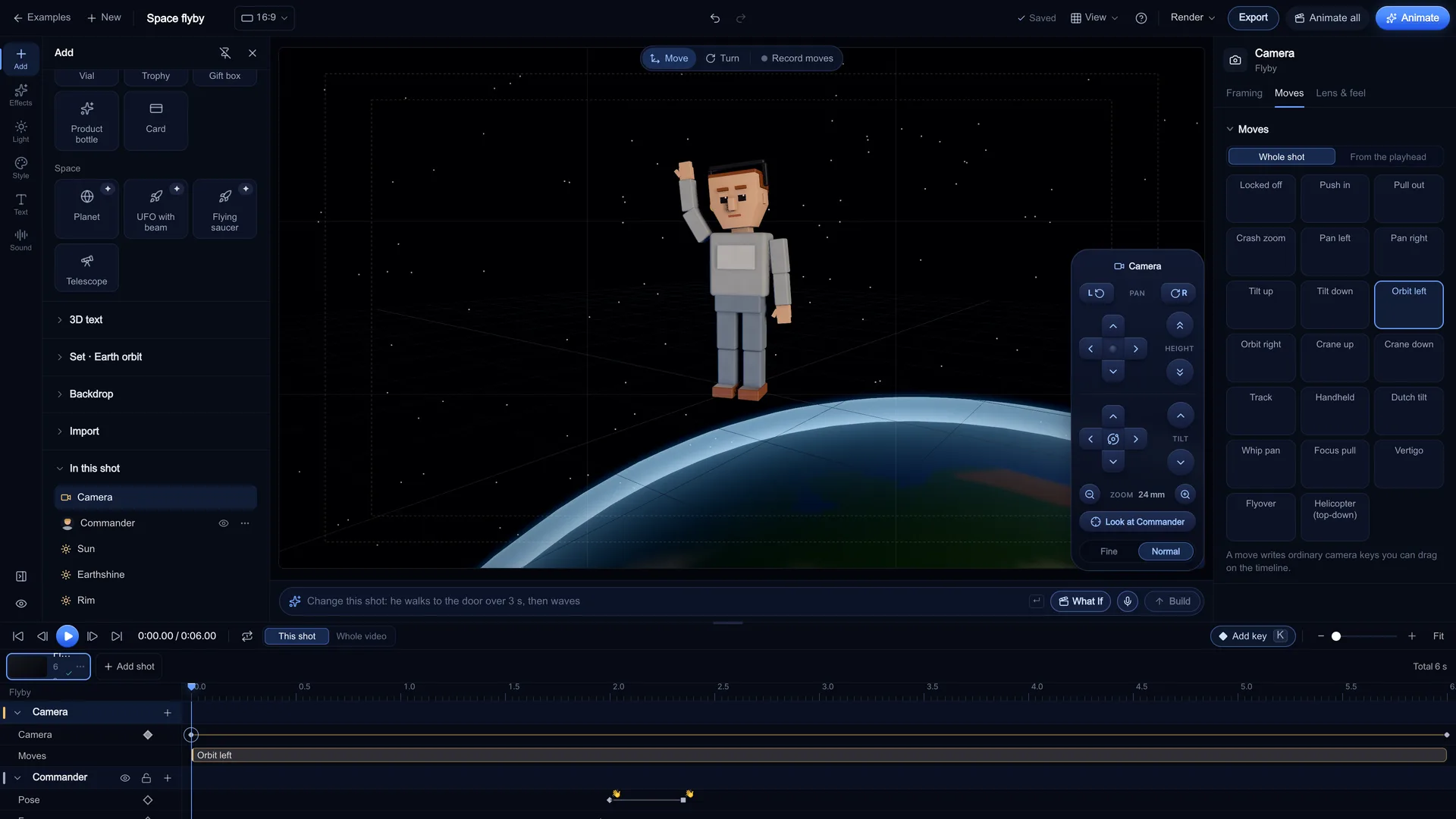
Give the camera a real move
Select the camera and pick a move such as Push in, Orbit left, Crash zoom or Vertigo dolly zoom (21 moves in all). Each one writes keyframes you can see and drag on the timeline, and you can set the lens (14, 24, 35, 50, 85, 135 mm presets, or any focal length from 10 to 200 mm).
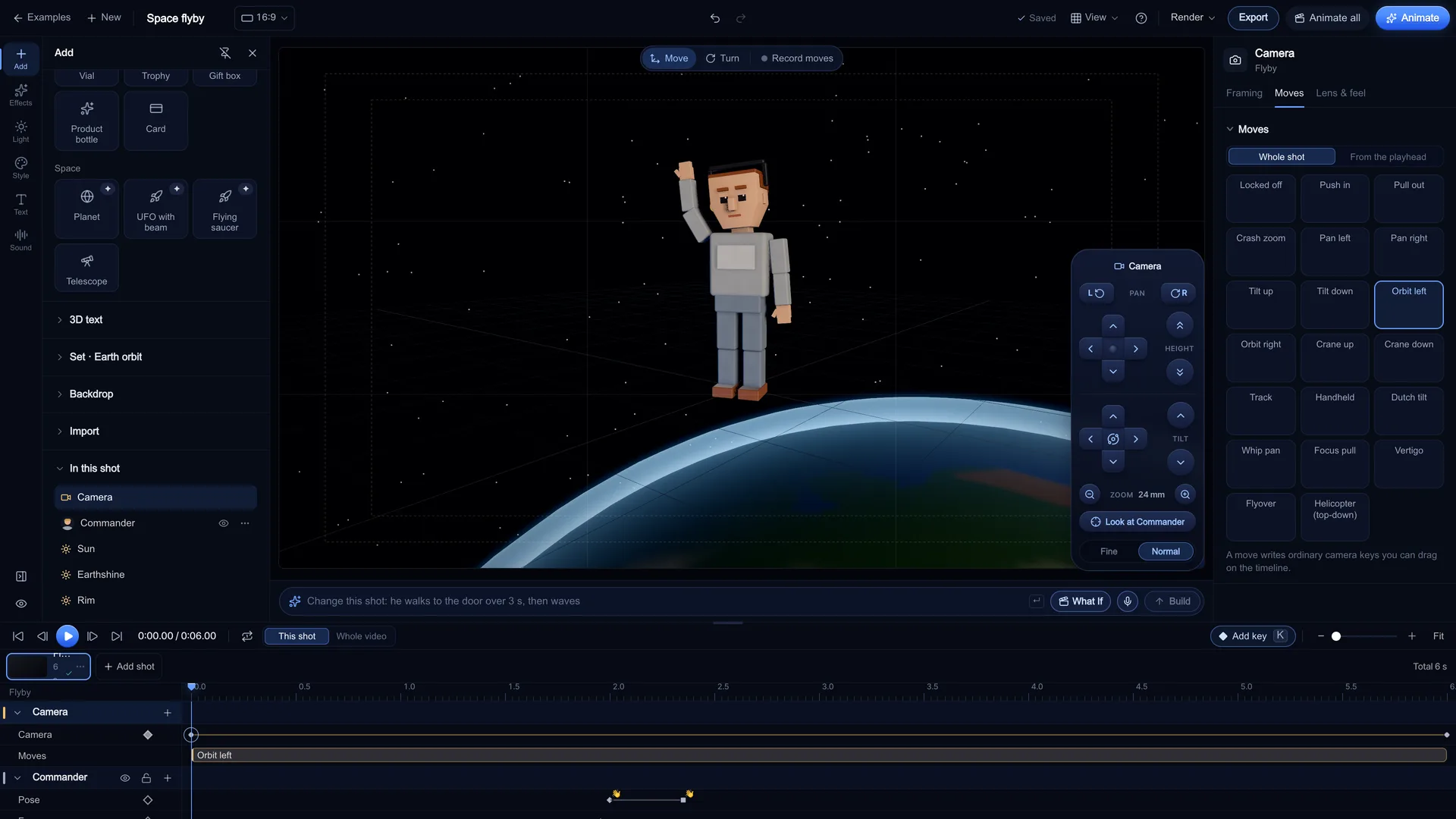
Screenshot of kreatorflow.ai, 2026-11-06 - 3
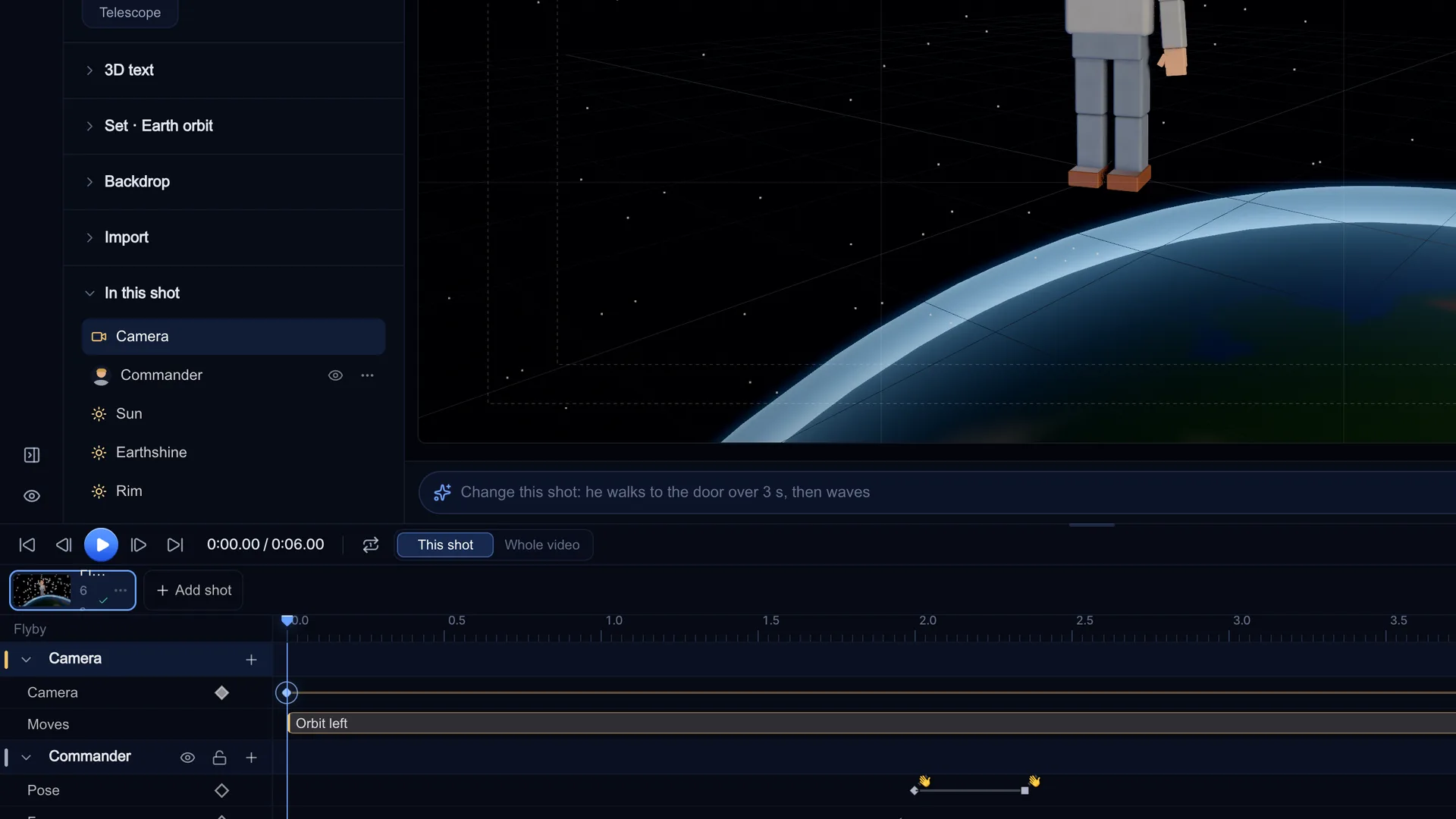
Check the timing on the timeline
Shots run 2 to 15 seconds. Press K to add a key at the playhead, set the Easing (for example ease in/out, hold or overshoot) and press Space to play. If a tool cannot show you the move in time before you spend credits, you are guessing.
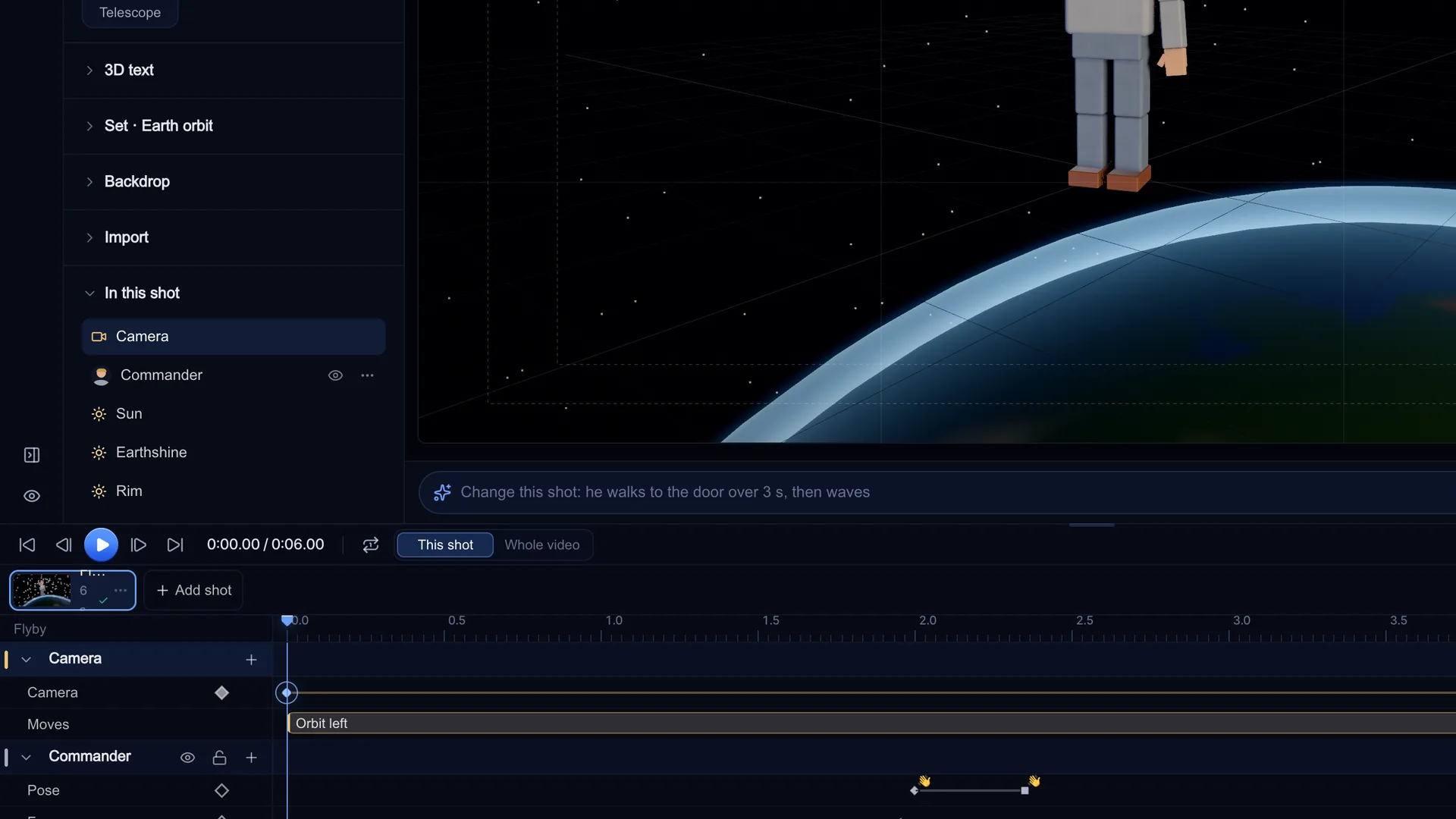
Screenshot of kreatorflow.ai, 2026-11-06 - 4
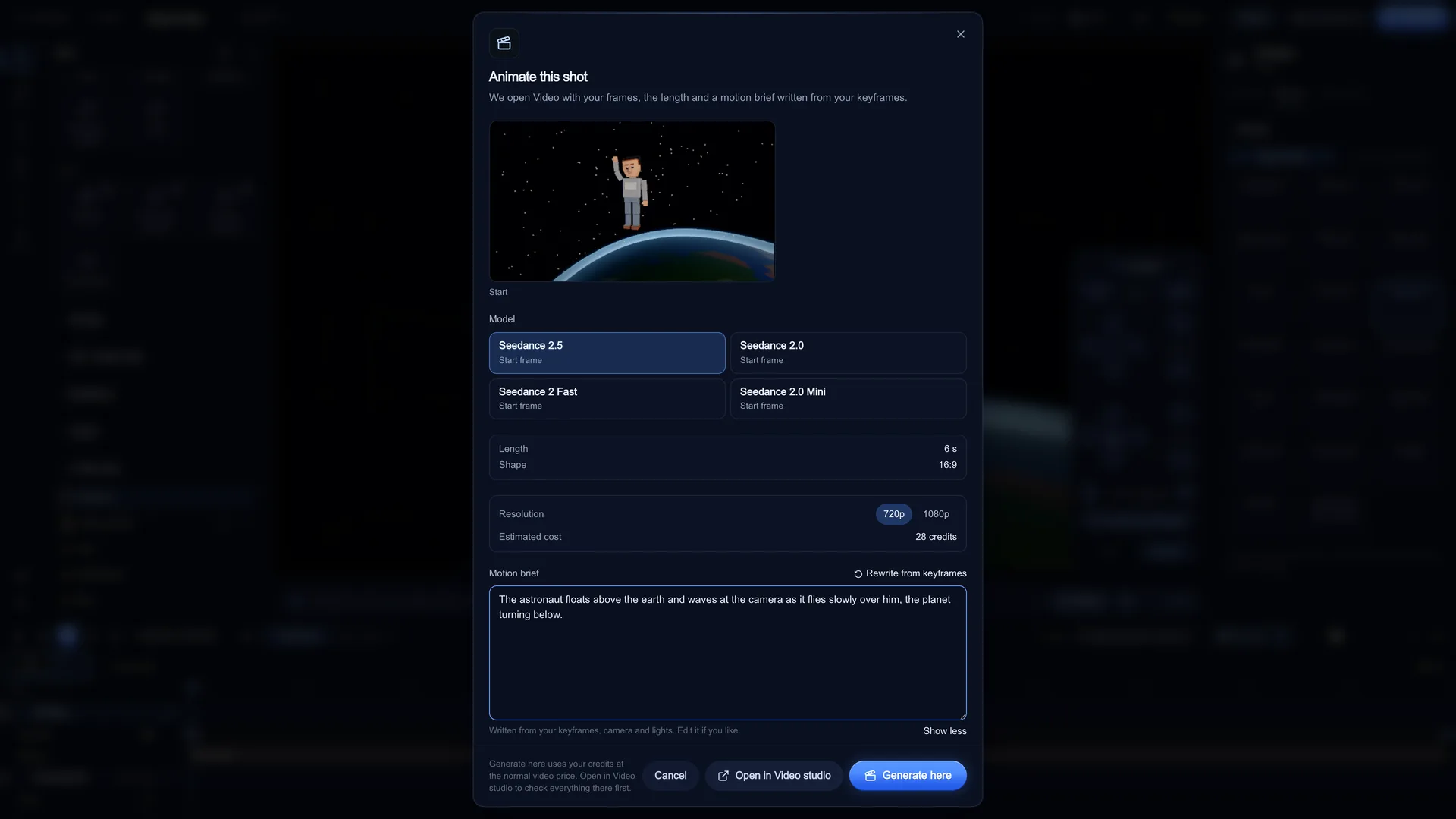
Hand the shot to a video model
Press Animate. The dialog renders a clean start frame at the target shape, snaps the length to what the model makes and writes a motion brief you can edit. Then pick Generate here (shows the Estimated cost first) or Open in Video studio, where nothing is spent until you press Generate.
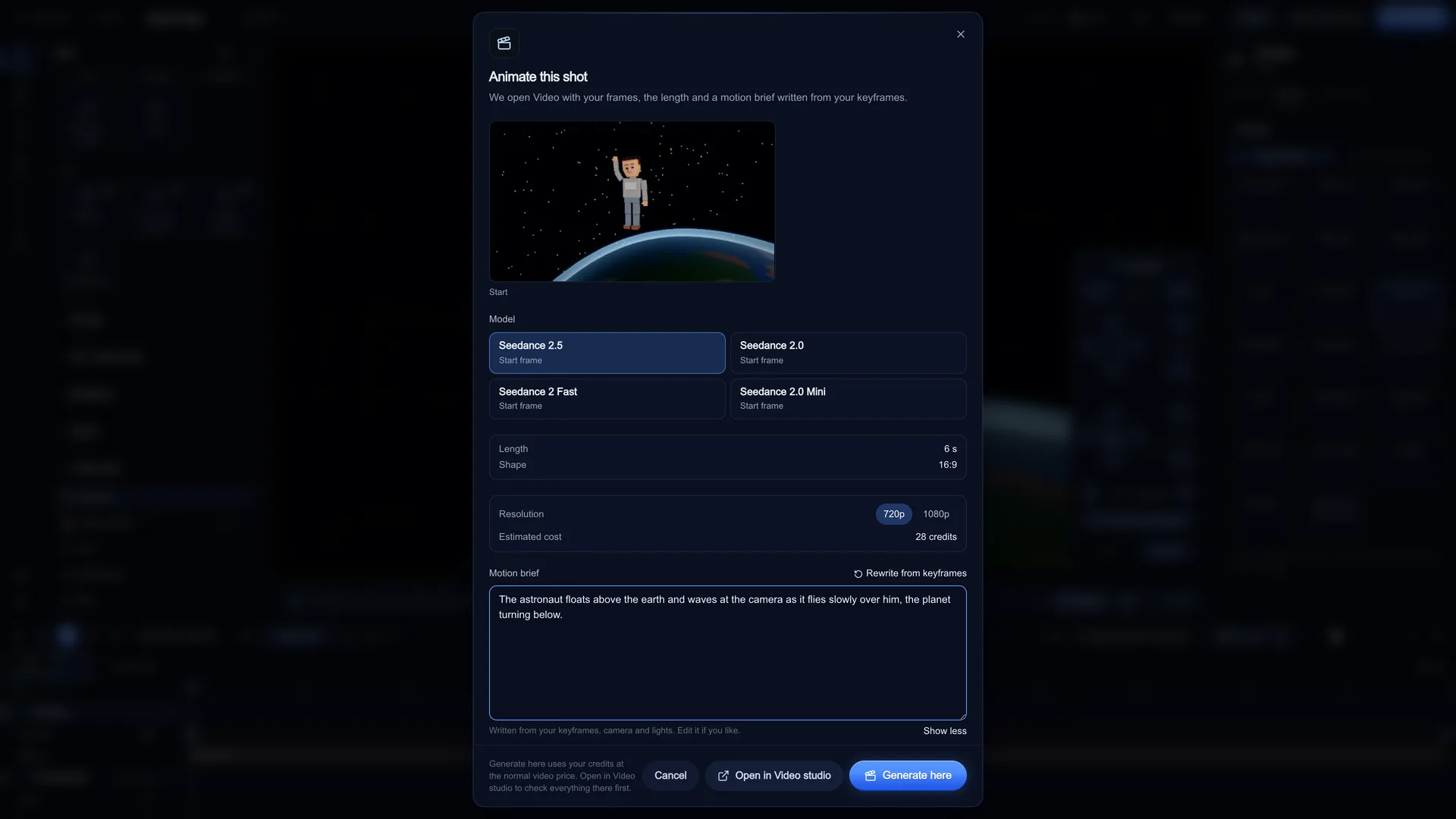
Screenshot of kreatorflow.ai, 2026-11-06
What matters in an AI previs tool
Classic previs tools were built to brief a film crew. For AI video, the person reading the plan is a video model, so the checklist changes. Before you pick one, check these:
- Time to first moving shot: examples or templates you can open and change
- A camera you can keyframe, not only a preset name in a prompt
- Real lenses and framings (wide, close-up, over the shoulder) so the frame matches the shot you mean
- Light you can set before you animate, so the start frame already has the mood
- A clean hand-off: an exact start frame (and end frame where the model takes one) plus a written brief
- A cost you see before anything is generated
- Where it runs: browser, desktop app or tablet, and whether your files leave your computer
The tools side by side (read on each site, 6 Nov 2026)
Each cell below comes from the tool's own website on the date shown. Features change quickly, so check the linked page before you commit. No prices are listed: plans and credits change too often to compare fairly here.
| Tool | Runs in | Free tier | Camera control | How a shot reaches a video model |
|---|---|---|---|---|
| Stage (KreatorFlow) | Desktop browser (WebGL, on your own graphics card) | Planning is free, even signed out | 21 camera moves that write editable keyframes, lens presets, easing per key | Clean start frame + editable motion brief to Seedance |
| CozyClay | Runs locally via npx (Node.js), opens in your browser | Open source (AGPL-3.0) | Shots on a timeline, dolly rails, look through the lens | First frame, greybox reference clip and a framing prompt; exports MP4, depth and normal passes, OTIO cut list |
| Intangible | Web app | Free plan with one-time credits; images only to download | Cameras and animation (its Compose tool) | Video generation inside the app; GLB/USDZ scene export on paid plans |
| Previs Pro | Mac, iPad and iPhone app | Free option to start | Animatics that record camera, actor and object moves | Enhance turns a 3D scene into an image and makes video in the app; MP4 and NLE timeline export |
| Storyboarder.ai | Web app | Free plan with limited projects and images | Re-angle a board frame (orbit, pan, tilt, zoom); motion presets | Image to video from board frames; PDF boards and MP4 animatics |
| LTX Studio | Desktop browser | Free and paid plans | Camera movement and keyframe controls on generated shots | Generates storyboards and video in one workspace from a prompt or script |
| Higgsfield | Web app | Not stated on its pricing page when read | 50+ named camera motion presets | The preset is applied when the video is generated; no 3D set |
| Blender | Windows, macOS and Linux desktop | Free and open source (GPL) | Full keyframed 3D animation | None built in: render frames yourself and upload them to a video model |
Sources, as checked:
- CozyClay (GitHub): github.com/HaD0Yun/CozyClay
- Intangible pricing: intangible.ai/pricing
- Previs Pro: previspro.com/
- Previs Pro 3 free tier (RedShark News): redsharknews.com/previs-pro-3-launches-with-animatics-and-free-tier
- Storyboarder.ai: storyboarder.ai/
- LTX Studio: ltx.io/studio
- Higgsfield camera controls: higgsfield.ai/camera-controls
- Blender features: blender.org/features/
Short notes on each tool
Stage: an examples-first 3D planner at /stage. Kiryu can build a scene from a sentence (the set, the cast and the moves, all editable), and there are 11 lighting presets, placeable lights and a full keyframe timeline. Projects are saved in your browser. KreatorFlow is an official partner of BytePlus, a ByteDance company, and Animate hands the shot to the Video studio.
CozyClay: open source previs aimed squarely at AI video. Its agent panel can write motion specs, and its motion compiler's QA step checks them for problems such as foot slide before you see them; it exports passes and a cut list. It suits people happy to run a local tool and bring their own AI keys.
Intangible: a web 3D scene builder with a large asset library, AI composition and its own video generation. 3D scene export (GLB/USDZ) is on its paid plans.
Previs Pro: a mature storyboard and animatic app for film crews on Apple devices, with printable boards and NLE export. Its AI features (Enhance) live inside the app.
Storyboarder.ai and LTX Studio: script-first tools. You start from words and get generated boards or shots rather than building a 3D set and placing a camera yourself.
Higgsfield: camera moves as named presets in the generator. Fast when a preset fits; there is no set to block.
Blender: the most capable option by far and free, but a full 3D suite with a learning curve, and nothing in it talks to an AI video model for you.
What Animate costs from Stage
Planning in Stage costs nothing. Credits are only spent when you confirm a generation (a video at the normal Video studio price, or KreatorFlow voice lines), after you see the estimate. A 5-second clip costs:
Seedance 2.0 makes clips of 4, 5, 6, 8, 10, 12, 15 seconds; Animate snaps each shot to the nearest one and the dialog says when it does.
| Model | 720p | 1080p |
|---|---|---|
| Seedance 2.0 | 15 credits | 30 credits |
| Seedance 2 Fast | 12 credits | 20 credits |
| Seedance 2.0 Mini | 9 credits | 17 credits |
| Seedance 2.5 | 24 credits | 50 credits |
Where Stage is weaker
An honest list, so you can rule it out quickly if it does not fit:
- Desktop only: phones get a read-only viewer for the examples, not the editor
- Projects are saved in your browser on this computer: no cloud save and no live collaboration
- The VFX are basic (smoke, sparks, rain and similar), fine for planning, not for final pictures
- Imports are .glb, .gltf and .vrm only, up to 50 MB; it does not import .blend, FBX, OBJ or USD
- It does not export 3D files or camera data for other apps; the scene file opens only in Stage
- The cloud Cinema render is not available yet; renders run on your own graphics card
Which one to use
Pick Stage if you want to plan a shot for free in the browser in minutes and hand it to Seedance without exporting anything. Pick CozyClay if you want open source and do not mind running it locally. Pick Previs Pro if you board for a film crew on an iPad. Pick Blender if you need full 3D control or final renders, and accept the learning curve.
Many people use two: a fast planner to find the shot, and the video model to make it.
Questions other guides skip
Does any of these tools move the AI camera exactly like the 3D plan?
No tool can promise that today. A video model reads your start frame and brief (or a reference clip) as strong guidance, not as locked camera data. What a previs tool can do is give the model an exact first frame and a clear description of the move, which is what Stage, CozyClay and Previs Pro's in-app video all aim at in different ways.
Can Stage export my scene to Blender or another 3D app?
No. Stage does not export .blend, FBX, glTF or USD files or camera data for other 3D apps. It exports a previs video, start and end frame PNGs and a project file that only Stage opens. If you need the scene in Blender later, build it in Blender.
Which of these is open source?
CozyClay (AGPL-3.0) and Blender (GPL). Stage, Intangible, Previs Pro, Storyboarder.ai, LTX Studio and Higgsfield are closed products.
Source: CozyClay on GitHub
Free to plan
Try Stage with one of the examples
Open an example, give the camera a move and press play. 3 of the 14 examples are What If shorts from our team, planned shot by shot in Stage.
Frequently asked questions
Is there a free previs tool for AI video?
Yes. Stage by KreatorFlow is free to plan in the browser, even without an account; you only spend credits when you animate a shot or make voice lines. CozyClay and Blender are free and open source. Intangible, Previs Pro and Storyboarder.ai have free tiers with limits.
Browser or desktop previs: which is better?
A browser tool such as Stage starts in seconds with nothing to install, which suits quick AI video planning. Desktop software such as Blender is far more powerful but slower to learn. Previs Pro sits in between as a tablet and Mac app.
What does a previs tool send to an AI video model?
It depends on the tool. Stage sends a clean start frame and a motion brief to Seedance. CozyClay sends a first frame, a greybox reference clip and a prompt. Higgsfield applies a named camera preset when the clip is generated.
Can I use Stage on my phone?
Not for editing. Stage needs a desktop or laptop screen; on a phone you can view the examples and send yourself a link to open on a computer.
How much does it cost to turn a Stage shot into a video?
Planning is free. A 5-second 720p Seedance 2.0 clip costs 15 credits, shown in the Animate dialog before anything is generated.