

Get started
Bring your model into Stage and animate it, step by step
- 1
Export glTF 2.0 or VRM from your 3D app
In Blender, use File > Export > glTF 2.0 and pick glTF Binary (.glb), so the mesh, rig and textures travel in one file. A .gltf that points to separate .bin or texture files cannot be read from one picked file, so embed everything or use .glb. A VRoid character exports as .vrm, which Stage reads as it is. Leave the rig in its rest T-pose: Stage's pose tables bring the arms down from a T-pose.
- 2
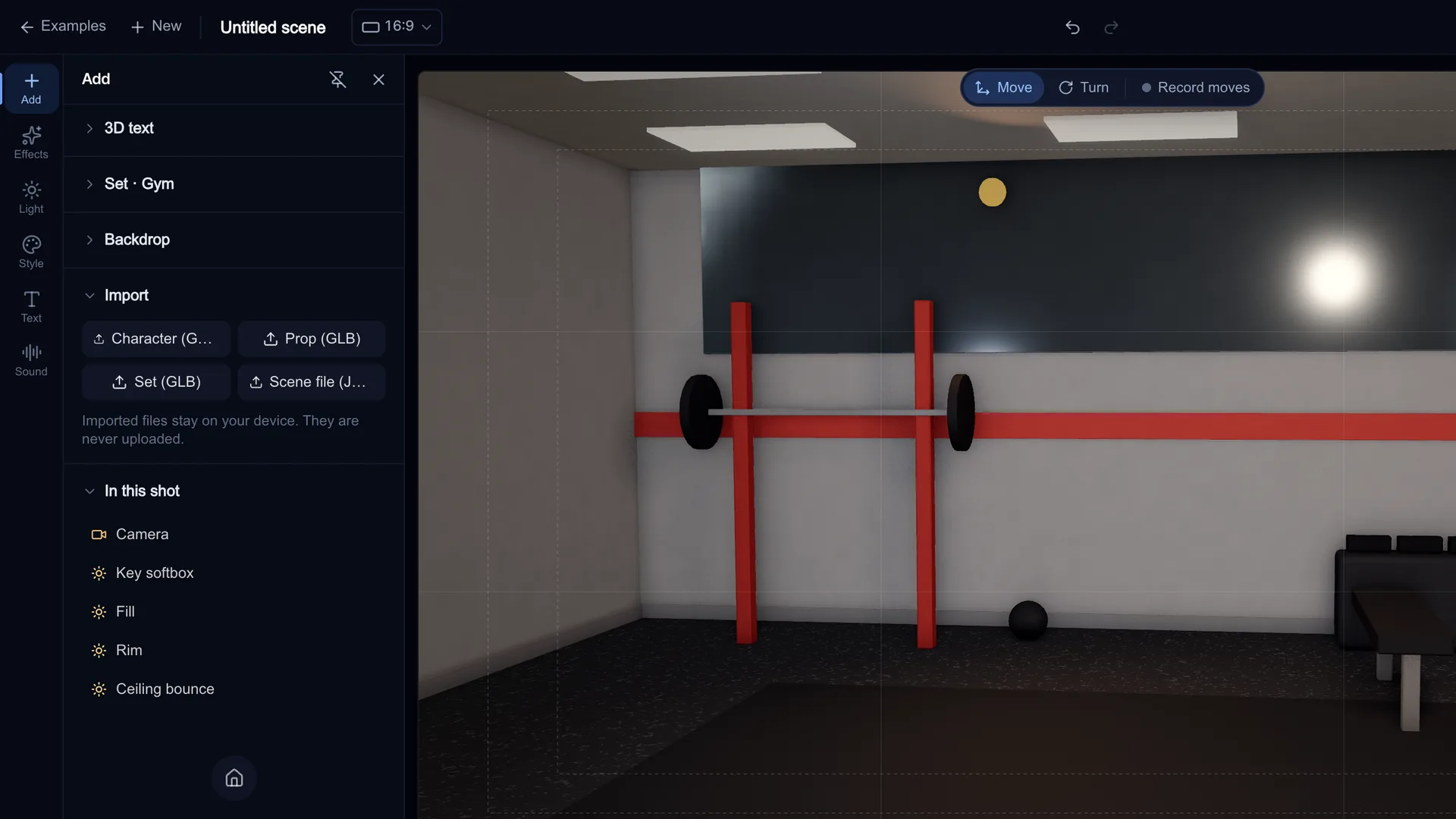
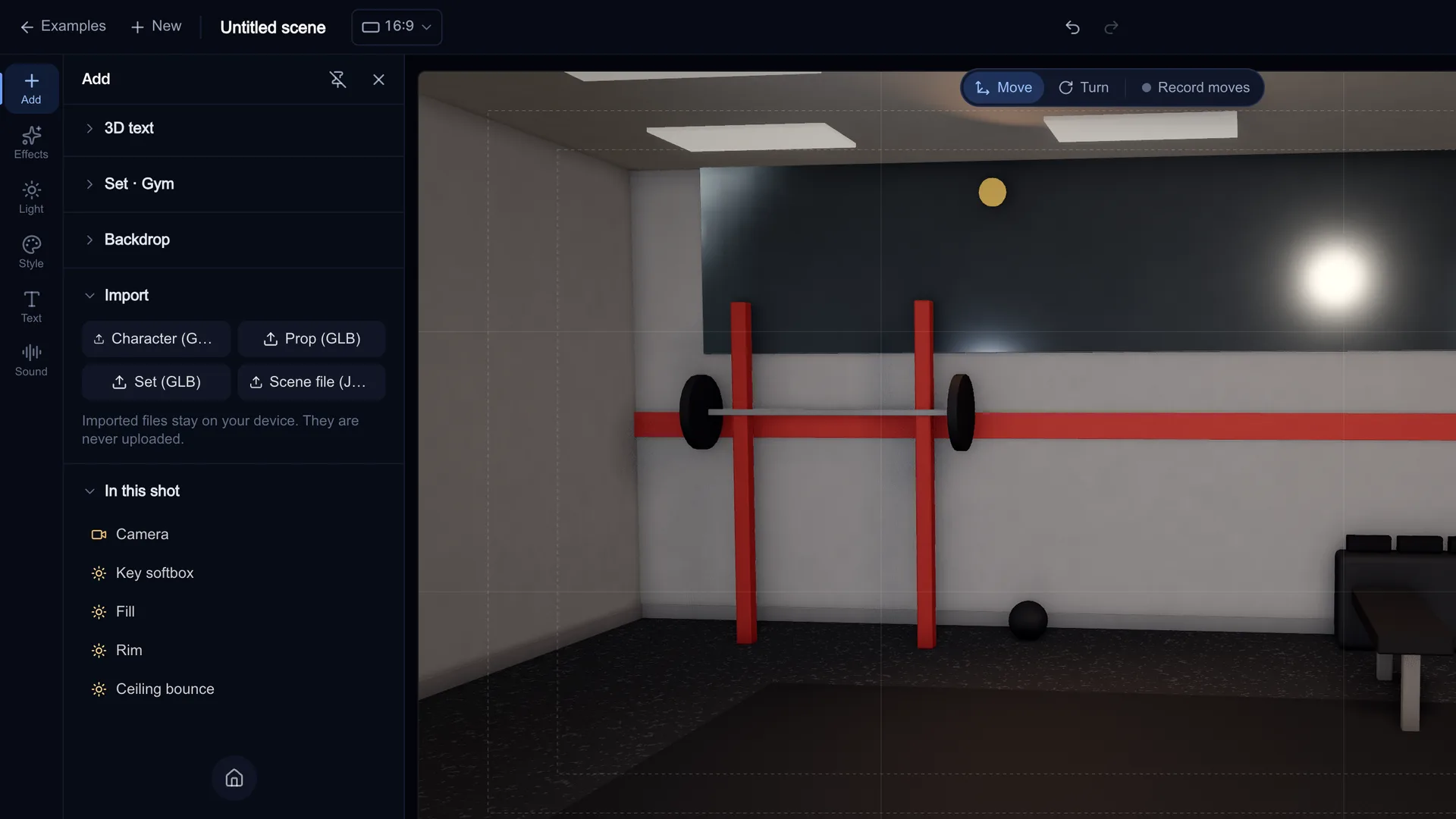
Add > Import > Character (GLB, VRM)
Open Stage, pick an example or start a new scene, then open the Add tab. Under Import, choose Character (GLB, VRM), Prop (GLB) or Set (GLB). Stage shows "Reading the file…" and puts the model on the left mark of the active shot. Files over 50 MB are refused with "That file is over 50 MB."
Screenshot of kreatorflow.ai, 2026-11-06 - 3
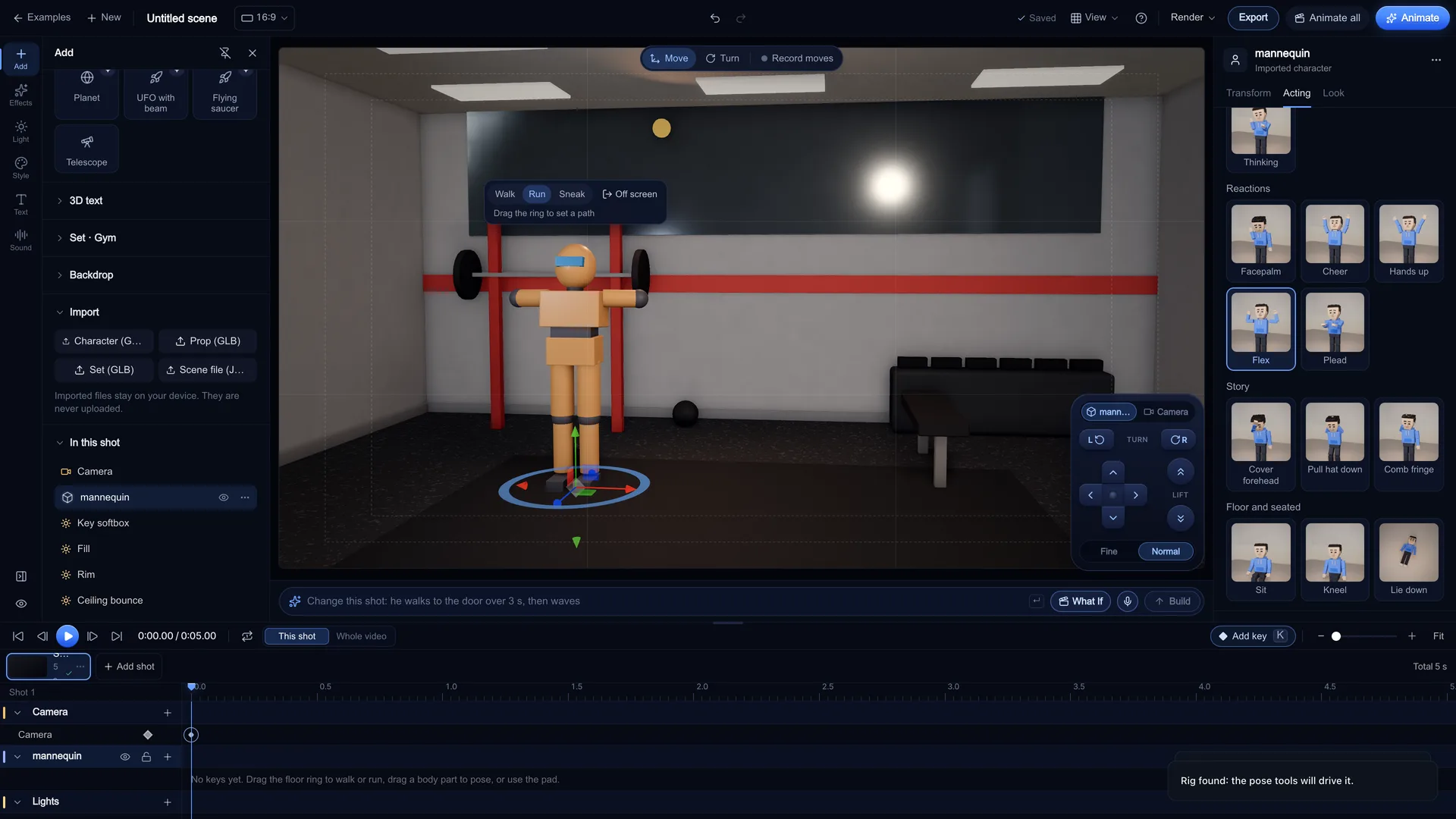
Check the rig was found, then pose it
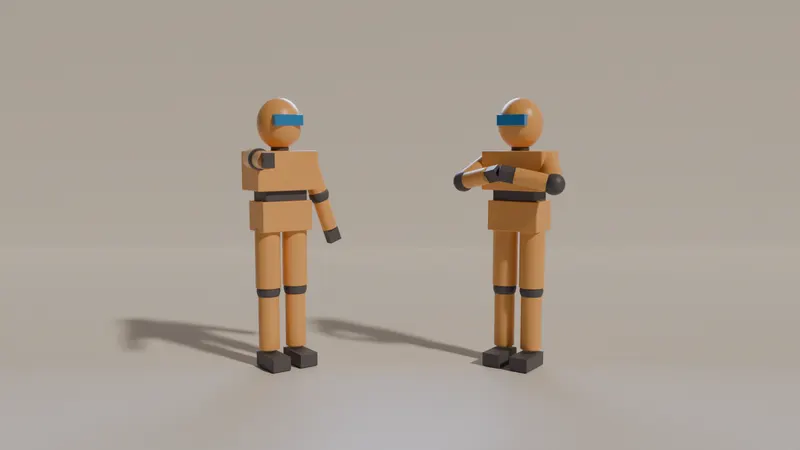
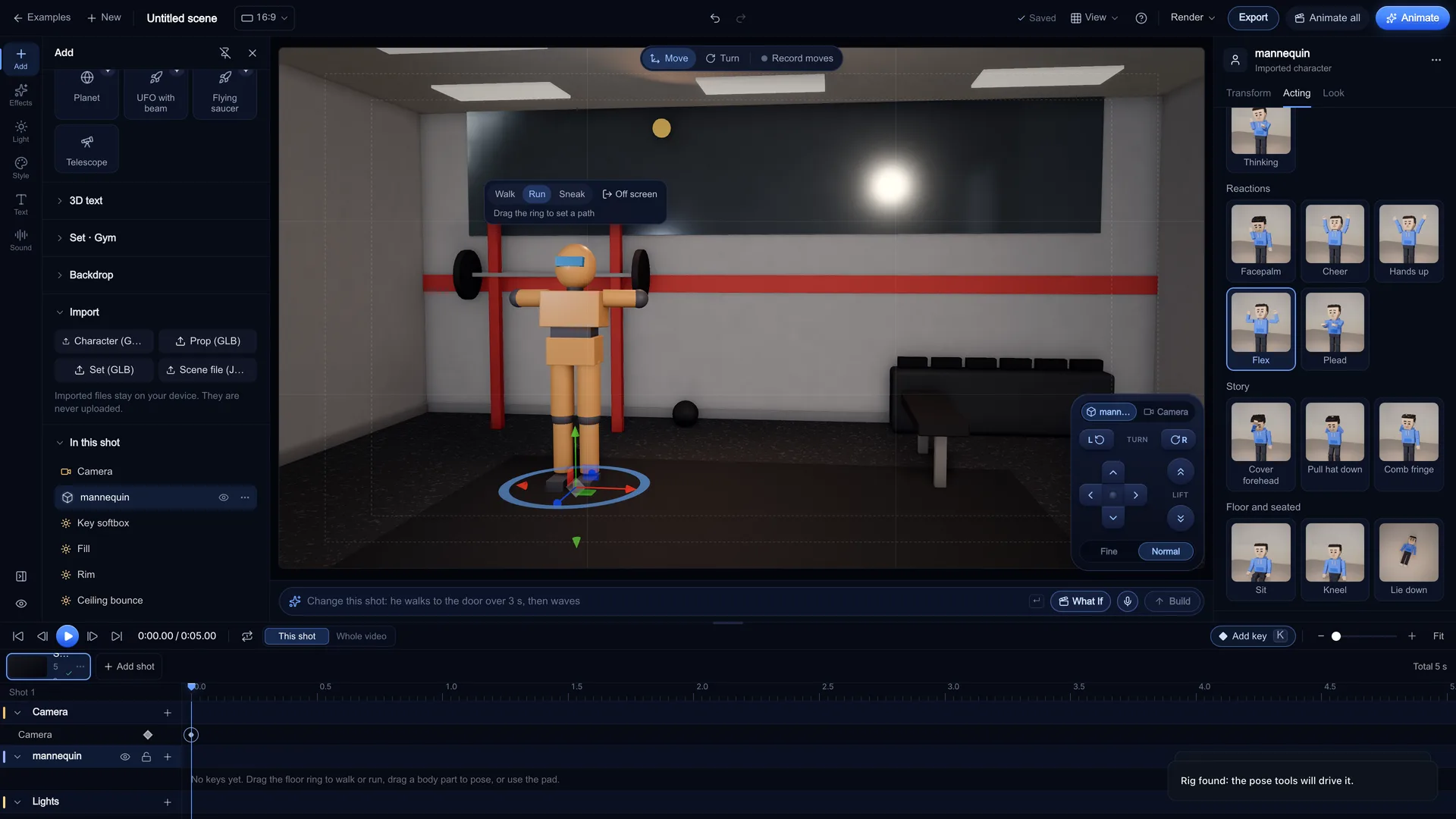
When Stage finds a humanoid rig it says "Rig found: the pose tools will drive it." Select the model: the inspector calls it an Imported character, with Transform, Acting and Look tabs. In Acting, pick a Pose, choose Hold pose or Gesture and back, set Pose strength and the hands. Walk, run or sneak to a mark and Look at work too, and with Record moves on every change writes a key at the playhead.
Screenshot of kreatorflow.ai, 2026-11-06 - 4
Give a VRM character a face
Under Face in the Acting tab, pick an Expression and its strength, and turn on Blink naturally. On a VRM, Smile and Grin drive its happy face, Smug its relaxed face, Shock surprised, Cry and Deflated sad, Angry angry and Wink a left-eye blink. Talk keys open the mouth. Plain GLB models keep a still face.
- 5
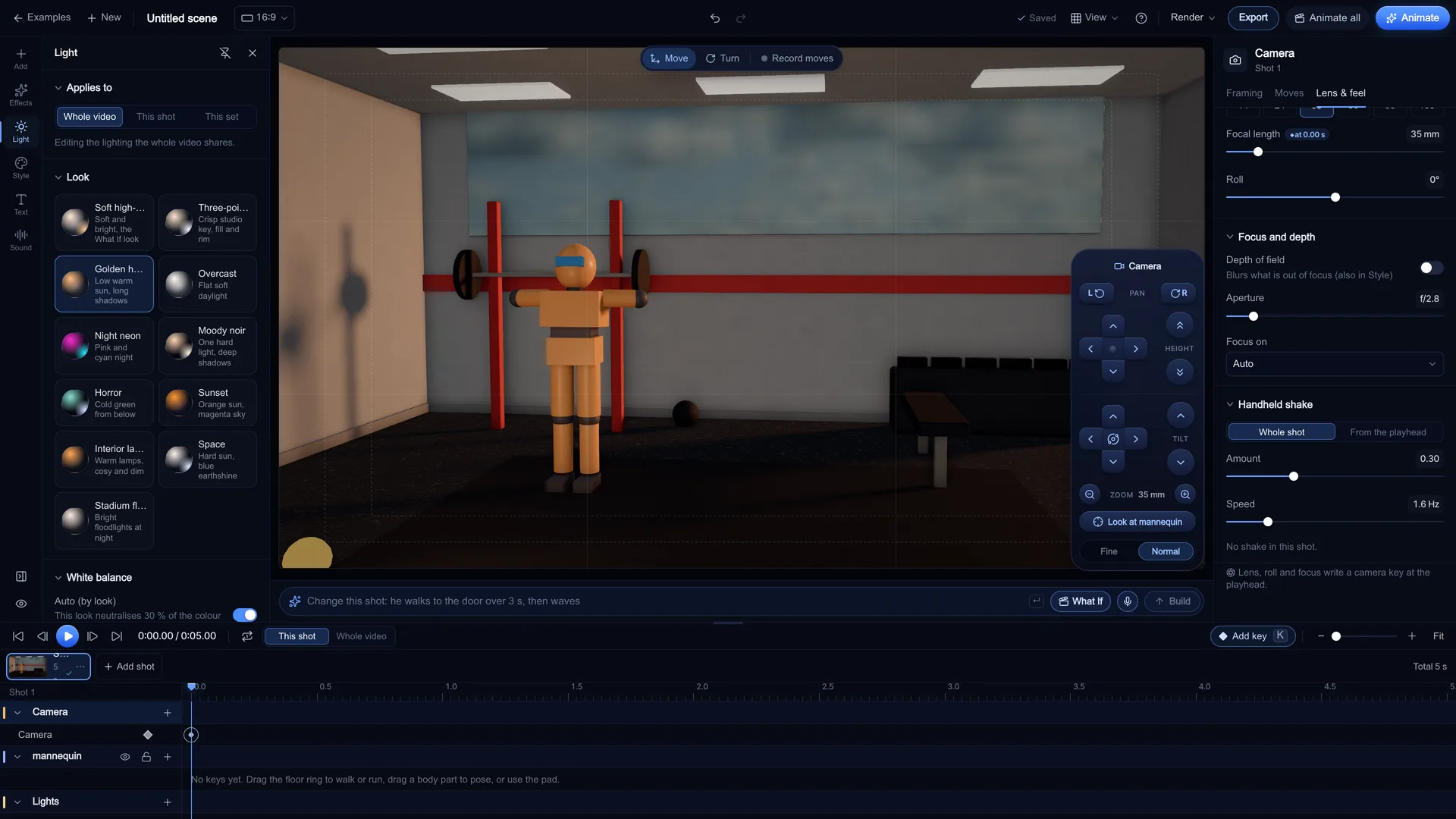
Light it and frame it
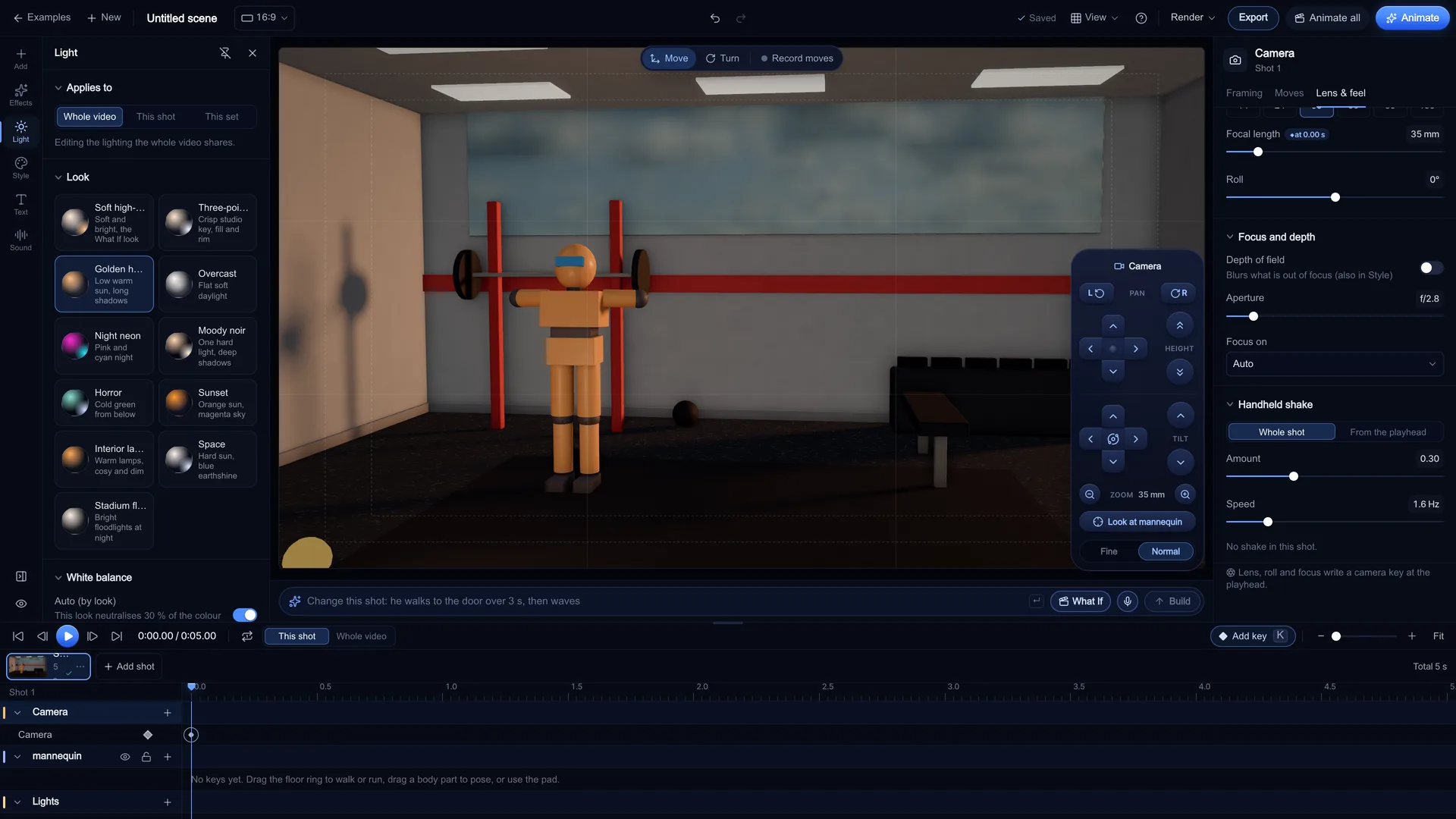
Open the Light tab and try a Lighting preset such as Golden hour or Three-point studio, for the whole scene or this shot only. Then set the Framing (wide, medium, close-up and more), a lens (14, 24, 35, 50, 85, 135 mm or any focal length) and a camera move. Imported models keep their own materials, so judge the light on your character, not on the built-in cast.
Screenshot of kreatorflow.ai, 2026-11-06 - 6
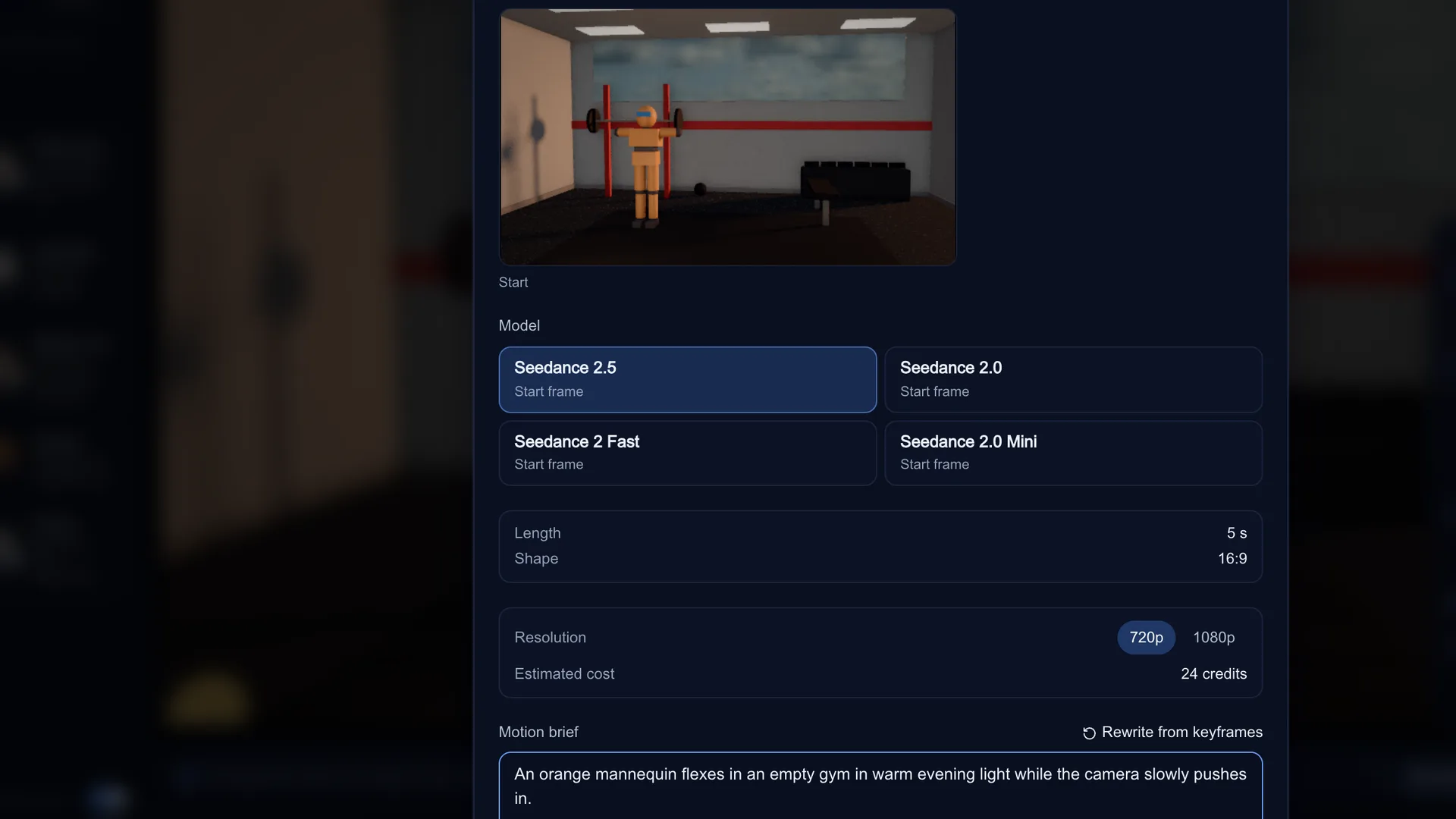
Animate the shot
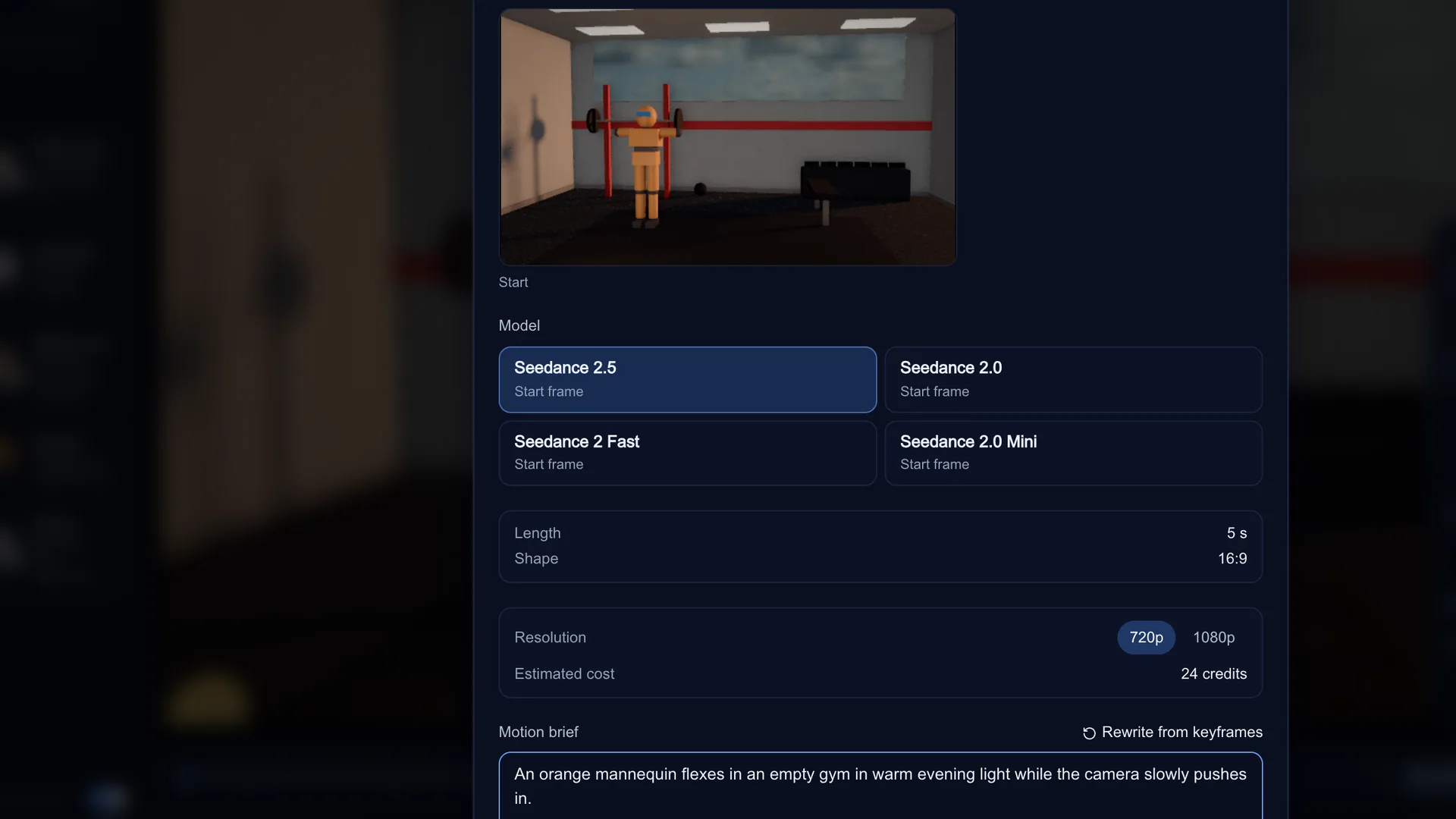
Press Animate. "Animate this shot" renders clean start and end frames at the target shape, picks a model and fits the length to what that model makes. Check the Motion brief (written from your keyframes, camera and lights; edit it if you like), then choose Open in Video studio, or Generate here after reading the Estimated cost. Seedance uses your start frame only, so plan the pose the shot opens on with the most care.
Screenshot of kreatorflow.ai, 2026-11-06
What maps to Stage's tools, and what does not
Stage maps your rig onto its own joints (upper arms, forearms, thighs, shins, chest and head, plus the hands for holding props), so the pose library, pose keys, walk cycles and look-at drive your model the same way they drive the built-in cast.
Things to know before you import:
- Characters: humanoid rigs take poses, expressions (VRM) and walks; a model with no rig behaves like a prop
- Props: any GLB, placed and keyed like the built-in props; imported models keep their own materials
- Sets: a GLB replaces the set of the active shot, and the inspector shows it as an Imported set
- Looks: the Look tab does not restyle an imported character; it keeps its own look
- Faces: VRM expressions map to Stage's; Neutral, Sceptical and Stare have no VRM match, and plain GLB faces do not move
- Animation clips inside the file: playback is partial, so plan the acting with Stage's keys
- Stage does not read .blend, FBX, OBJ, USD/USDZ or Alembic files
From Blender, VRoid or Mixamo
Blender: File > Export > glTF 2.0, format glTF Binary (.glb). Include the armature and skinning, and apply the rest pose you want as a T-pose. The Blender manual lists every export option.
VRoid Studio: export the avatar as VRM and import the .vrm file directly. VRM is the format that also carries the face expressions Stage maps.
Mixamo: downloads come as FBX, which Stage does not read. Open the download in Blender, then export glTF Binary (.glb). The mixamorig bone names survive the trip and Stage detects them.
Your model stays on your device
Imported files are parsed in your browser and kept in its local storage (IndexedDB) with your project. They are never uploaded: the Add tab says so under Import.
Nothing leaves your computer until you choose to animate a shot. Then Stage renders the start and end frames as pictures and uploads only those frames to the Video studio, never the model file. Clearing your browser's site data removes the stored model, so keep the original file.
What it costs
Importing, posing, lighting and planning in Stage are free and run on your own computer's GPU. Credits are only spent when you confirm a generation (a video, or KreatorFlow voice lines), after you have seen the cost. A 5-second 720p Seedance 2.0 clip costs 15 credits.
KreatorFlow is an official partner of BytePlus, a ByteDance company.
Read from the studio's credit code. Generated sound adds no credits on Seedance 2.x.
| Model | Lengths | Frames | 720p | 1080p |
|---|---|---|---|---|
| Seedance 2.5 | 4 to 30 s | Start frame | 24 | 50 |
| Seedance 2.0 | 4 to 15 s | Start frame | 15 | 30 |
| Seedance 2 Fast | 4 to 15 s | Start frame | 12 | 20 |
| Seedance 2.0 Mini | 4 to 15 s | Start frame | 9 | 17 |
Using a real person's likeness
A scanned or sculpted model of a real person is still that person. Only import and animate a likeness that is yours, or one you have clear permission to use, and never make sexual or deceptive content of a real person. The same rules apply as for face swaps.
Questions other guides skip
Which bone names does Stage recognise?
VRM humanoid bones first, then Mixamo names (mixamorig:LeftArm and so on), then common names such as LeftArm, LeftForeArm, LeftUpLeg, upperarm_l, thigh_l, Spine1 and Head. A model counts as humanoid when it has a VRM humanoid, or an upper-arm bone and a head bone from that list. Rigs named another way, such as a Rigify rig with its own naming, are not detected: rename the bones or rig the model with Mixamo first.
Does the animation baked into my file play?
Only partly. Stage reads the animation clips in a GLB, but the acting you plan comes from its own pose keys, walk cycles and look-at, not from the clip. Plan the motion in Stage's timeline, and let the video model add the in-between movement.
Will my character look exactly the same in the AI video?
The start frame will, because it is a render of your model. Seedance receives a Stage start frame frame-anchored, so the video opens on exactly that picture. How closely the rest of the clip keeps the character depends on the model and the motion, so short, readable moves hold up best.
What about my Blender file itself?
Stage does not open .blend files and does not export back to Blender or any other 3D app. Its scene file is project JSON that only Stage opens. Keep your Blender file as the source and re-export a .glb when the model changes.
Source: Blender manual: glTF 2.0 export
Frequently asked questions
Can I use a Blender model in an AI video?
Yes. Export it from Blender as glTF Binary (.glb), import it in Stage with Add > Import > Character (GLB, VRM), pose and frame it, then press Animate to send a start frame of your model to Seedance.
Why won't Stage open my FBX file?
Stage does not read FBX, .blend, OBJ, USD or Alembic. Open it in Blender (or another 3D app) and export glTF 2.0 as a .glb, then import that.
What if my file is too big?
Stage takes files up to 50 MB. Shrink textures (2K is plenty for a planning shot), and remove unused meshes and animations before you export. Leave Draco compression off: the importer does not decode it. Stage also stops an import when the browser has no room left to store it.
Can I import a VRoid or VRM avatar?
Yes. Choose Character (GLB, VRM) and pick the .vrm file. Its humanoid rig takes Stage's poses, and its face follows Stage's expressions, blinks and talk keys.
Does a Mixamo character work?
Yes, once it is a .glb: Mixamo bone names are detected, so the pose tools drive the rig. Clips baked into the file play only partly, so plan the acting with Stage's own keys.
Is my model uploaded anywhere?
No. It stays in your browser. When you animate a shot, only the rendered start and end frames are uploaded to the Video studio.
Can I use a real person's likeness?
Only with their consent, or if it is you. Do not make sexual or misleading content of real people.
Is Stage free?
Planning is free and works without an account. Animating a shot uses credits in the Video studio, shown before you generate. Seedance 2.0 makes clips of 4 to 15 s.