Get started
How to block a shot in Stage, step by step
- 1
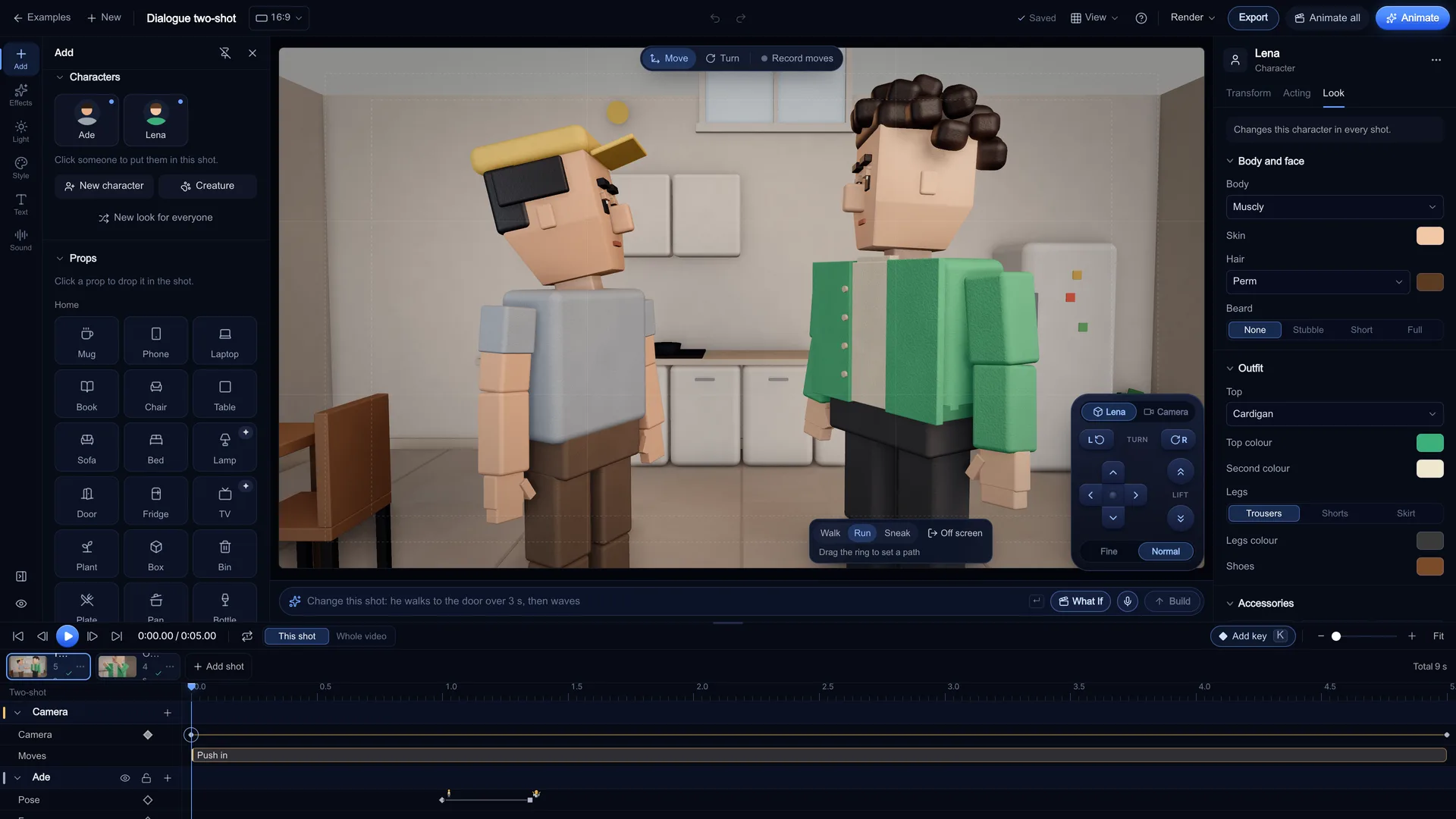
Cast your characters
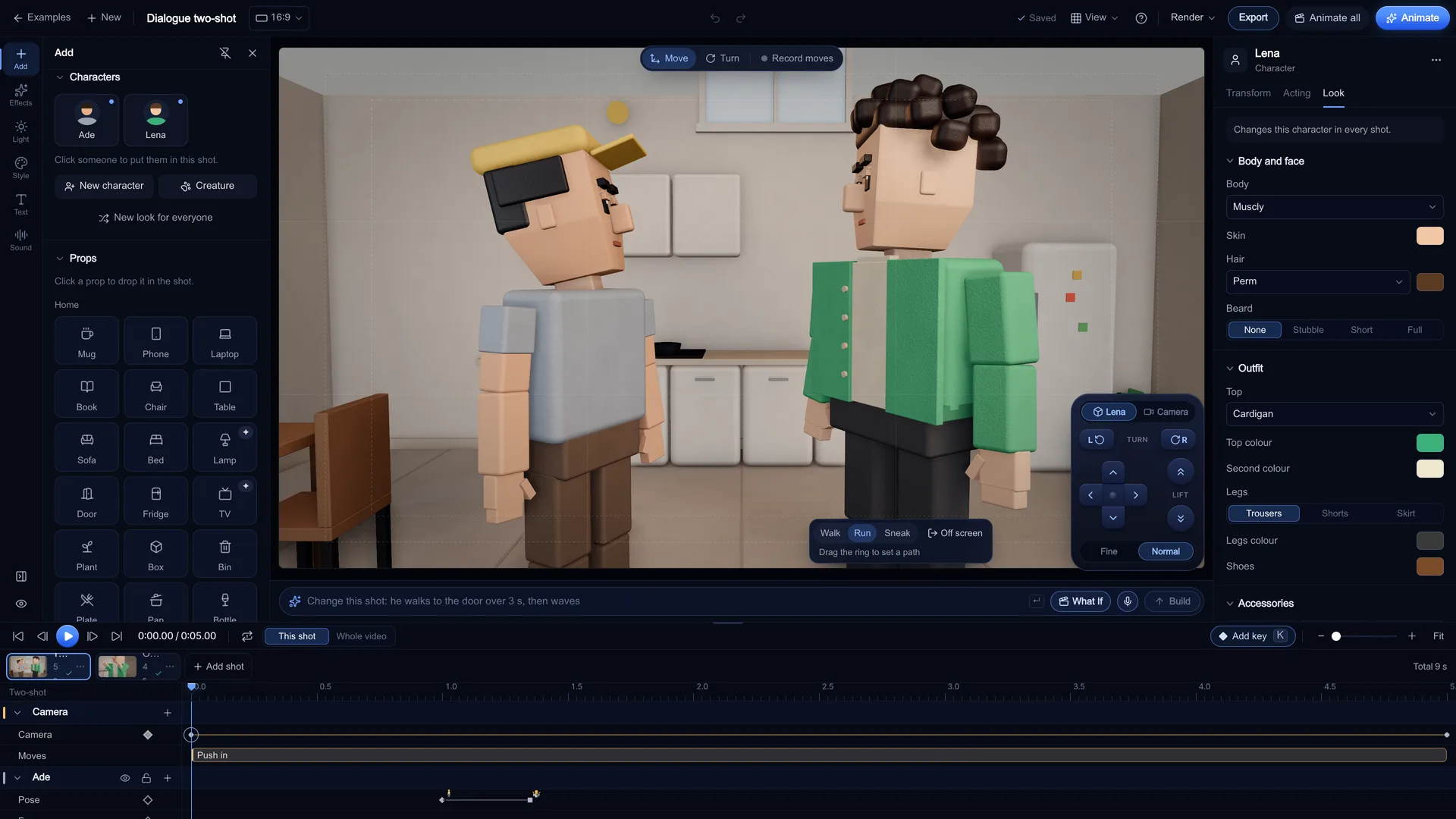
Open the Add tab and click a character to put them in the shot, or press New character and pick a body type. In the inspector's Look tab you set the body (7 types), skin, hair (19 styles), outfit, accessories and beard. "New look for everyone" rolls a fresh seeded cast for the whole video. Up to 12 characters and props fit in one shot.
Screenshot of kreatorflow.ai, 2026-11-06 - 2
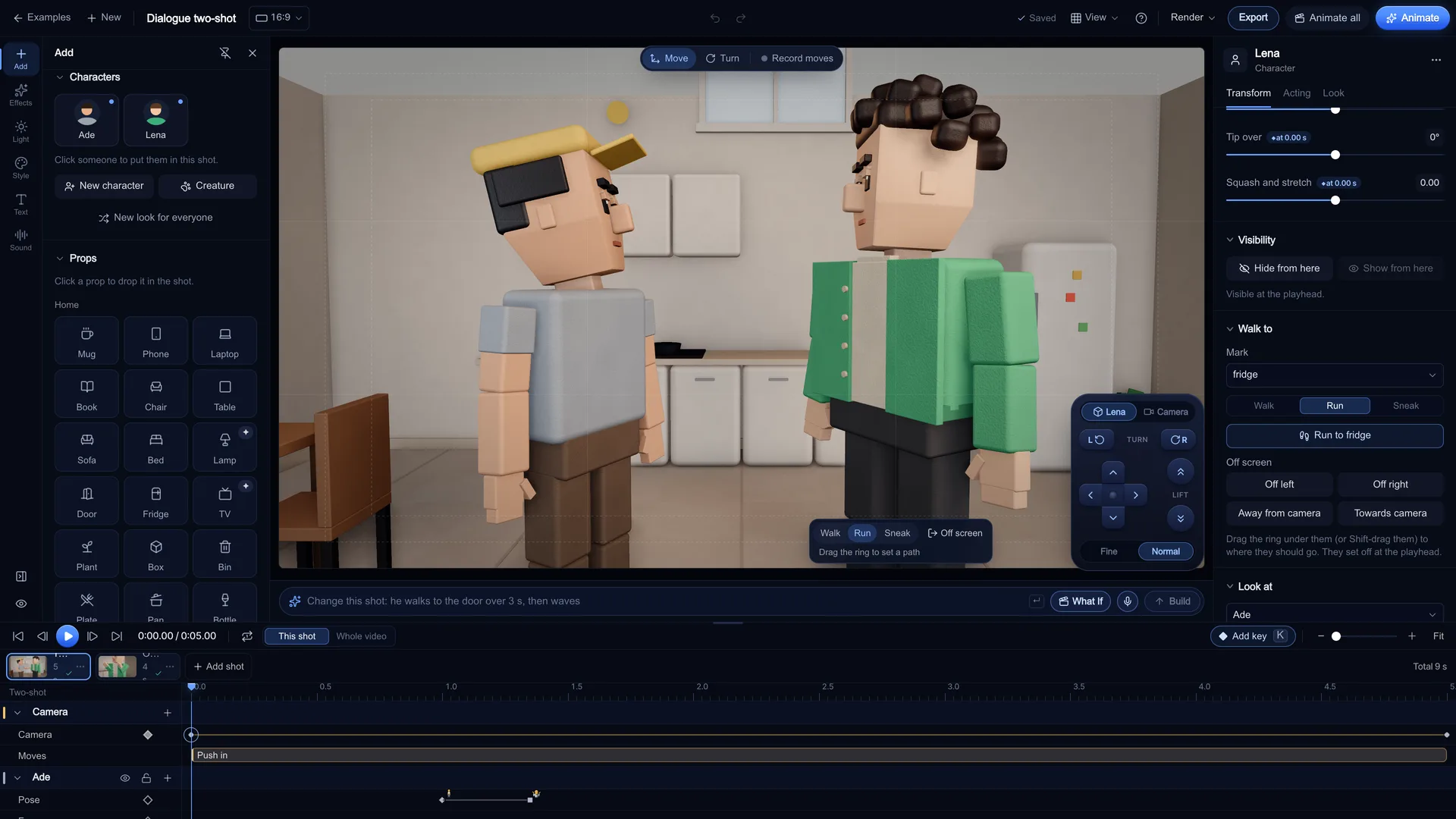
Put them on marks
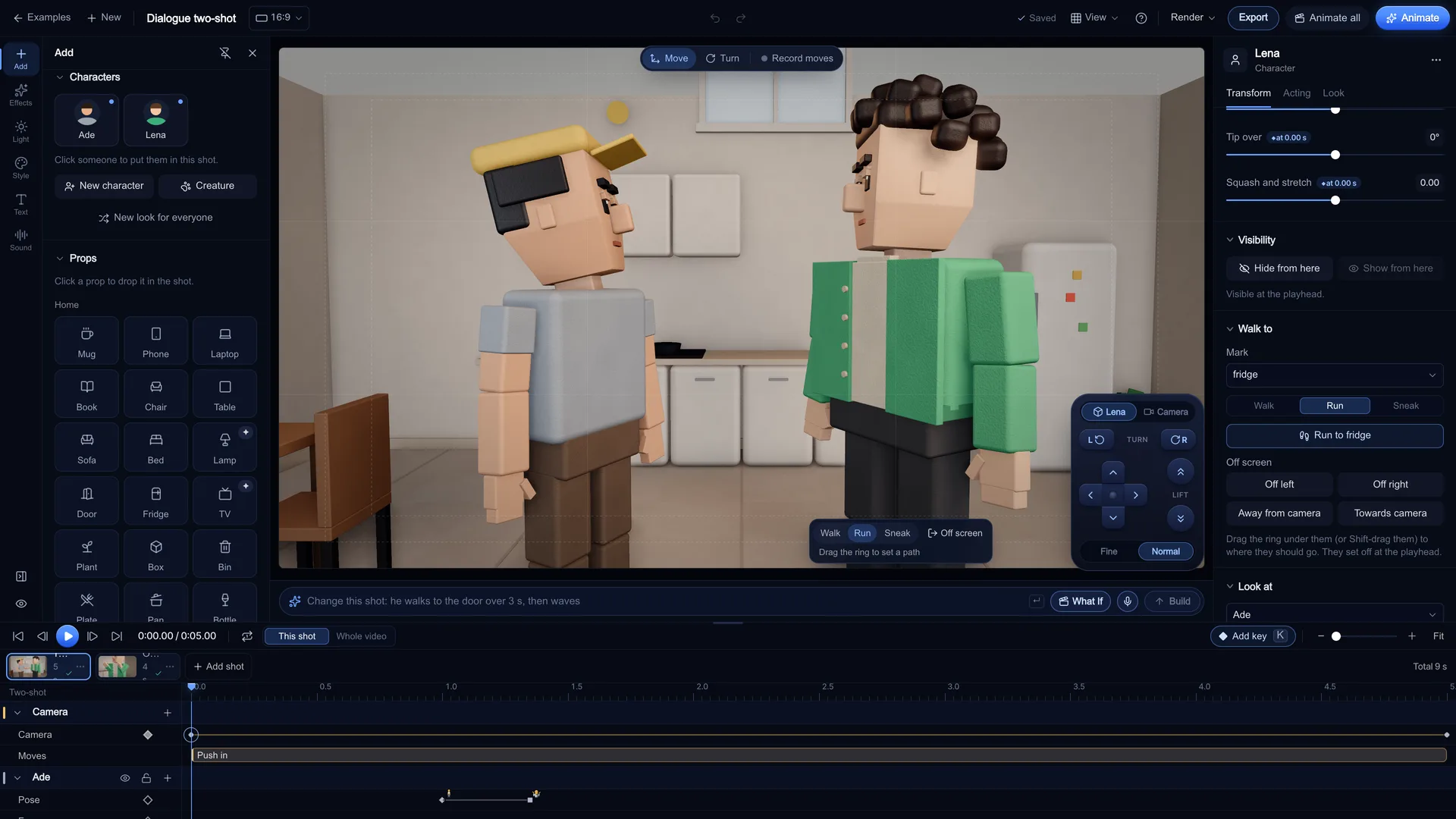
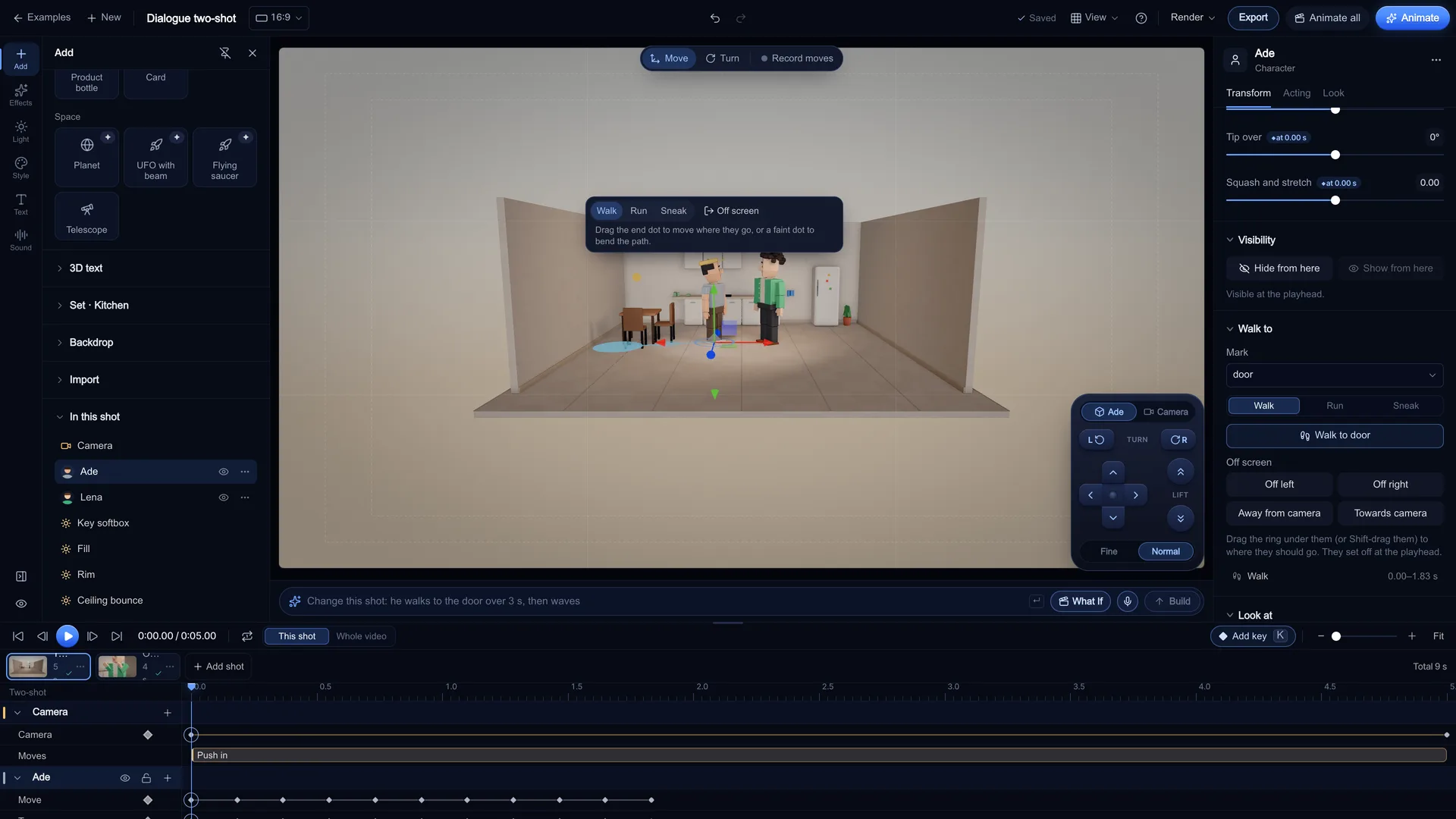
Every set has named staging marks. The kitchen has hero, hob, sink, fridge, tableA, tableB, door; the newsroom has hero, anchor, guest, screen. Select a character, open the Transform tab, choose a Mark under Walk to, or drag them in the view and type exact metres under Position. Use Turn to face them towards each other or the lens.
Screenshot of kreatorflow.ai, 2026-11-06 - 3
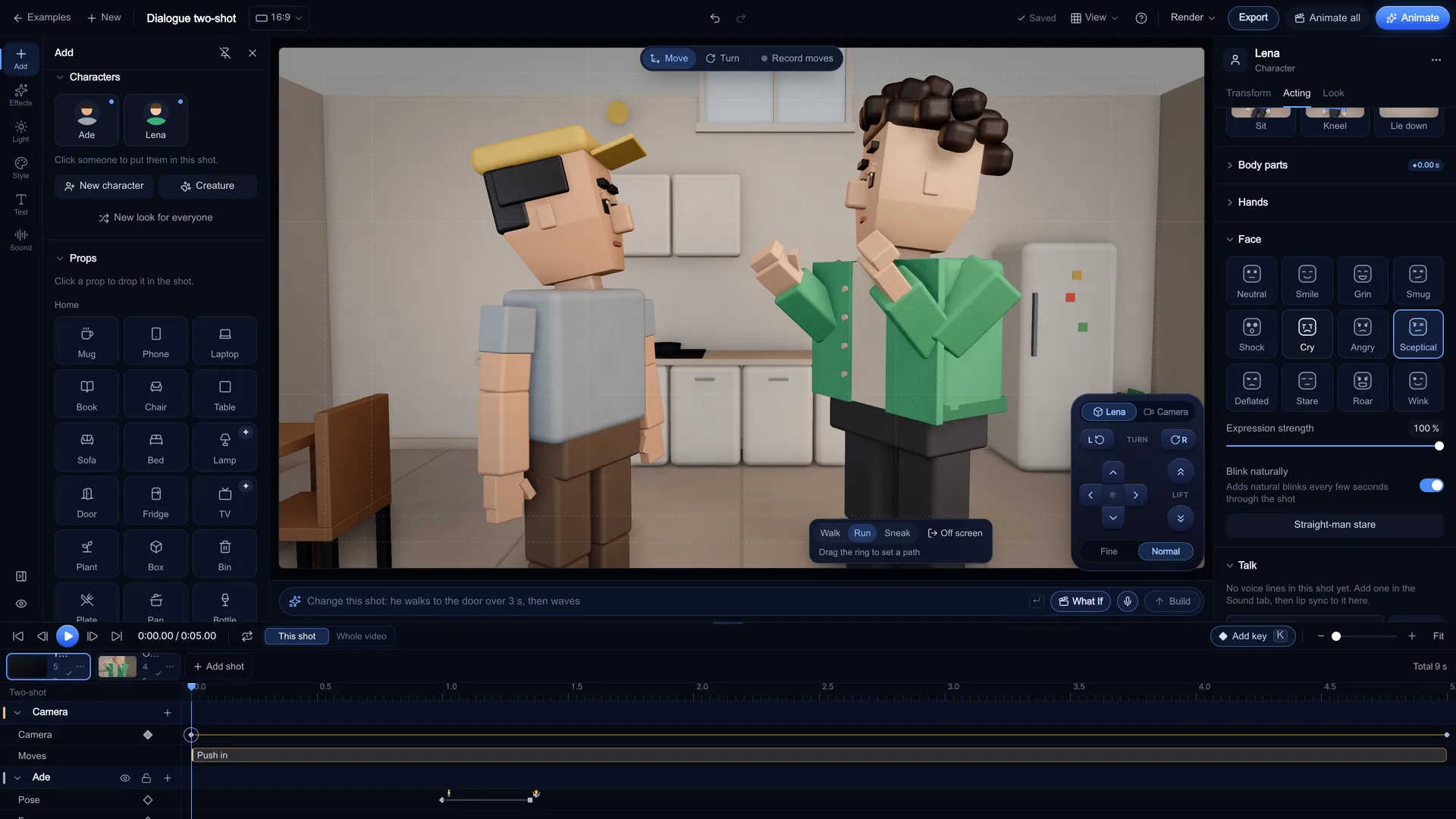
Key a pose and an expression
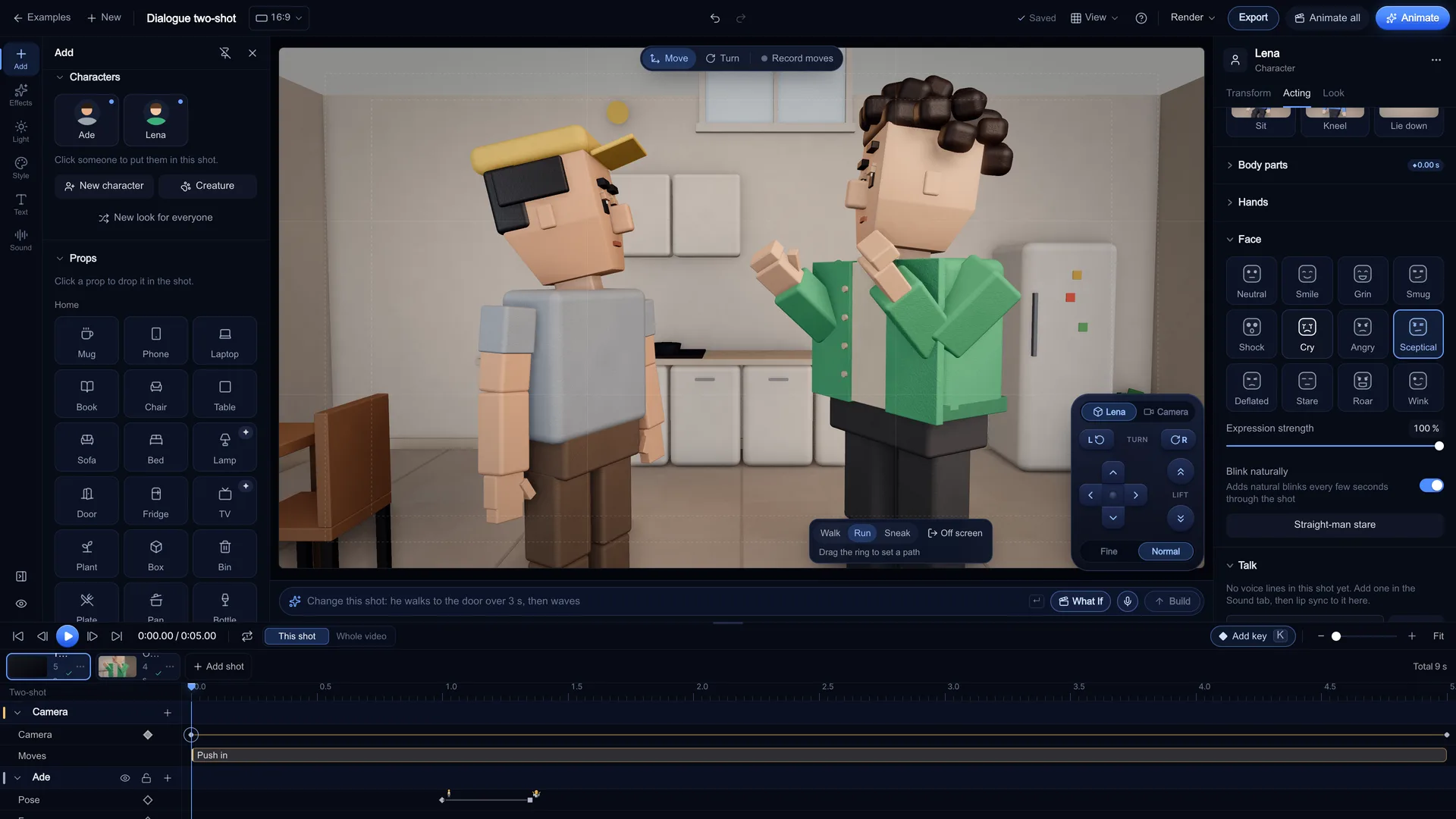
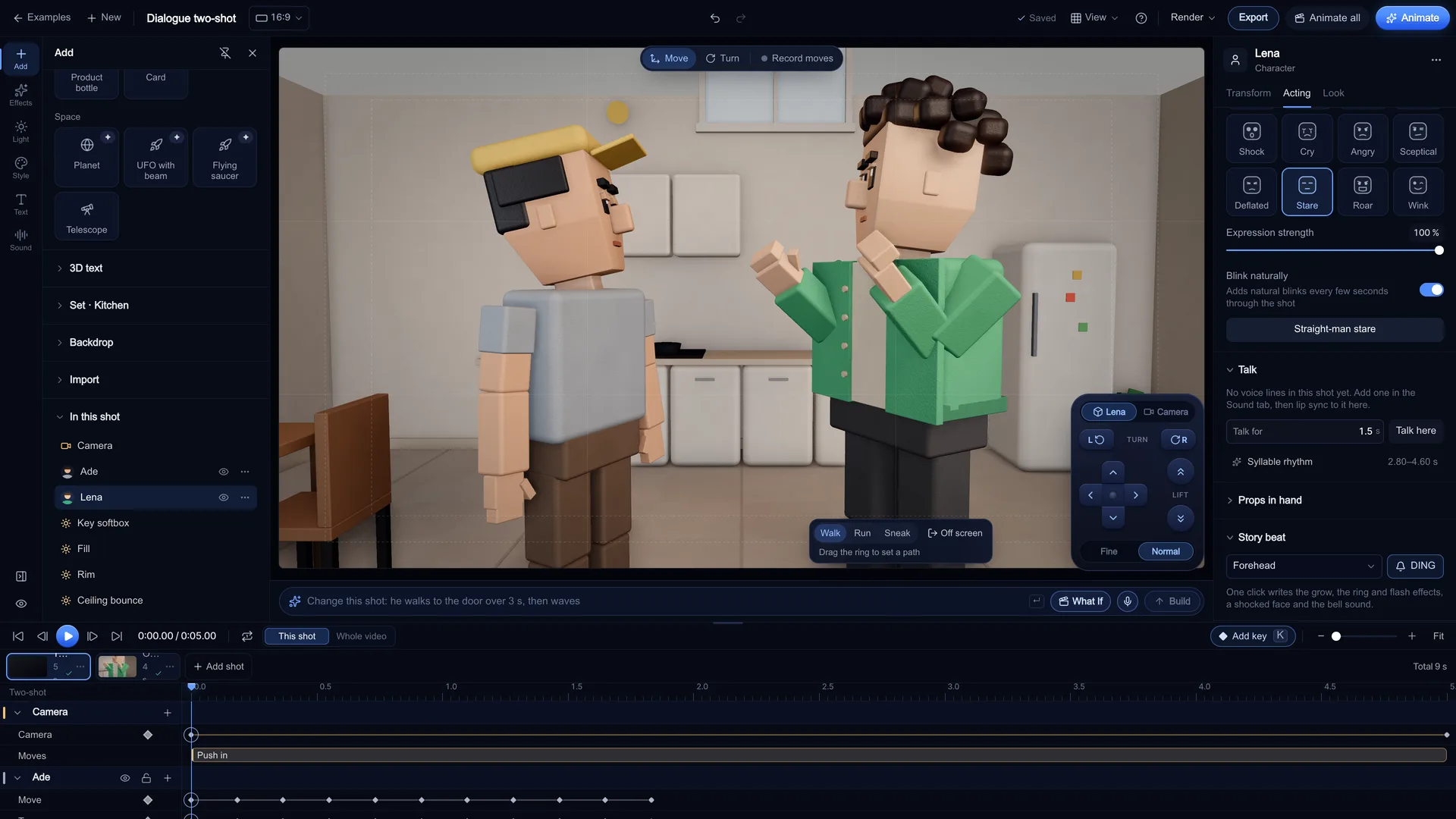
In the Acting tab, pick a pose tile (Stand, Point, Arms crossed, Shrug, Facepalm, Sit, Lean, On the phone and more). "Hold pose" keeps it until the next key; "Gesture and back" does it with a little anticipation, holds it and returns. Under Face, pick one of 12 expressions (Neutral, Smile, Grin, Smug, Shock, Cry and more) and set its strength. Turn on Record moves so each change writes a keyframe at the playhead.
Screenshot of kreatorflow.ai, 2026-11-06 - 4
Walk, run or sneak to a mark
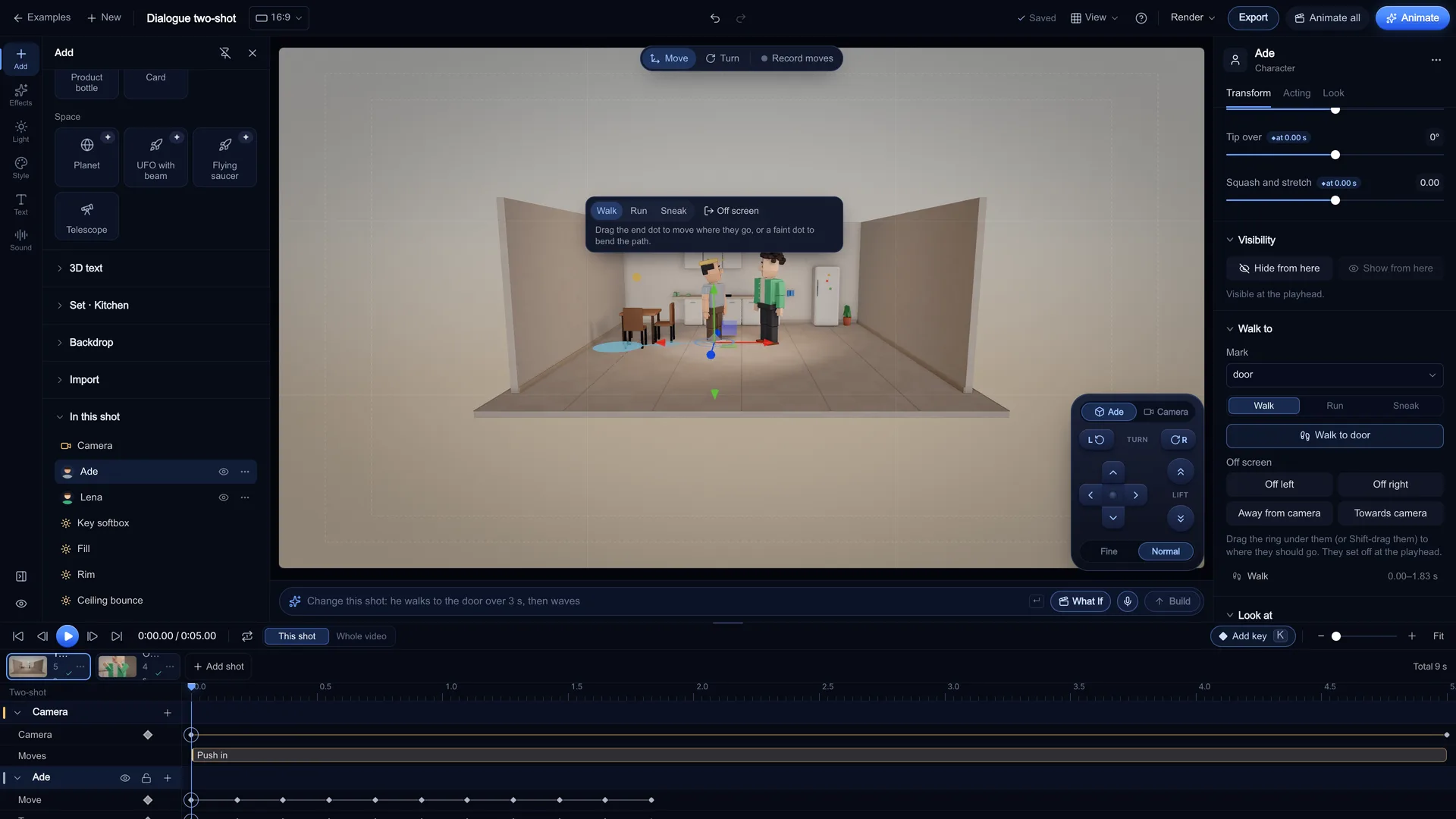
Move the playhead to where the move starts, pick the mark and the gait (Walk, Run or Sneak) and press the button, for example Walk to door. Or drag the ring under the character to where they should go, then drag the end dot or a faint dot to bend the path. The feet follow the path, so they never slide. Off screen sends them out left, right, away from or towards the camera.
Screenshot of kreatorflow.ai, 2026-11-06 - 5
Aim the eyes and hold the beat
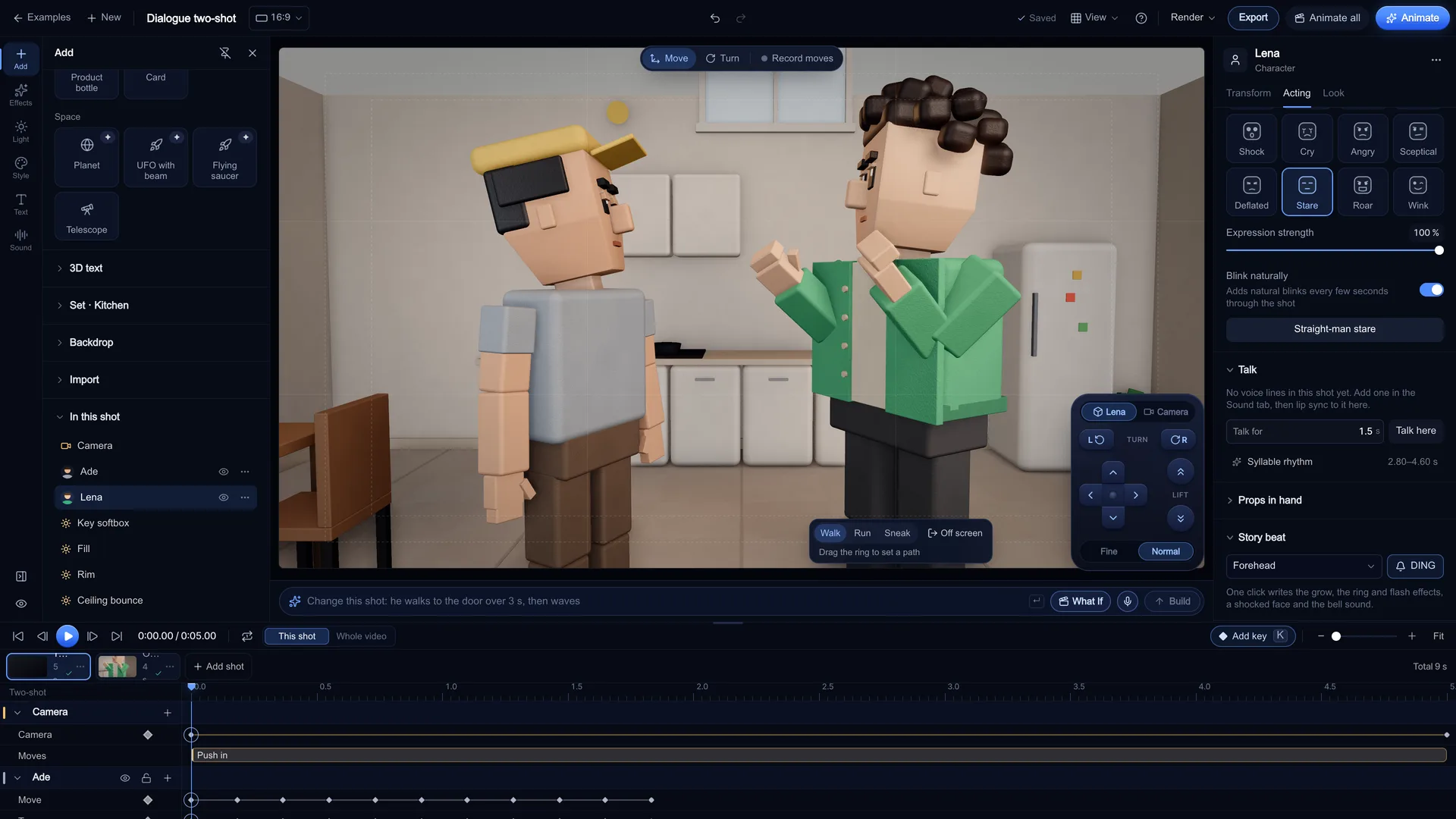
Under Look at, choose The camera or another character in the shot: the head turns to them from the playhead. Straight-man stare writes a held, unblinking stare for the reaction beat. Hold still here pins every animated value so nothing drifts after that point, which keeps the last frame clean for the video model.
Screenshot of kreatorflow.ai, 2026-11-06 - 6
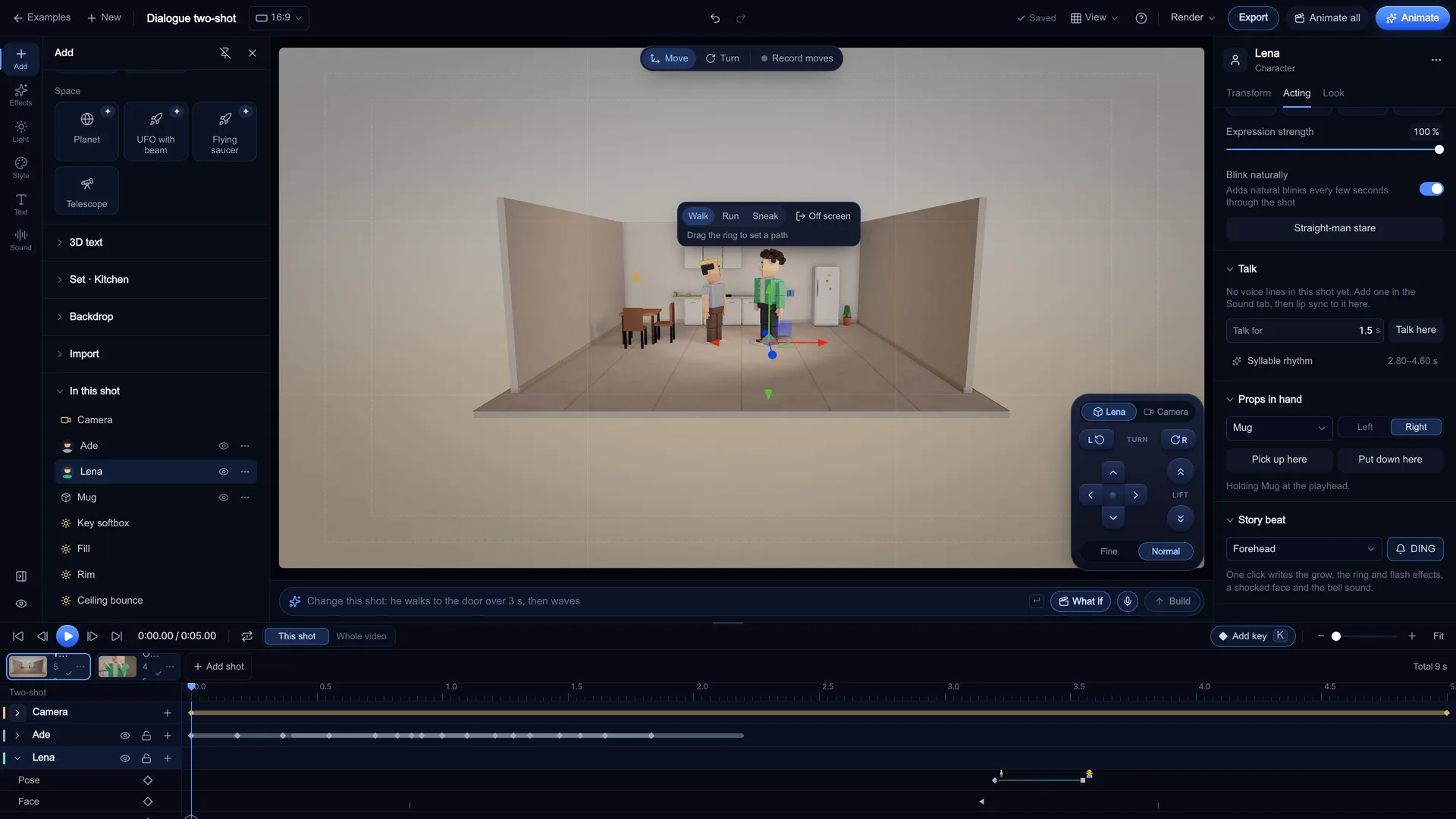
Put props in hands
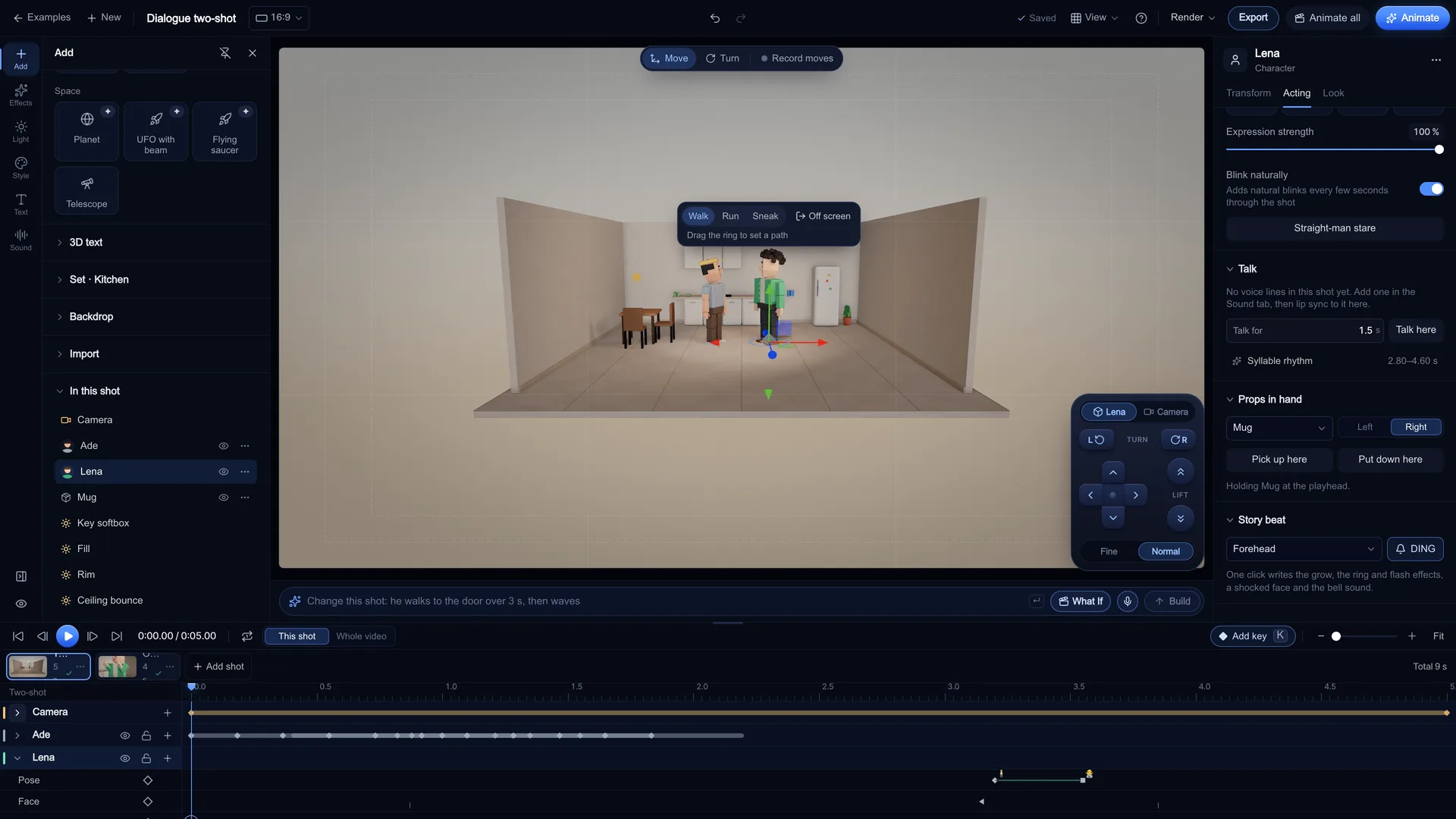
Add a prop from the Add tab (mug, phone, microphone, umbrella and more), then in the character's Acting tab under Props in hand, choose the prop and the hand and press Pick up here. Put down here drops it at the playhead. The pick-up and drop sit on the timeline like any other key.
Screenshot of kreatorflow.ai, 2026-11-06
Set up the stage first
Pick the place before the people. Stage has 21 built-in sets, from an empty stage and a studio to a kitchen, pub, street, newsroom, hallway and space. Each one has a seed, a version and a Dressing slider, and "Shuffle the set" gives you the same kind of place with a new layout.
Every set comes with named marks where a character can stand. Kiryu (Stage's text-to-scene assistant) uses the same marks, so "walk to the fridge" lands on the fridge mark. On a reverse shot, the wall behind the camera hides so it never blocks the view.
- Kitchen: hero, hob, sink, fridge, tableA, tableB, door
- Living room: hero, sofaL, sofaR, tv, door
- Office: hero, desk, visitor, door
- Street: hero, door, kerb, busStop, crossing
- Pub: hero, bar, stage, tableA, tableB
- Hallway: hero, doorA, doorB, end
Blocking a two-shot or an over-the-shoulder
For a conversation, put the two characters on facing marks (tableA and tableB in the kitchen or pub, anchor and guest in the newsroom), turn them a little towards the camera and set each one's Look at to the other. That keeps the eyelines matched when you cut between them.
Keep everyone on the same side of the line. If A is on the left in the wide shot, keep A on the left in the singles; in Stage that just means moving the camera, not the characters. Pointing and shh hands follow the camera-side rule, so check them again after you move to the reverse.
Give the listener something to do: a slow lean, a sceptic face, a held stare on the punchline. A static listener reads as a frozen frame once the video model takes over.
Crowds and creatures
Add creature puts an alien, a dog, a cat, a sheep or a pigeon in the shot. Creatures take positions, walks and look-ats like any character, which helps when the gag is the dog that won't stop staring.
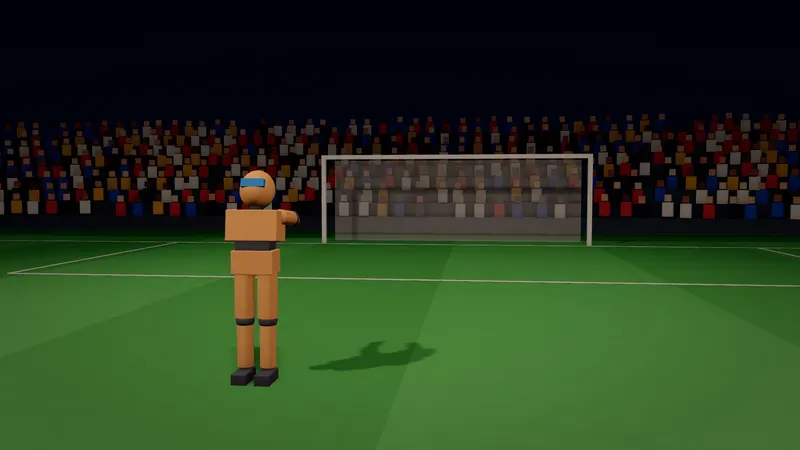
For background people, duplicate a character (row menu, Duplicate) and press Shuffle small details for variety, or use the Stadium set, whose stands are already full. Keep the background simple: the video model fills in detail, and fewer hero characters keep its attention on the action.
Why the blocking survives into the AI clip
Press Animate and Stage renders a clean start frame at the target shape, plus a motion brief written from your keyframes, camera and lights, which you can edit. Open in Video studio takes both to the Video studio, or Generate here makes the clip in Stage after showing the Estimated cost. The Seedance start frame is sent as the exact first frame, so the clip opens on your blocking.
Seedance uses your start frame only, so the first frame is exactly your blocking and the brief describes where everyone moves next.
Nothing is spent in Stage. A 5-second Seedance 2.0 clip costs 15 credits at 720p or 30 at 1080p, shown before you press Generate. KreatorFlow is an official partner of BytePlus, a ByteDance company.
A quick blocking checklist
Before you press Animate, scrub the shot once and check:
- Everyone who matters is on a mark and in frame on the first frame
- Faces are turned at least three-quarters to the camera
- Each walk ends before the shot does, followed by Hold still here
- Eyelines match: each speaker's Look at points at the other
- Props are in the right hand at the start (Holding … at the playhead)
- No one is hidden behind another character or a prop
Questions other guides skip
Why block in 3D at all if the AI model animates the shot anyway?
Because a video model reads positions from the first frame much more reliably than from words. "Two people talking in a kitchen" can put them anywhere; a start frame with one at the hob and one at the table, facing each other, fixes the geography, the eyelines and the screen direction before the model moves anything.
Which hand should a character point with?
The one nearest the camera. Stage applies this for you: one-finger shapes (point, shh) go on the camera-side hand, because the far hand pointing across the body can read as a different gesture on screen. In a two-shot or over-the-shoulder setup that means the pointing hand can swap when you cut to the reverse.
How long should a blocked shot be?
Stage shots run from 2 to 15 seconds. Video models make fixed lengths (Seedance 2.0: 4 to 15 seconds), and the Animate dialog snaps to the nearest one and tells you, so time your walks and holds to land a little before the end.
Frequently asked questions
Can I use my own character model?
Yes, as a .glb, .gltf or .vrm file up to 50 MB, imported as a character, a prop or a set. The file stays in your browser and is never uploaded. Humanoid rigs are driven by the pose tools and VRM expressions are mapped. Stage does not open .blend or FBX files, so export a GLB from your 3D app first.
How many characters fit in one shot?
Up to 12 characters and props per shot. A video can have many shots, each with its own cast and blocking.
Does the AI keep the same positions?
The first frame is exactly your blocking, because Stage sends it as the start frame. After that the model animates from your motion brief, so the closer the brief matches your walks and looks, the closer the clip follows them. Seedance takes the start frame only, so the brief carries the rest of the movement.
Is blocking in Stage free?
Yes. Planning, posing, walking, previews and the previs export are free and run in your browser, signed in or not. Credits are only used when you generate a video, after you see the cost.
Can I block on my phone?
No. The Stage editor needs a desktop or laptop screen; on a phone you can view the examples and send yourself the link.
What is the difference between blocking and staging?
Staging is the overall arrangement of the scene: the set, the props and where the camera sees it from. Blocking is the characters' part of it: their marks, facings and moves over time. In Stage, the Add tab and the set are the staging; the Transform and Acting tabs are the blocking.